
Show contents
Staff & shifts › Work out & pay salary
Pay salaries
- Who
- Owner · Manager with permission
- When
- Every month
- Where
- App · Web
What you get
- When you pay, the money going out is recorded in the books automatically. You don't enter a separate transaction.
- Add a bonus or deduction while paying, and the amount and reason stay in the payment record together.
- In the app, for monthly staff you choose separately which store bears the cost («Cost-bearing store») and which store's money pays («Paying store»).
What it solves
- If you pay salaries and write them in the books separately, it is easy to miss one or write it twice.
- If you choose the wrong account, the money is recorded as going out of another account, and that account's money won't match.
Why this way
- Nothing is paid the moment you press. In the app, tap «Open review» and then «Confirm & pay …»; on the website, click «Pay …» and then «Confirm».
- Can it be paid twice? Once paid, it becomes «Paid» and the «Pay» button does not show again.
- What if shifts change while the window is open? Nothing is paid. The app shows «Work records changed while this screen was open, so nothing was saved. The amount has been refreshed — please check it and pay again.», and the website shows «The amount changed, so it was recalculated. Check it and pay.» The amount is already reloaded: check it and pay again.
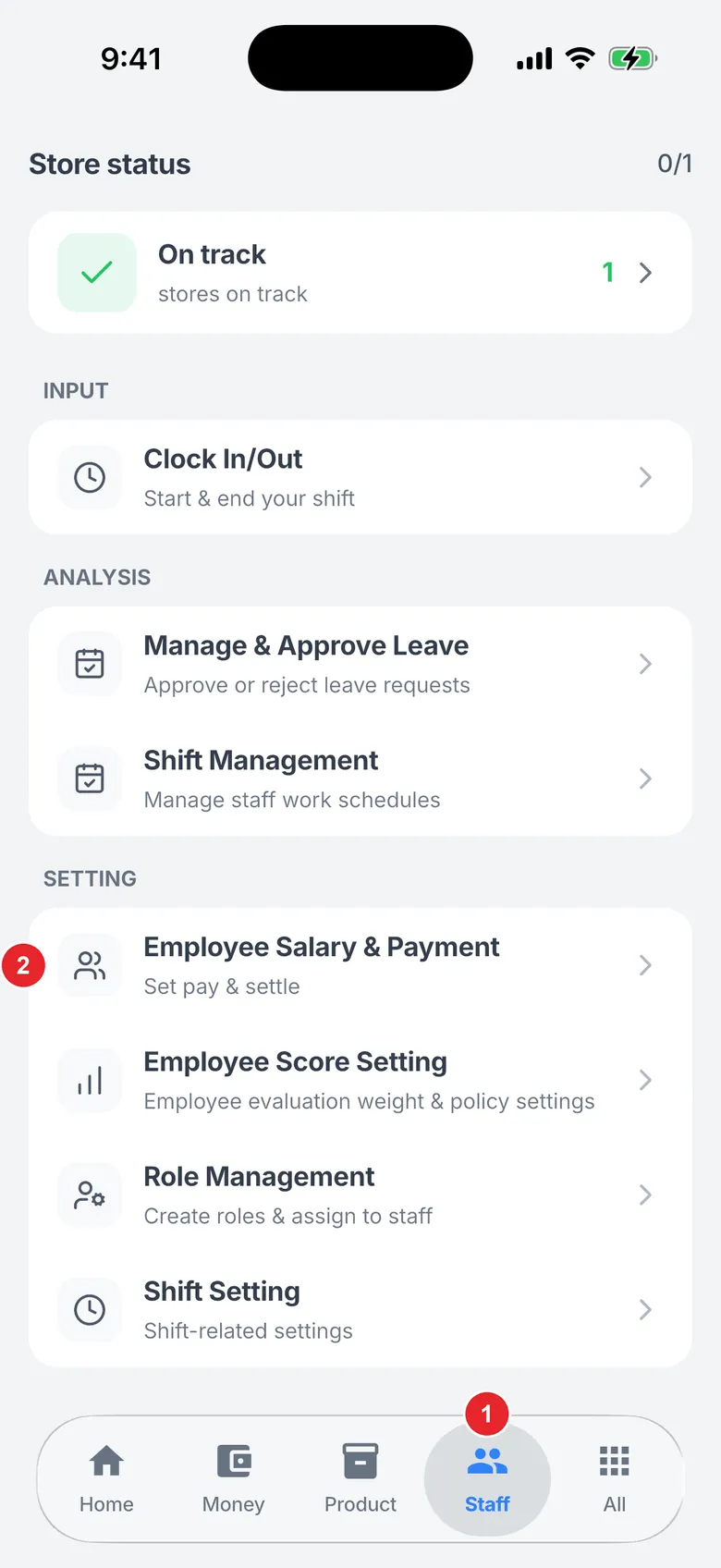
- Tap «Staff» at the bottom of the app.
- Scroll down and tap «Employee Salary & Payment».
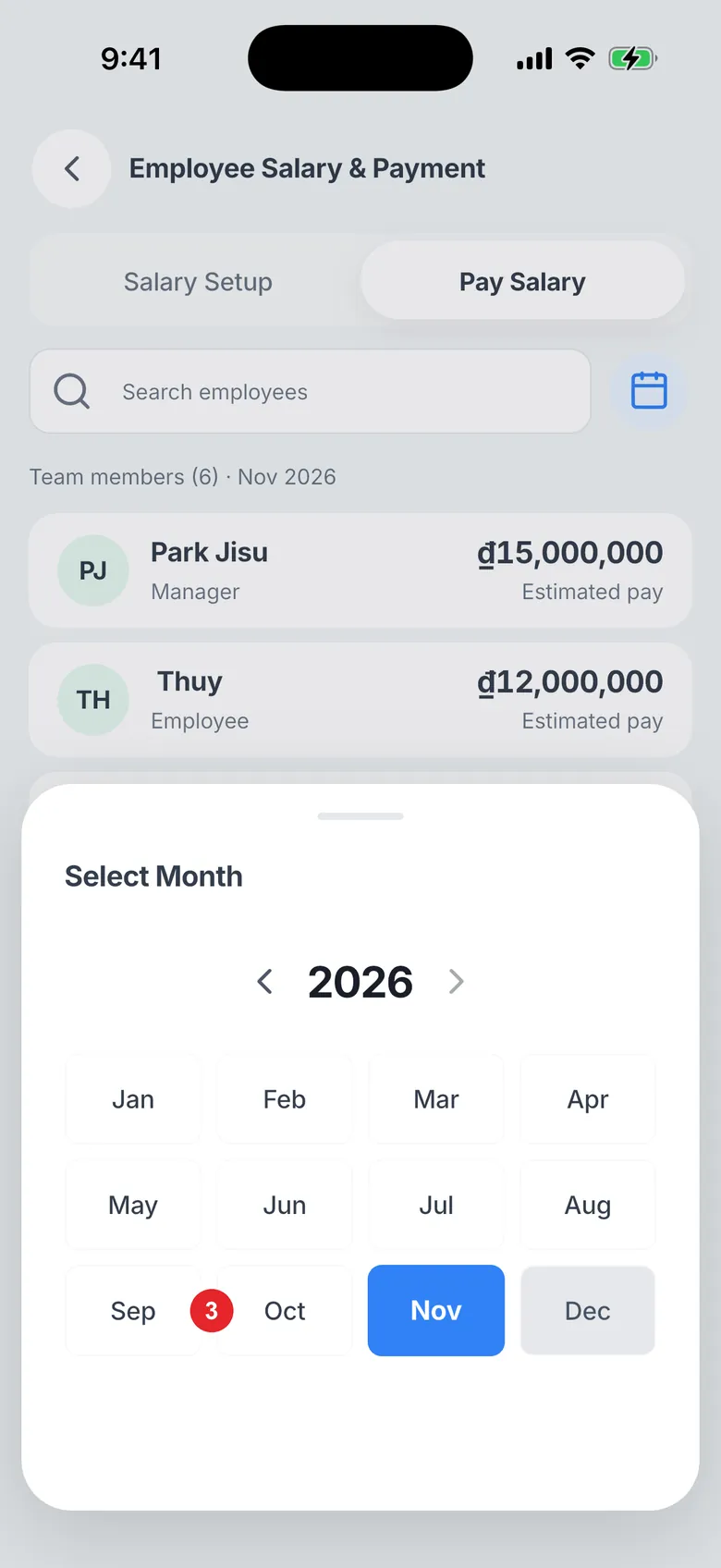
- Open the «Pay Salary» tab, tap the calendar button next to the search box and choose the month to pay.
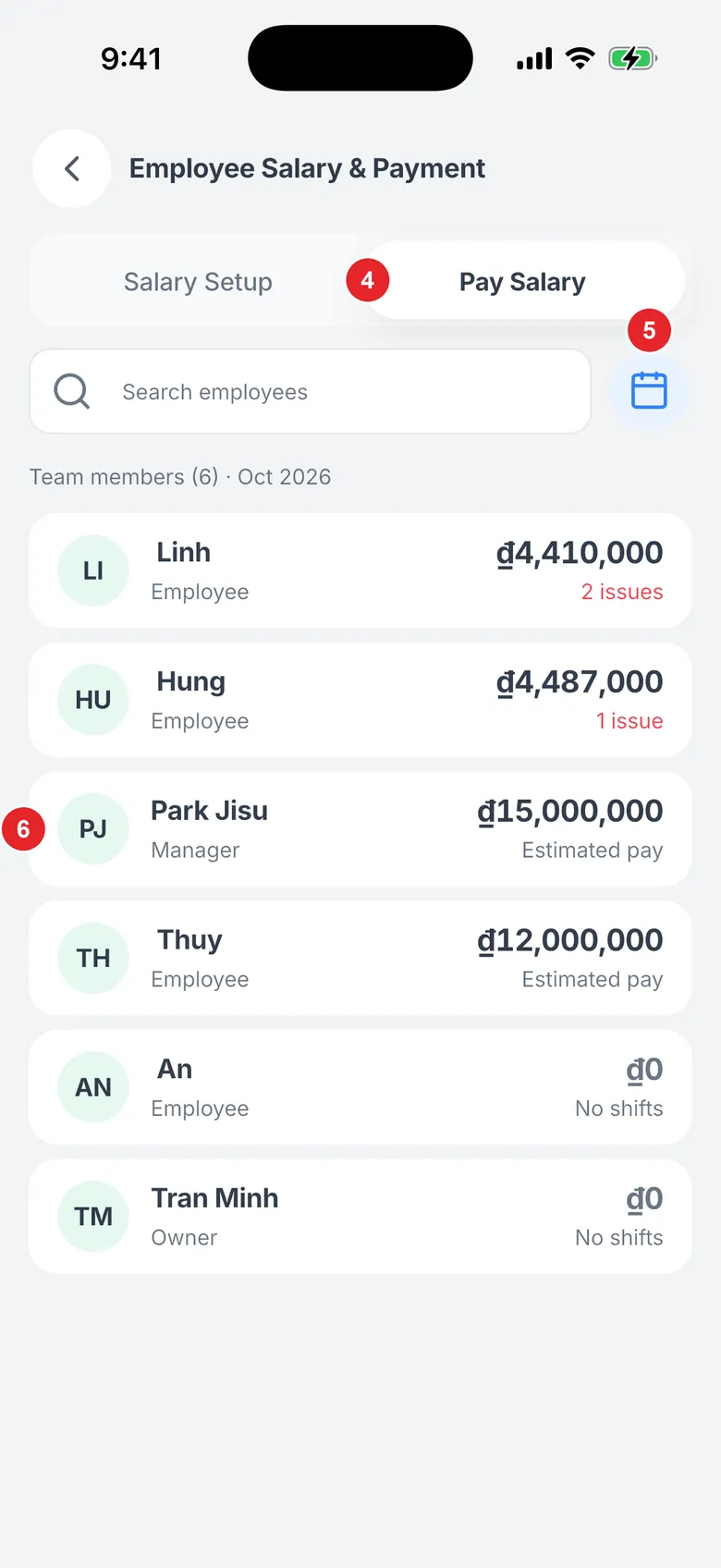
- Check that you are on the «Pay Salary» tab.
- To see another month, tap the calendar button again.
- Tap the staff member to pay.
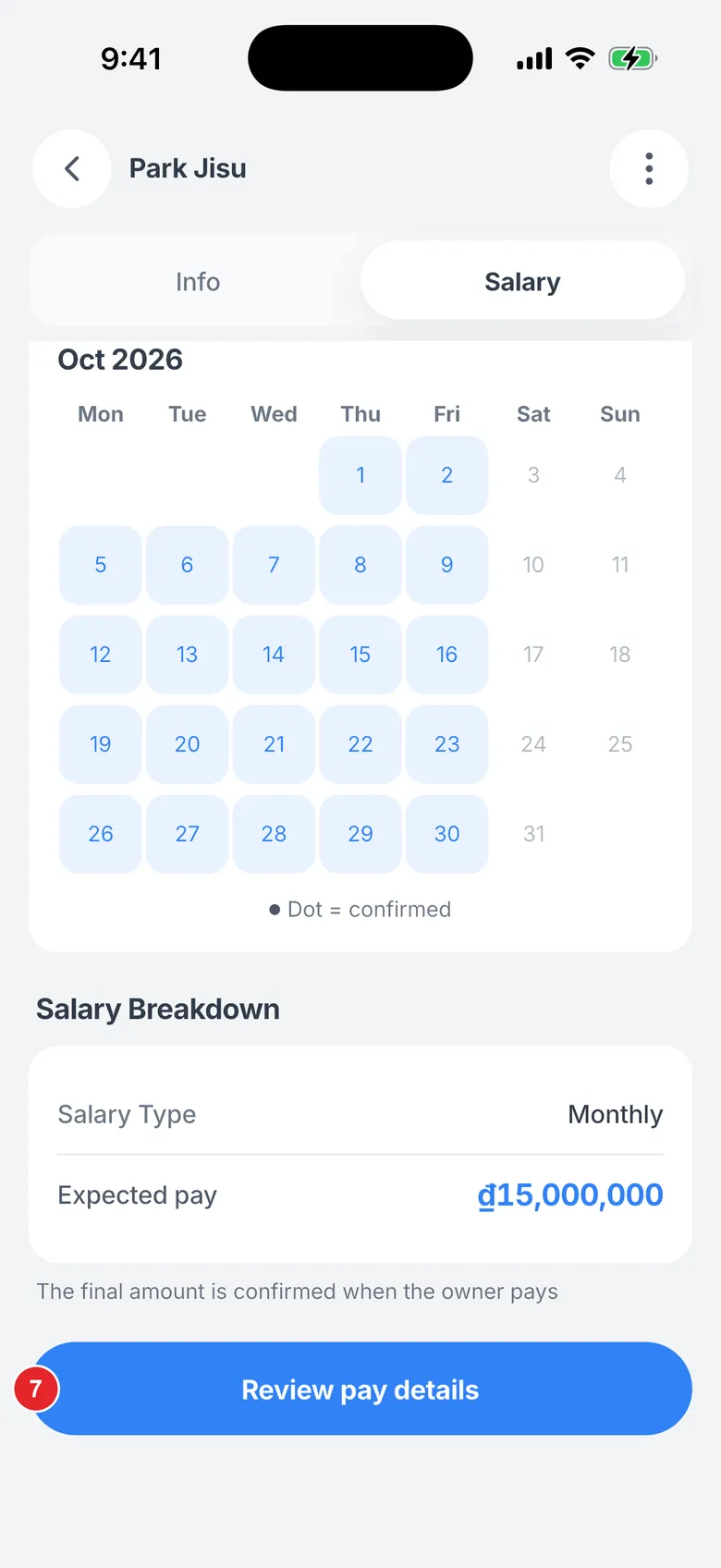
- Scroll down, check the amount and tap «Review pay details».
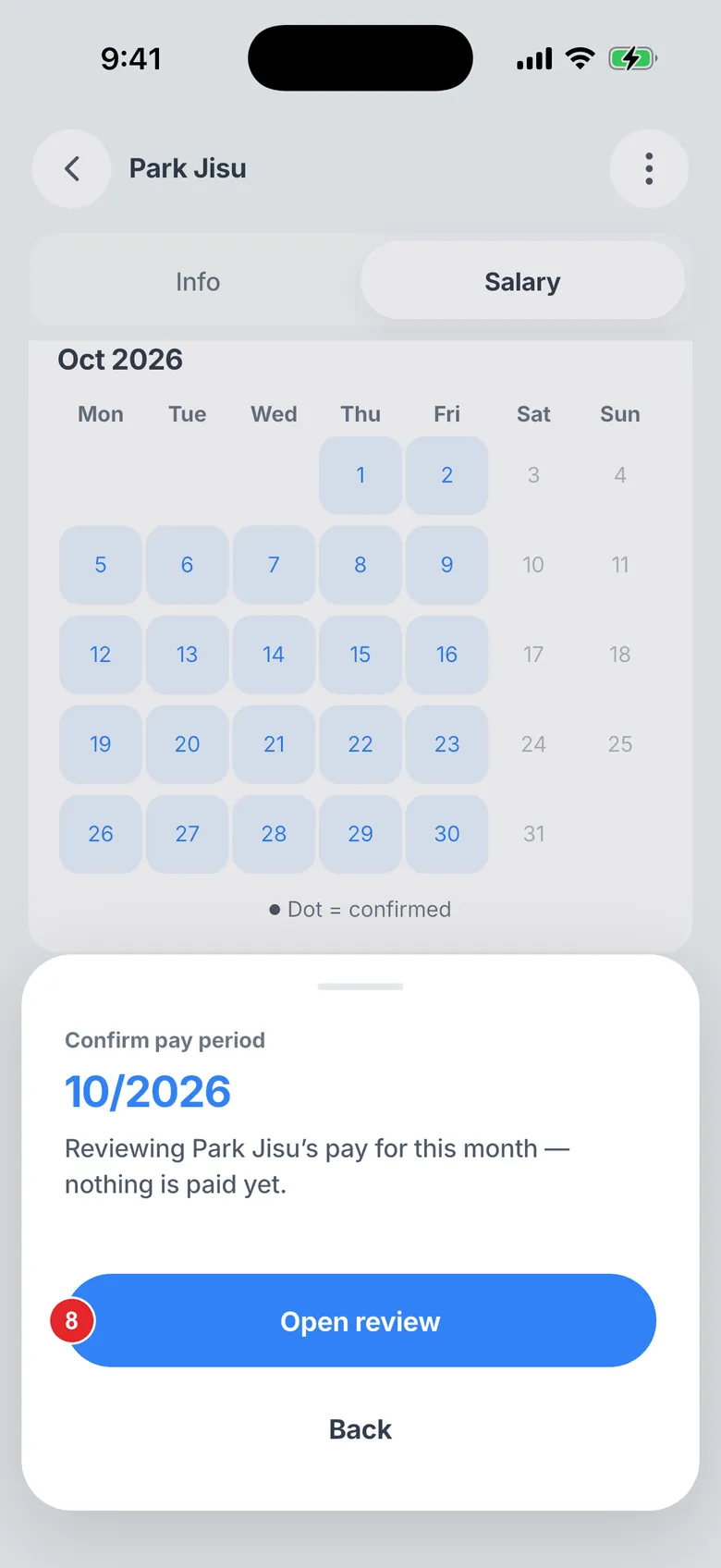
- In «Confirm pay period», check the month and tap «Open review». Nothing is paid yet.
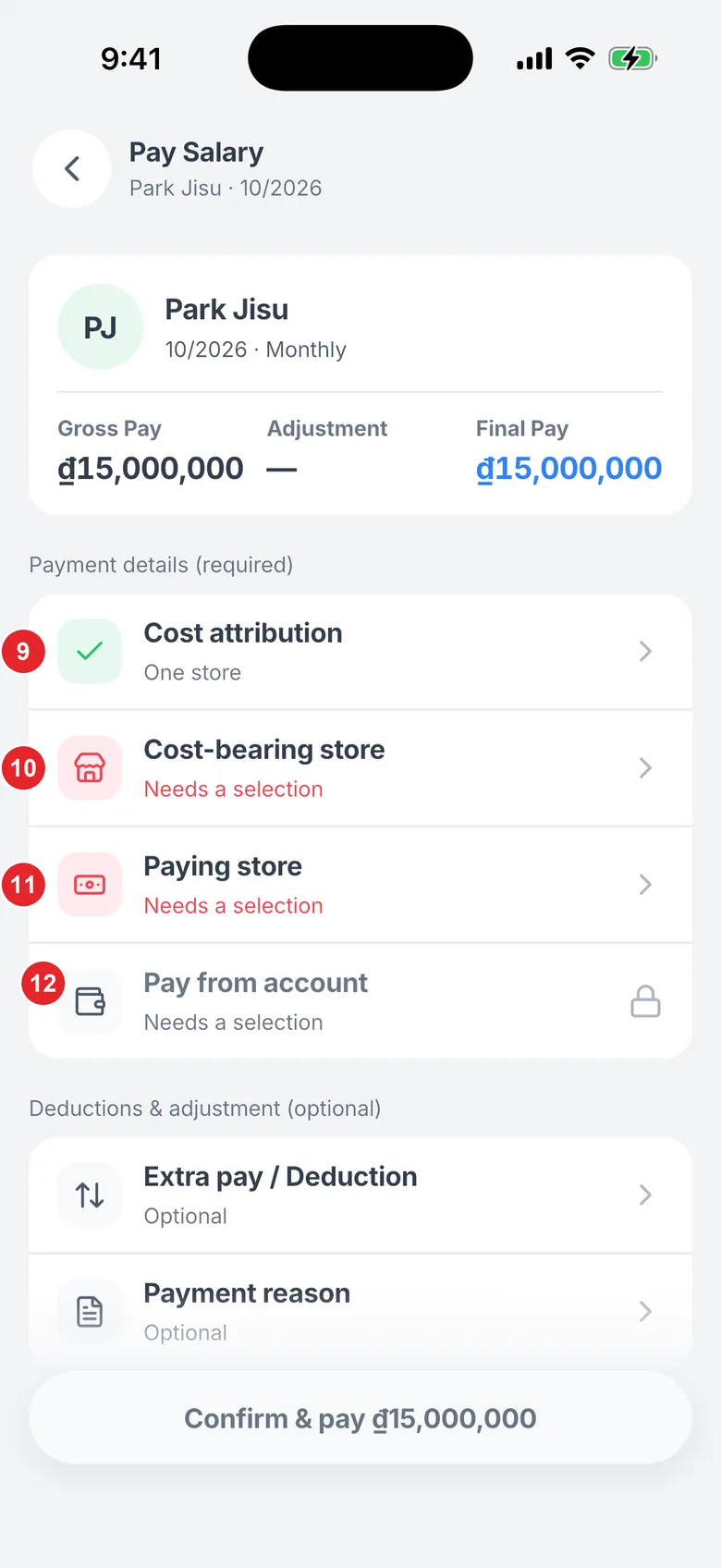
- For monthly staff, check «Cost attribution». At first it is set to «One store». Hourly staff have no rows for steps 9–10, so go on to step 11.
- Choose the «Cost-bearing store». This decides which store's costs this salary is booked under.
- Choose the «Paying store». This decides which store's money pays it.
- Choose «Pay from account». The money goes out of this account. It is locked until you choose the «Paying store».
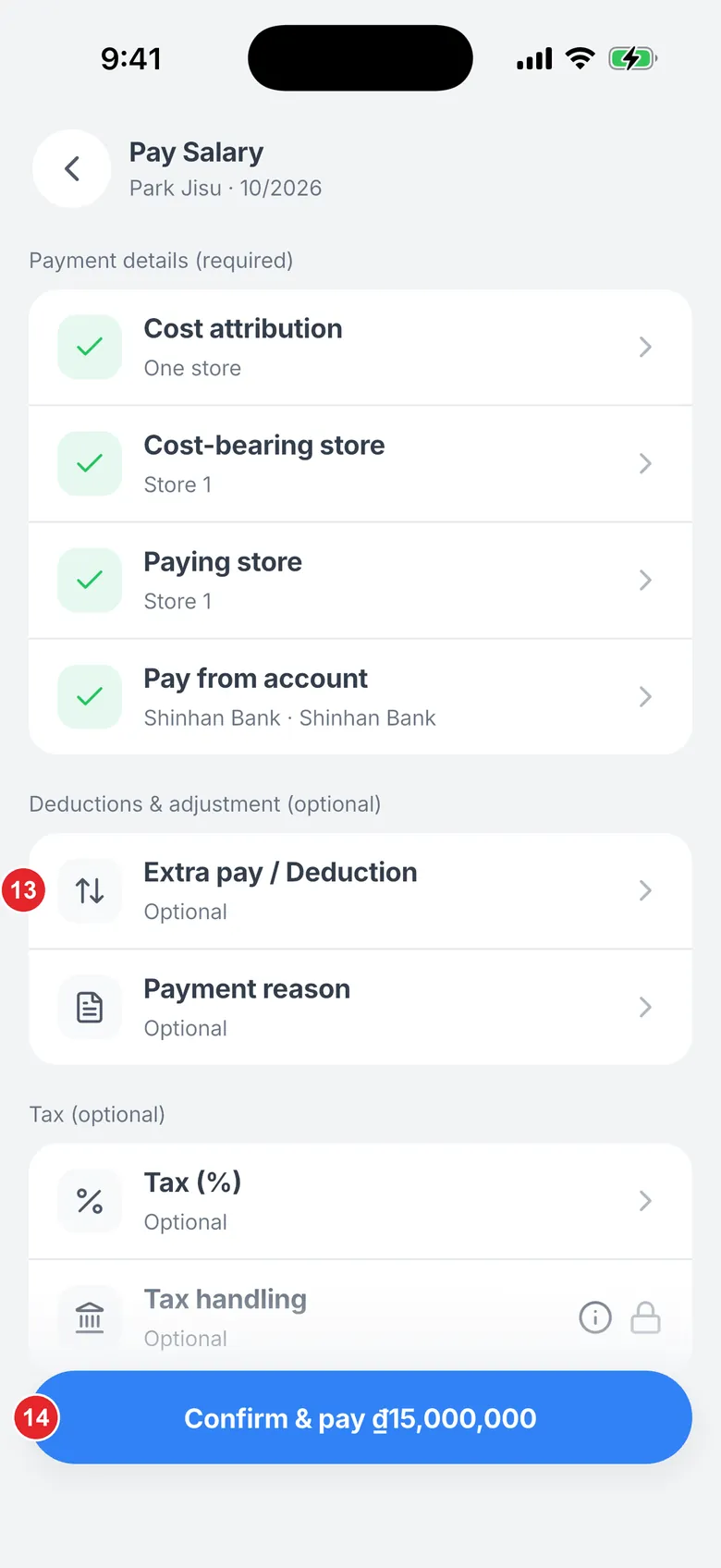
- If there is an amount to add or take off, tap «Extra pay / Deduction» and also write the «Payment reason».
- Check the amount and tap «Confirm & pay ₫15,000,000» at the very bottom (the button shows the amount).
Remember
- Always check where the money goes out from. On the website, «PAYMENT FROM» has one account already chosen; in the app, you choose «Pay from account» after you choose «Paying store».
- When you pay, the money going out is recorded in the books right then. Don't enter the transaction again.