
Show contents
Staff & shifts › Work out & pay salary
The salary is not what I expected
- Who
- Owner
- When
- Month end
- Where
- App · Web
What you get
- Find why the amount is different by checking one by one in this order: «N problems» → lateness → hourly rate → bonus · deduction.
- Look at each shift's hours and whether it is confirmed (on the website, «All shifts» in «Salary Details») to see which shift changed the amount.
- You fix it before paying, so you don't have to cancel the payment and pay again («I made a wrong payment»).
What it solves
- The salary comes out different from what you expected. If you pay without knowing why, the wrong amount goes out as it is.
- Monthly staff get the set salary even when they are absent. If you pay without knowing this, you pay for the absent days too.
Why this way
- Pay is worked out from the hours and rate saved on each shift. So you find the reason by looking at shifts one by one, not just at the «Hourly Rate» column.
- Why did the amount I saw last time change? When you change the late rule, shifts whose paid hours were not set are worked out again with the new rule («I changed the late rule and past shift pay changed too»).
- Does a monthly staff member's salary drop by itself when they are absent? No. Add a deduction when paying, or tap «Apply (-amount)» in the app's «Leave & attendance deduction».
- If «Pay» shows for a month before they started work, should I pay it? No. Monthly staff show the full salary for that month too, but don't pay for a month they didn't work.
At the bottom of the app, go to «Staff» → «Employee Salary & Payment» → the «Pay Salary» tab, choose the month and tap the staff member.
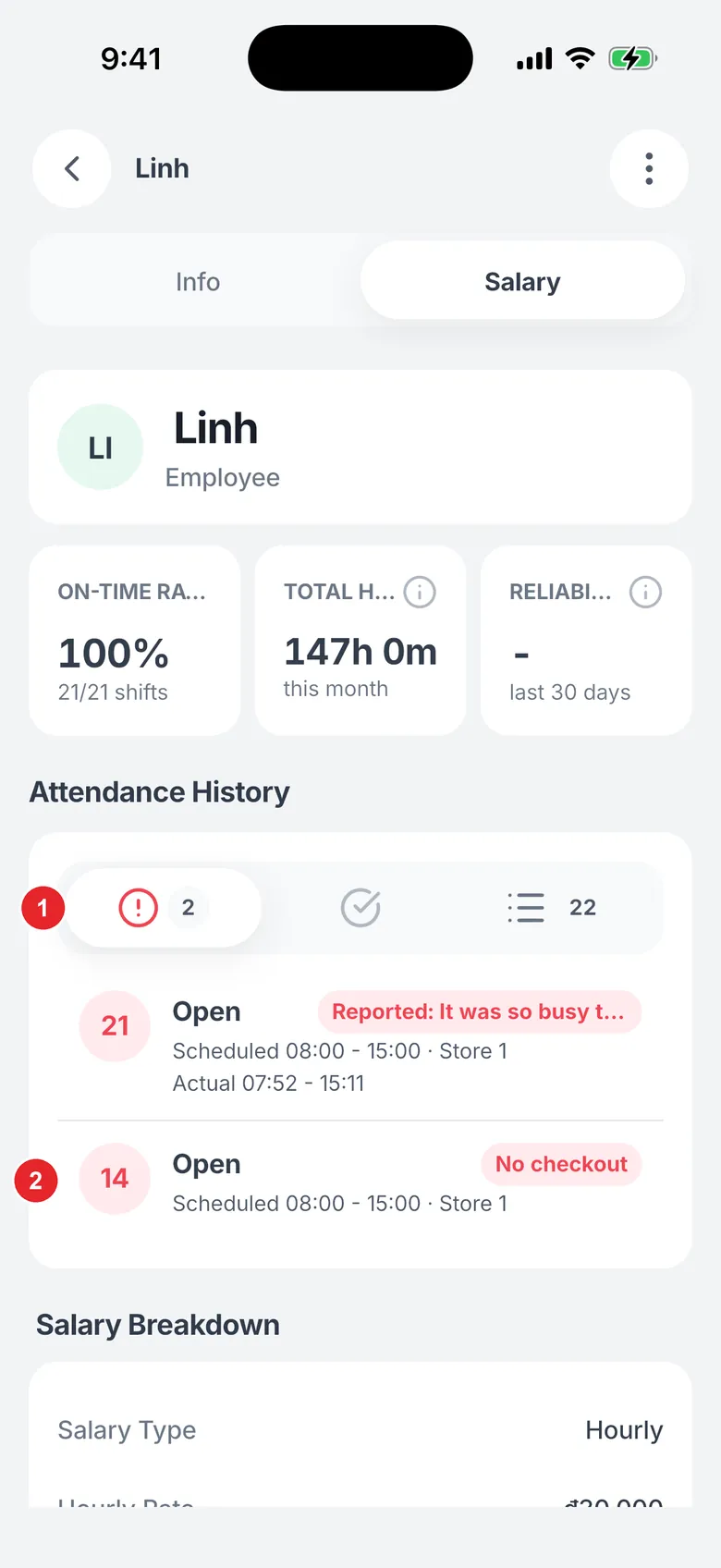
- If the box with the exclamation mark (!) in «Attendance History» shows a number, some shifts are not settled yet.
- Settle shifts with a red mark, like «No checkout», in «Shift Management».
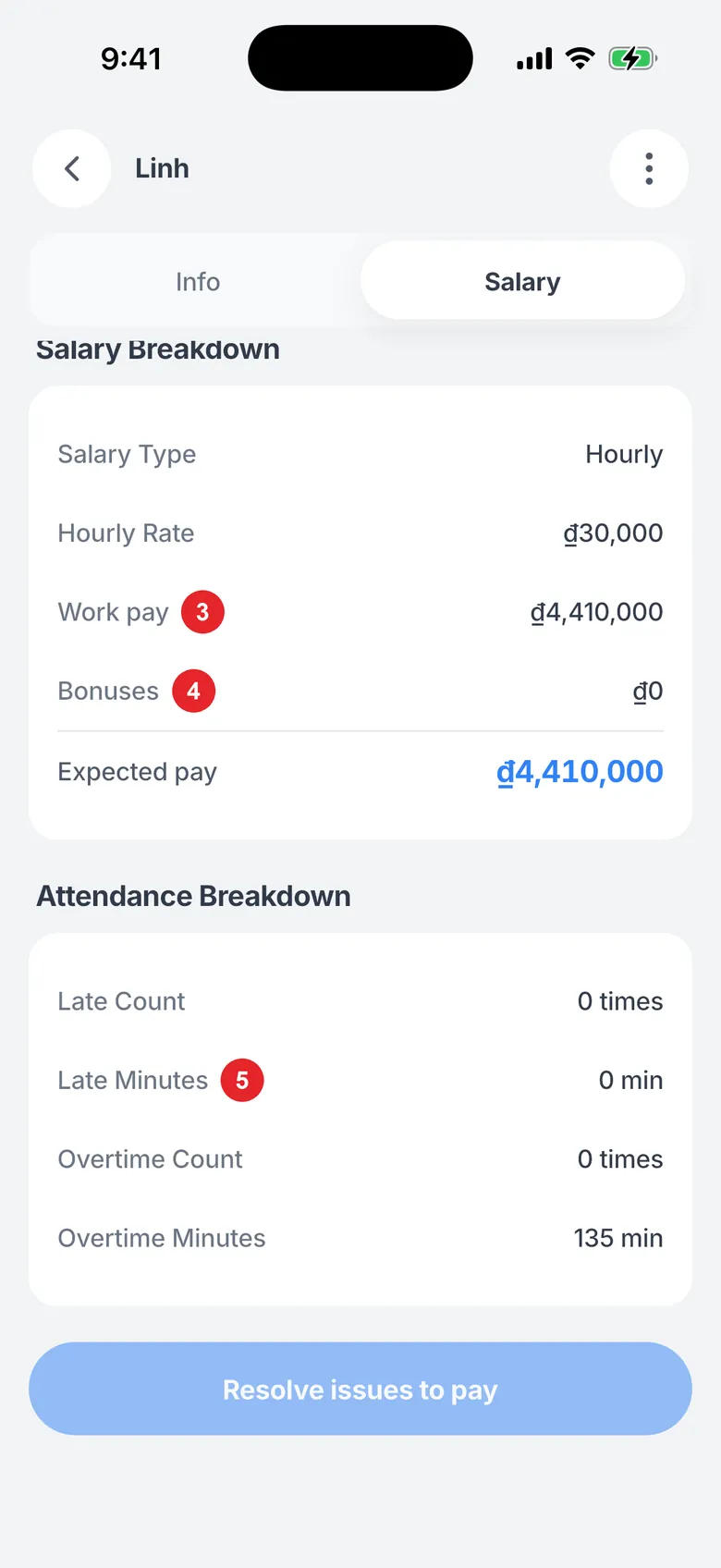
- Scroll down and look at «Work pay». It is the amount added up from the rate saved on each shift.
- «Bonuses» is the total of the bonuses added to each shift.
- Look at «Late Minutes» in «Attendance Breakdown».
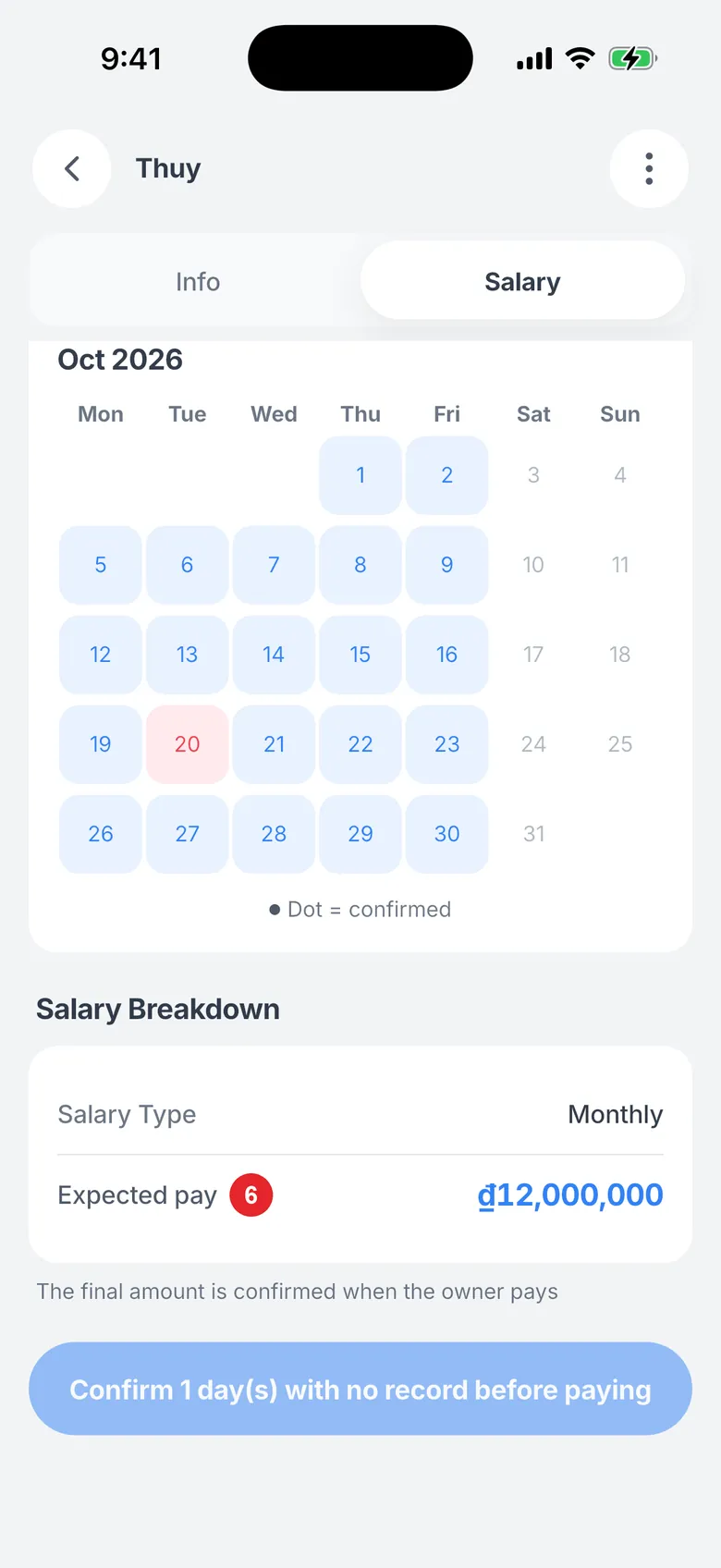
- For monthly staff, «Expected pay» is the set monthly salary. The final amount is decided when paying.
Why it works this way
Pay is worked out from the hours and rate saved on each shift. Unsettled shifts, lateness, and bonuses · deductions added to shifts change the amount.
Check in this order
- Problems: if there are «N problems», there are unsettled shifts. A shift with no clock-out does not go into pay until it is settled.
- Lateness: late shifts lose time according to the store's late rule.
- Hourly rate: the «Hourly Rate» column is the current rate. «Work pay» is worked out from the rate saved on each shift, so it can differ from the hours multiplied by the «Hourly Rate». Also check for shifts saved at ₫0.
- Bonus · deduction: bonuses and deductions added to shifts go into «Final Pay».
- Monthly staff: the set salary comes out as it is. Even confirmed absences don't reduce it by themselves. To reduce it, add a deduction when paying, or tap «Apply (-amount)» in «Leave & attendance deduction» on the app's pay screen. Months before they started work also show the full salary with «Pay». The app's «Leave & attendance deduction» takes off days before hiring · after leaving as «Days outside employment».