
Show contents
Staff & shifts › Work out & pay salary
Set up staff bank accounts
- Who
- Owner · Staff
- When
- When someone joins
- Where
- App · Web
What you get
- The staff member's bank · account number · account holder show under «PAY TO» in the website's «Salary payment» window. You don't have to ask the staff member each time you send money.
- Staff can enter it themselves in «My Page» › «Edit Profile», so you don't have to write it down for them.
What it solves
- If you keep accounts in notes or chat apps, you have to search for them each time you send money, and they are easy to copy wrong.
Why this way
- Whether you or the staff member enters it, it is the same information. If the account changes, fix it in one place only.
- Does the app send money to staff? No. «Pay» only records it in the books; you send the money from the bank, looking at «PAY TO».
- Who sees the account details? They show on the pay screen. The pay screen opens only with the «Employee Salary & Payment» permission.
At the bottom of the app, go to «Staff» → «Employee Salary & Payment» → the «Salary Setup» tab and tap the staff member.
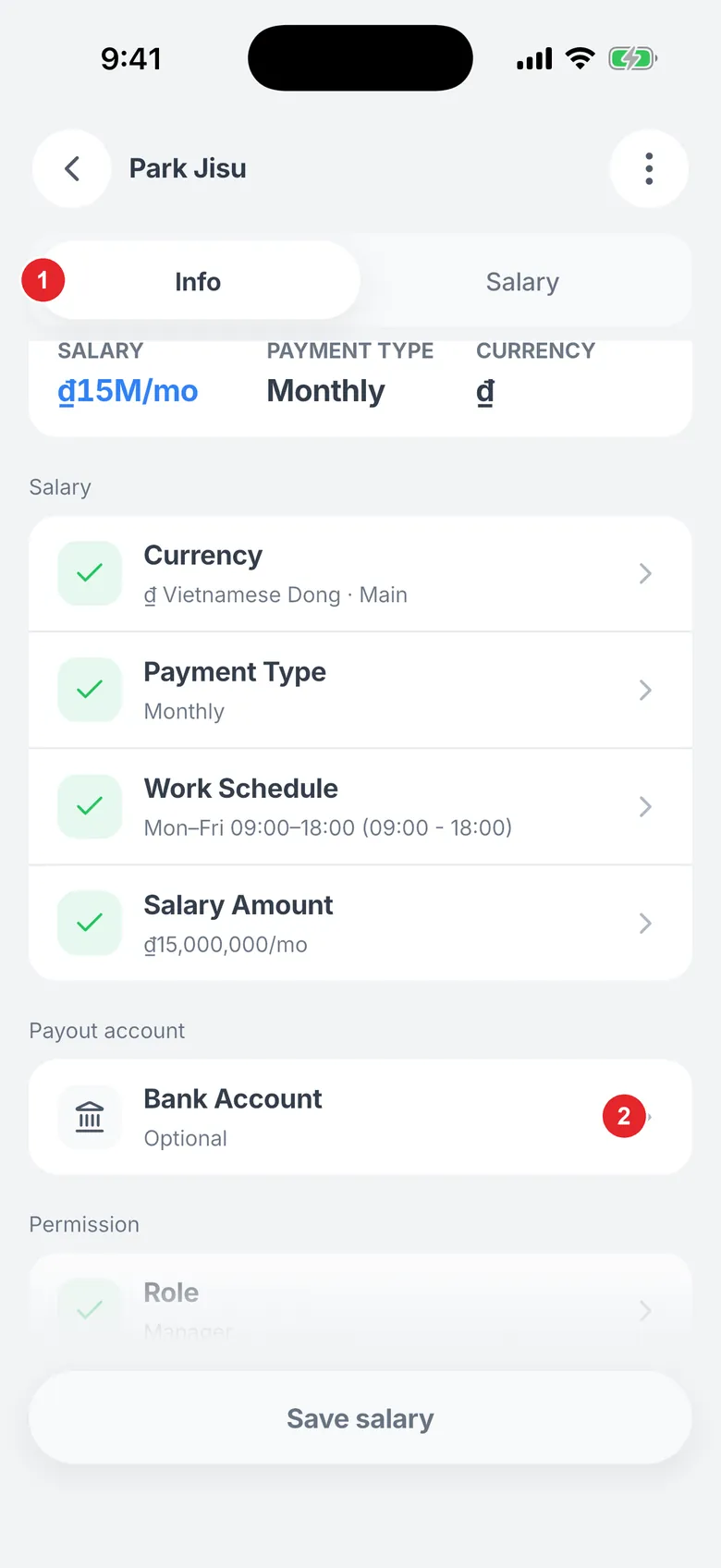
- Open the «Info» tab.
- Scroll down and tap «Bank Account» under «Payout account».
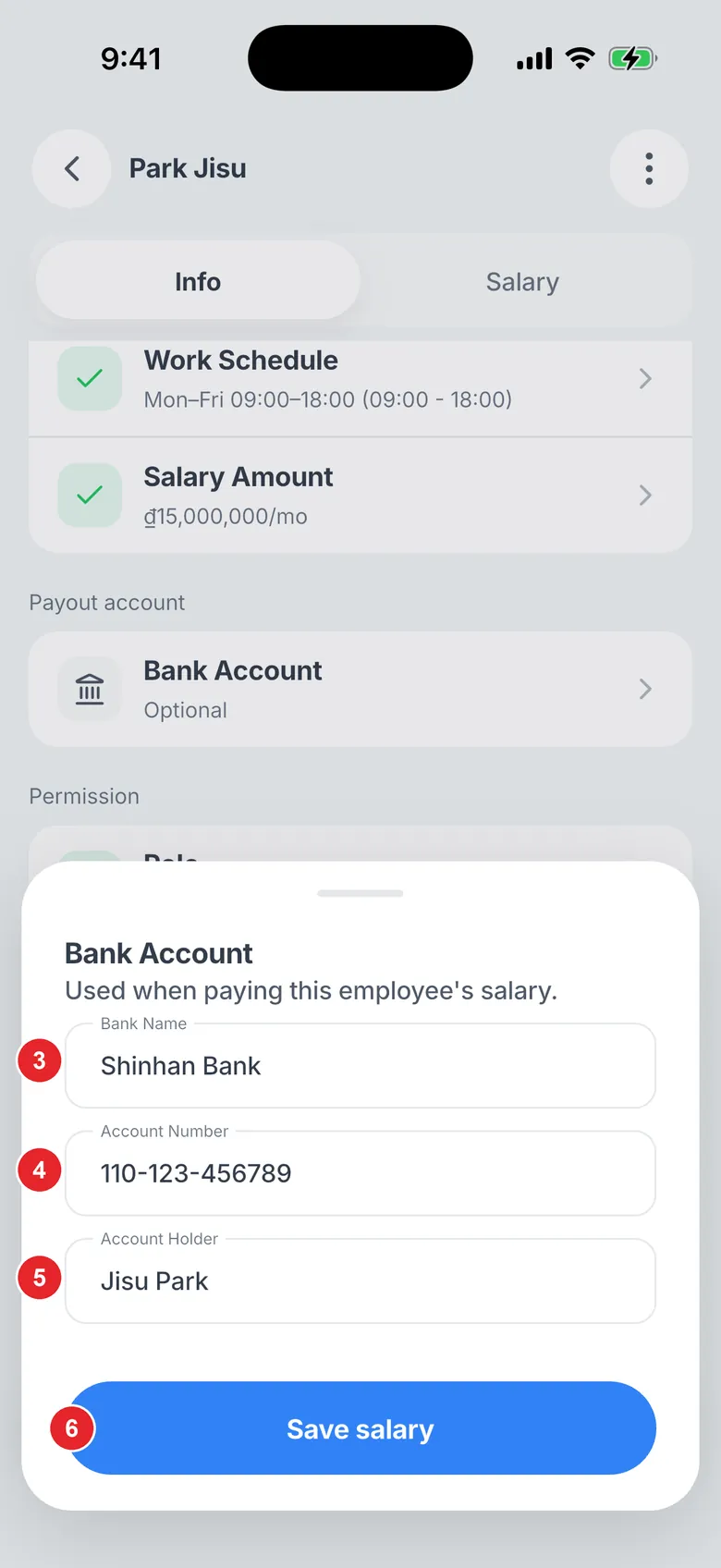
- Enter the «Bank Name».
- Enter the «Account Number».
- Enter the «Account Holder».
- Tap «Save salary». The window closes and the account shows on the screen.
- Tap «Save salary» at the very bottom of the screen once more. This is what saves it. If you leave without tapping it, the account does not change.
Enter the bank · account number · account holder where the staff member gets their salary. This information shows under «PAY TO» in the website's «Salary payment» window.
Remember
- You can enter it in the app, or the staff member can enter it themselves in «My Page» › «Edit Profile». It is the same information.
- «Pay» only records it in the books. You send the actual money from your bank.