
Show contents
Staff & shifts › Hourly staff
A staff member didn't come in
- Who
- Manager
- When
- When someone doesn't come in
- Where
- App · Web
What you get
- The website's «Did not work — no pay» ends the shift at ₫0 but keeps the record. Later you can see when they were missing.
- Whether it was the staff member's reason or the store's is kept too. The record shows «Cancelled (penalty)» or «Cancelled (excused)».
What it solves
- «A staff member didn't come in.» The website shows «Absent», but the app's «Schedule» still shows «Approved», so it is easy to miss.
- An absence you have not settled stays a «Problem» and blocks paying that staff member's salary.
Why this way
- Does money go out to staff who didn't come? No. While there is no clock-in or clock-out record, that shift has no pay.
- What about a day off I gave for the store's reasons? On the website, choose «Manager Decision»; in the app, «No, this employee will not get penalty». It is saved as «Cancelled (excused)», so you can tell it apart from the staff member's own reasons.
- What if I took them off by mistake? When its approval is canceled, the shift goes back to being a request. Approve it again as in «Approve shift requests».
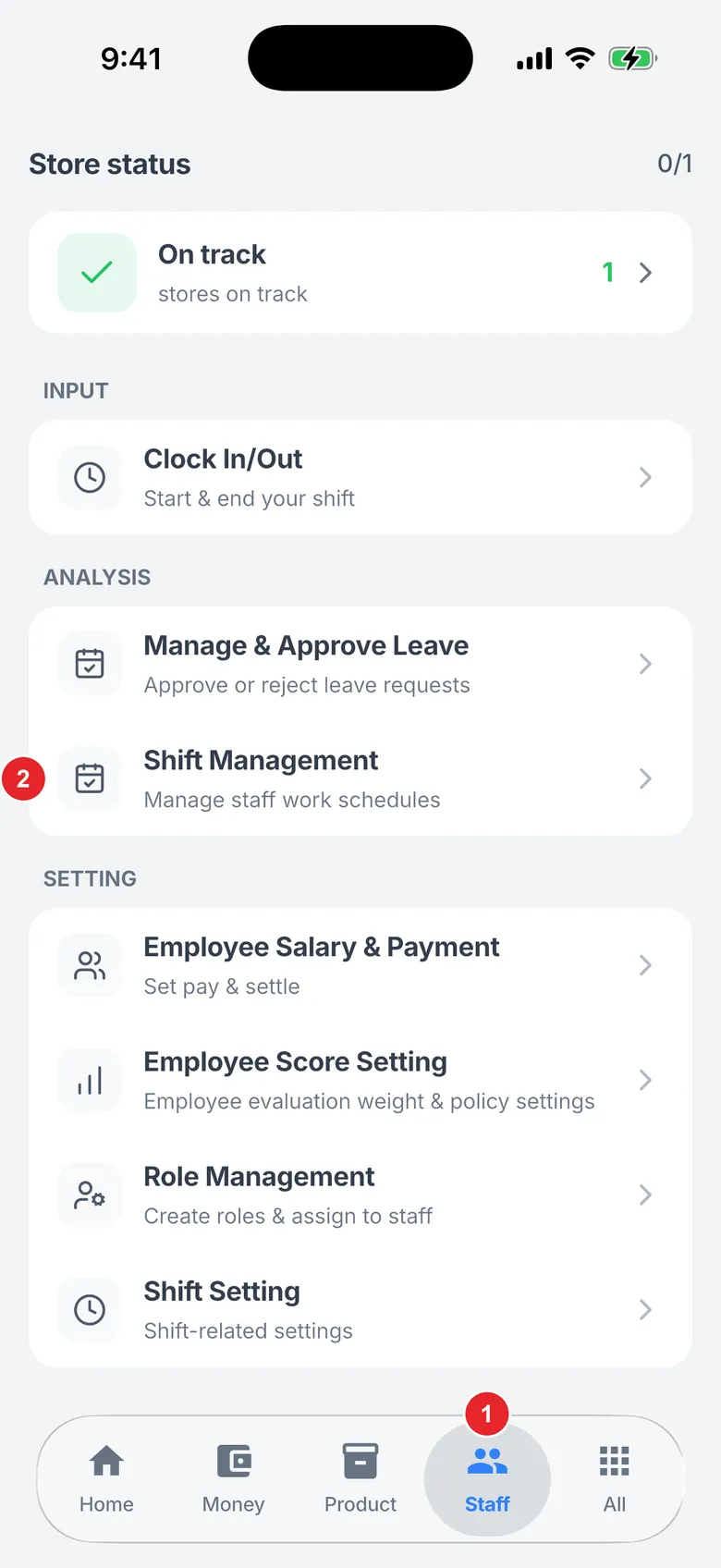
- Tap «Staff» at the bottom of the app.
- Scroll down and tap «Shift Management».
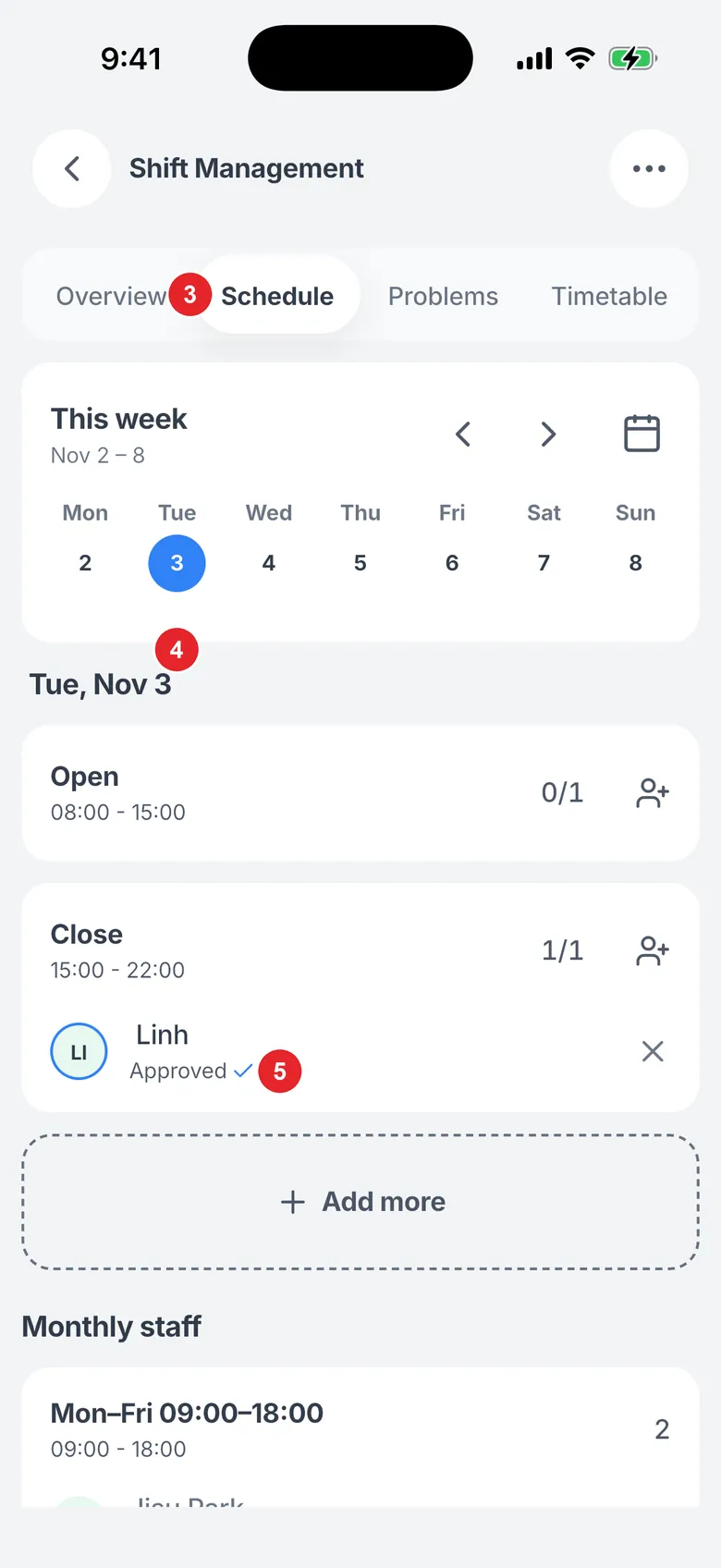
- Open the «Schedule» tab.
- Tap that date.
- Tap the row of the staff member who didn't come. In the app's «Schedule», it shows «Approved» even with no clock-in.
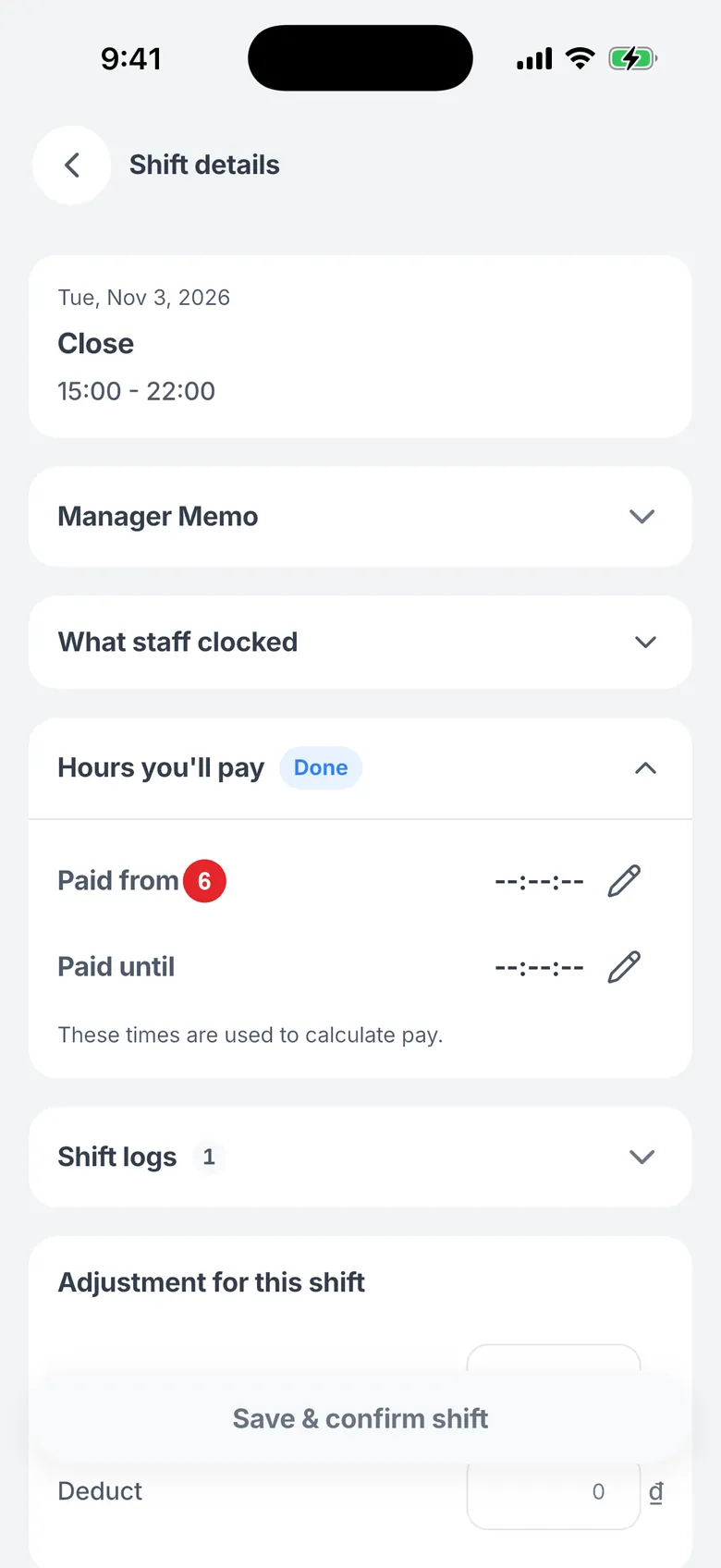
- If «Paid from» · «Paid until» are empty, there is no clock-in or clock-out record. While they are empty, this shift has no pay.
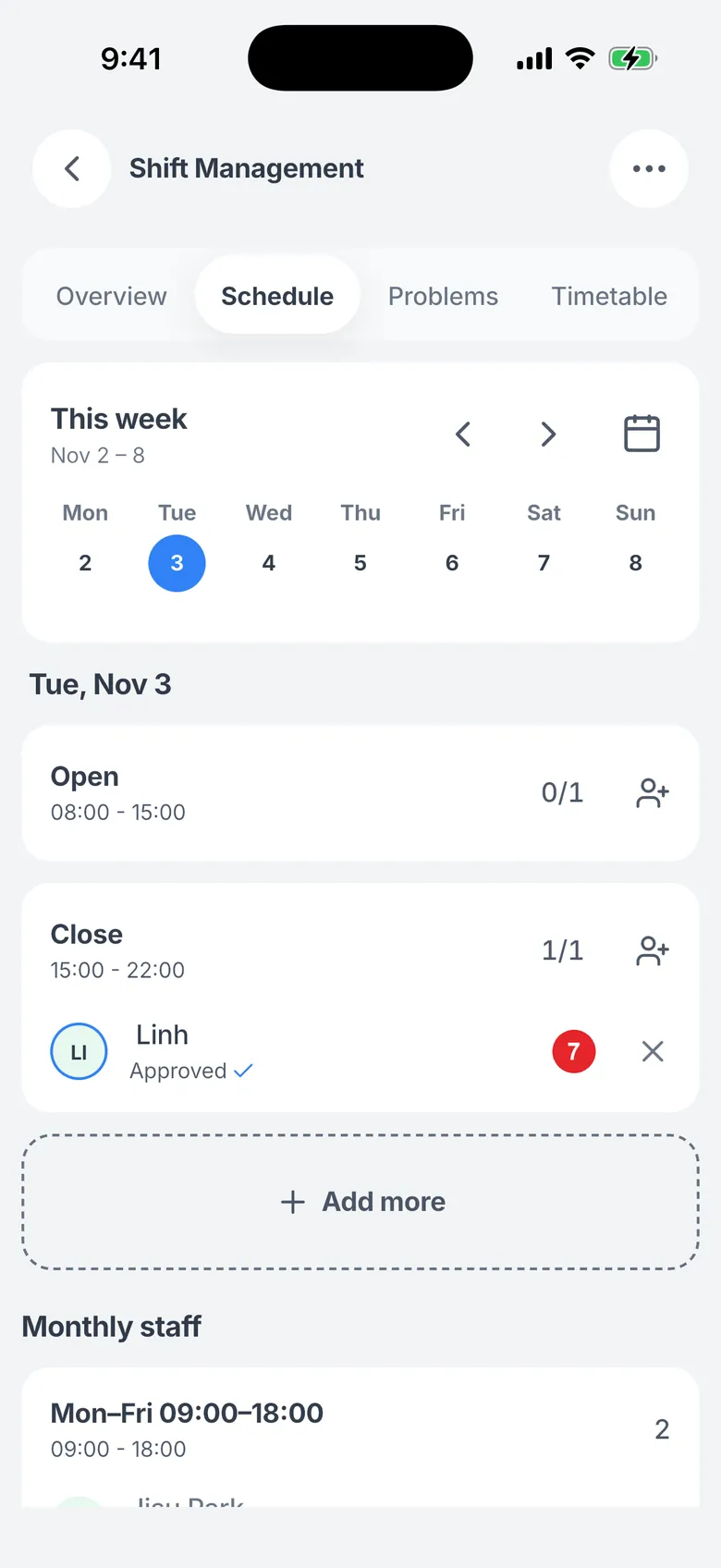
- To take them off the shift, go back with ‹ and tap × on that row.
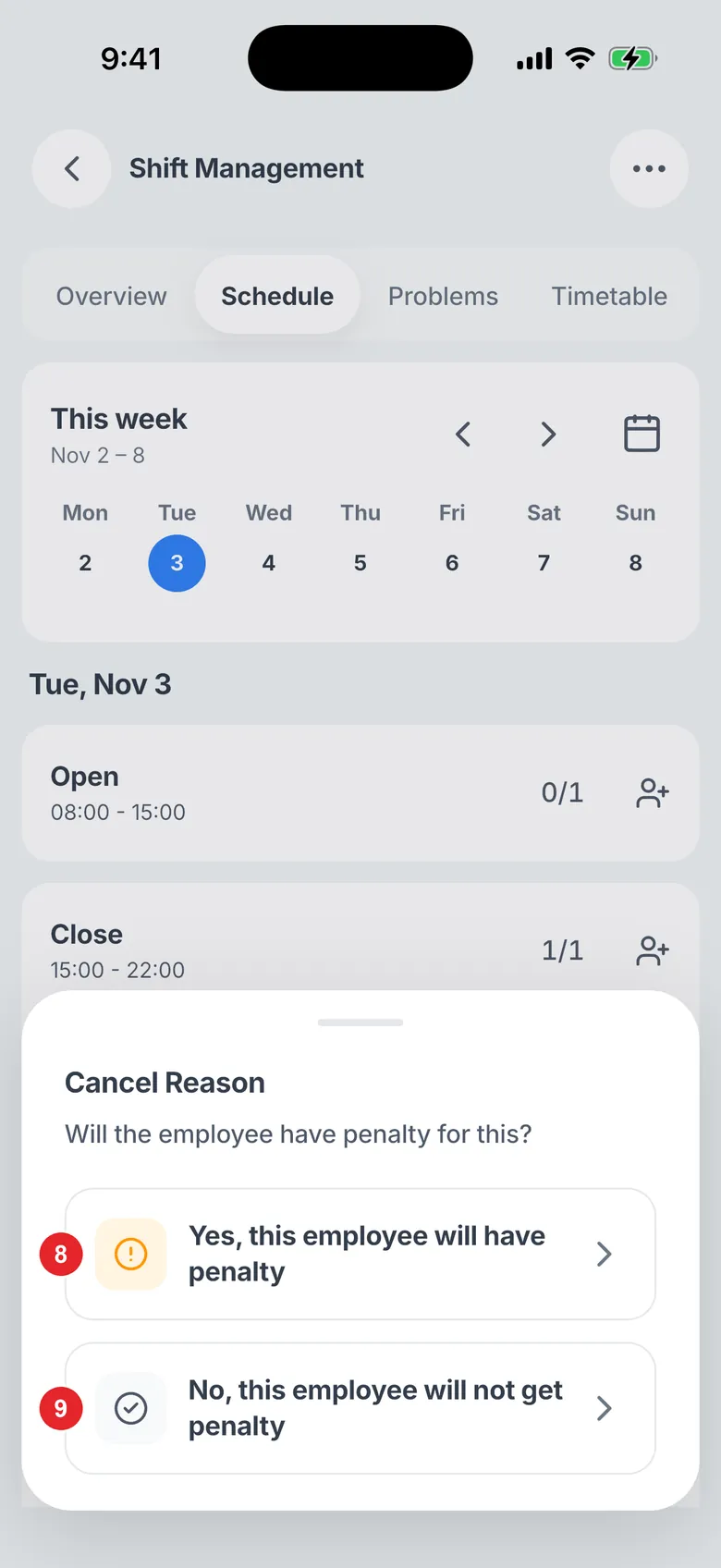
- If they didn't come for their own reasons, tap «Yes, this employee will have penalty».
- If it was the store's reason, tap «No, this employee will not get penalty». The approval is canceled the moment you tap, and the staff member goes back to the list of people who requested.
Why it works this way
In the website's «Shift Management», an approved shift with no clock-in record shows as «Absent» and stays a «Problem». It is finished only when the manager decides.
In the app's «Schedule», it still shows as «Approved» and does not show in the «Problems» tab either. In the app, you spot it by checking whether «Paid from» · «Paid until» in «Shift details» are empty.
Remember
- On the website, save it as «Did not work — no pay», and that shift ends at ₫0 with the record kept.
- The app does not have this choice. When you take that staff member off the shift in «Schedule», it asks «Cancel Reason» · «Will the employee have penalty for this?».
- Deleting the shift cancels the approval. The record shows «Employee Request» as «Cancelled (penalty)» and «Manager Decision» as «Cancelled (excused)».