
Show contents
Staff & shifts › Hourly staff
Add staff to the schedule yourself
- Who
- Manager
- When
- Every week
- Where
- App · Web
What you get
- Without waiting for requests, the manager puts staff straight onto the schedule. A shift you add is an approved shift right away.
- Because it is approved, the staff member can clock in and out with the QR that day.
What it solves
- If staff don't request in the app, the shift stays empty, and even when they come to work «No approved shift today.» appears.
- You already know who will fill an empty spot, but you have to wait for a request and an approval.
Why this way
- A shift the manager adds finishes the request and the approval in one step. You put the person you chose straight into that spot.
- What if I add someone who has another shift at the same time? It won't go in. If they already have an approved shift at that time, it is refused, even if it is at another store.
- What if I add the wrong person? There is no confirm window, so check the name carefully before you choose. If you added the wrong person, cancel that shift's approval.
- Can I add people on past days? On the website you can't add new people on past days. A shift a staff member requested can be approved even for a past day.
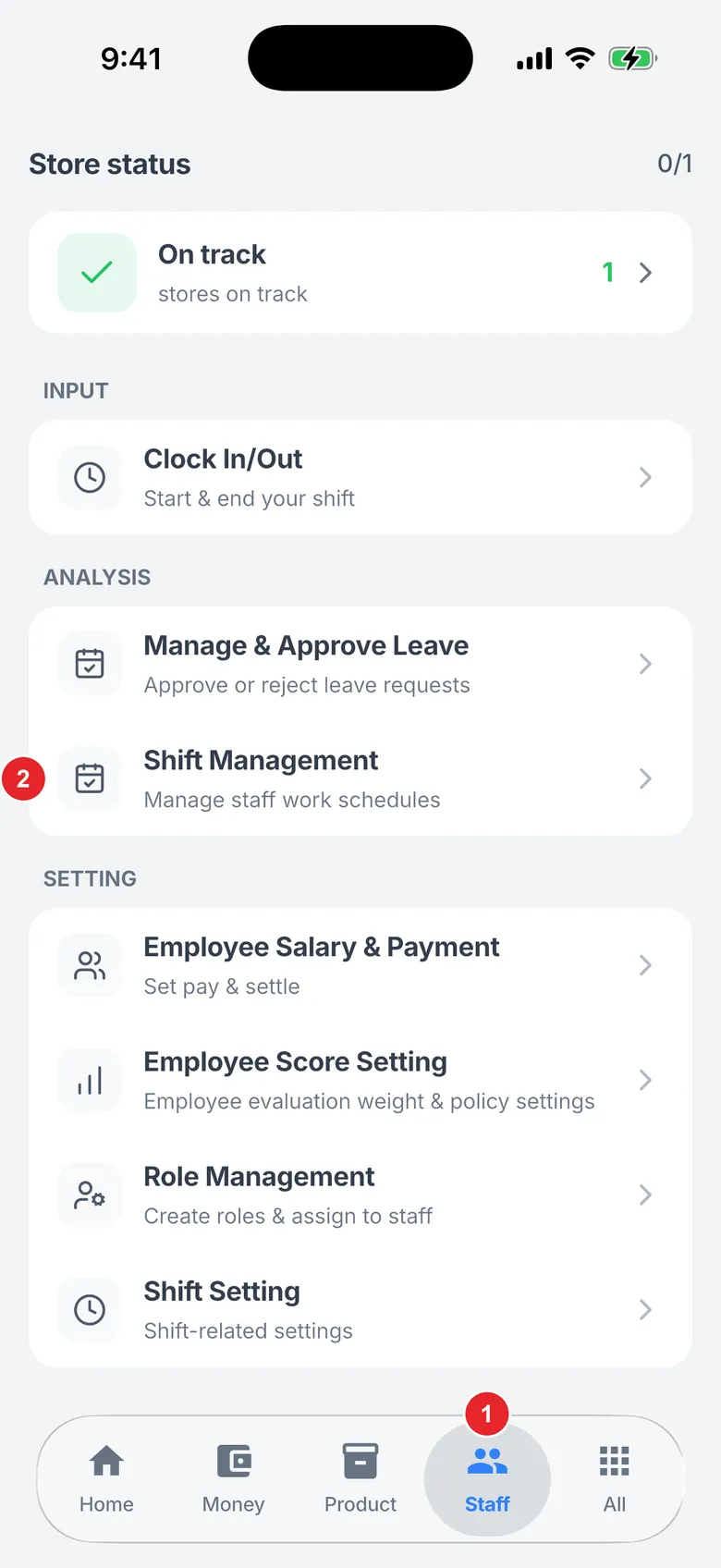
- Tap «Staff» at the bottom of the app.
- Scroll down and tap «Shift Management».
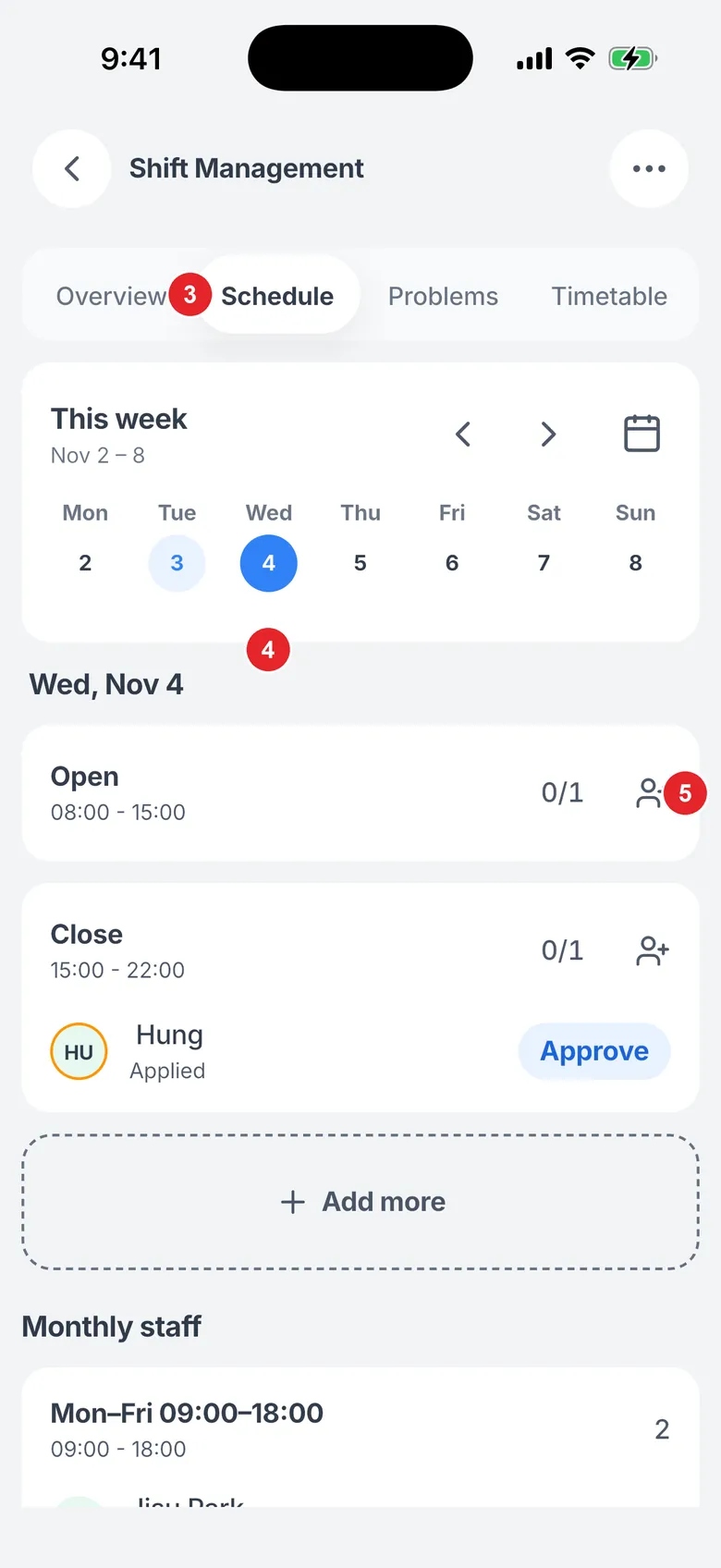
- Open the «Schedule» tab.
- Tap the date to add to. Go to another week with ‹ ›.
- Tap the person button (Add employee to shift) on the right of the shift to add to.
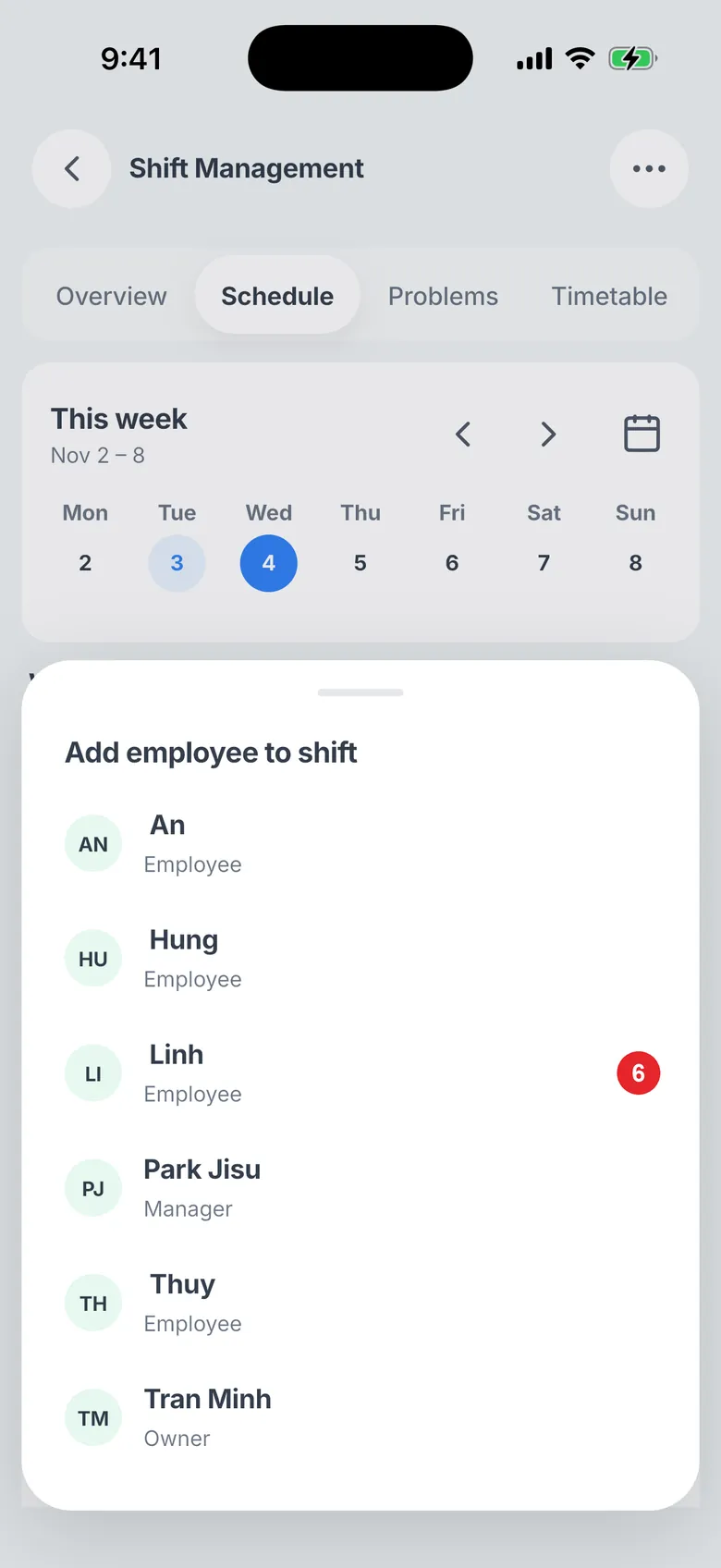
- Tap the staff member to add. They go in as an approved shift right away, with no confirm window, and «Approved» shows under their name.
Remember
- A shift the manager adds becomes an approved shift right away, with no request. There is no confirm window, so check the name carefully before you choose.
- If you added the wrong person, cancel that shift's approval. See «Approve shift requests».
- Shifts that staff requested first are approved as in «Approve shift requests».
If you get stuck
- If «Shift Management» is not in the menu, that person's role has the «Shift Management» permission turned off. See «Create roles and set permissions».