
Show contents
Staff & shifts › Hourly staff
The hourly pay shows ₫0
- Who
- Owner
- When
- When something goes wrong
- Where
- App · Web
What you get
- The ₫0 on the screen is the amount that will really be paid, so you notice missing pay before you pay.
- Choose just the shifts saved at ₫0 and enter the rate, and those shifts go into pay.
What it solves
- There are hours worked, but «Work pay» shows ₫0. If you click «Pay» like this, «There is nothing left to pay this month.» appears.
- Shifts confirmed before the rate was entered stay at ₫0 even after you enter the rate, so staff don't get paid for the work they did.
Why this way
- A shift is saved with the rate at the moment it is first confirmed, so entering the rate in the profile alone does not change ₫0 shifts. That is why you enter it for each shift.
- The box shows a rate. Why is it ₫0? The number already in the website box is the current rate. The saved rate is «was ₫0» under the box.
- How do I stop this from happening again? Enter the rate before the first shift («Set hourly pay»).
At the bottom of the app, go to «Staff» → «Shift Management» → the «Schedule» tab, choose the date and tap the staff member on the ₫0 shift (the same way as in «Someone forgot to clock in»). Shifts already confirmed open this way too.
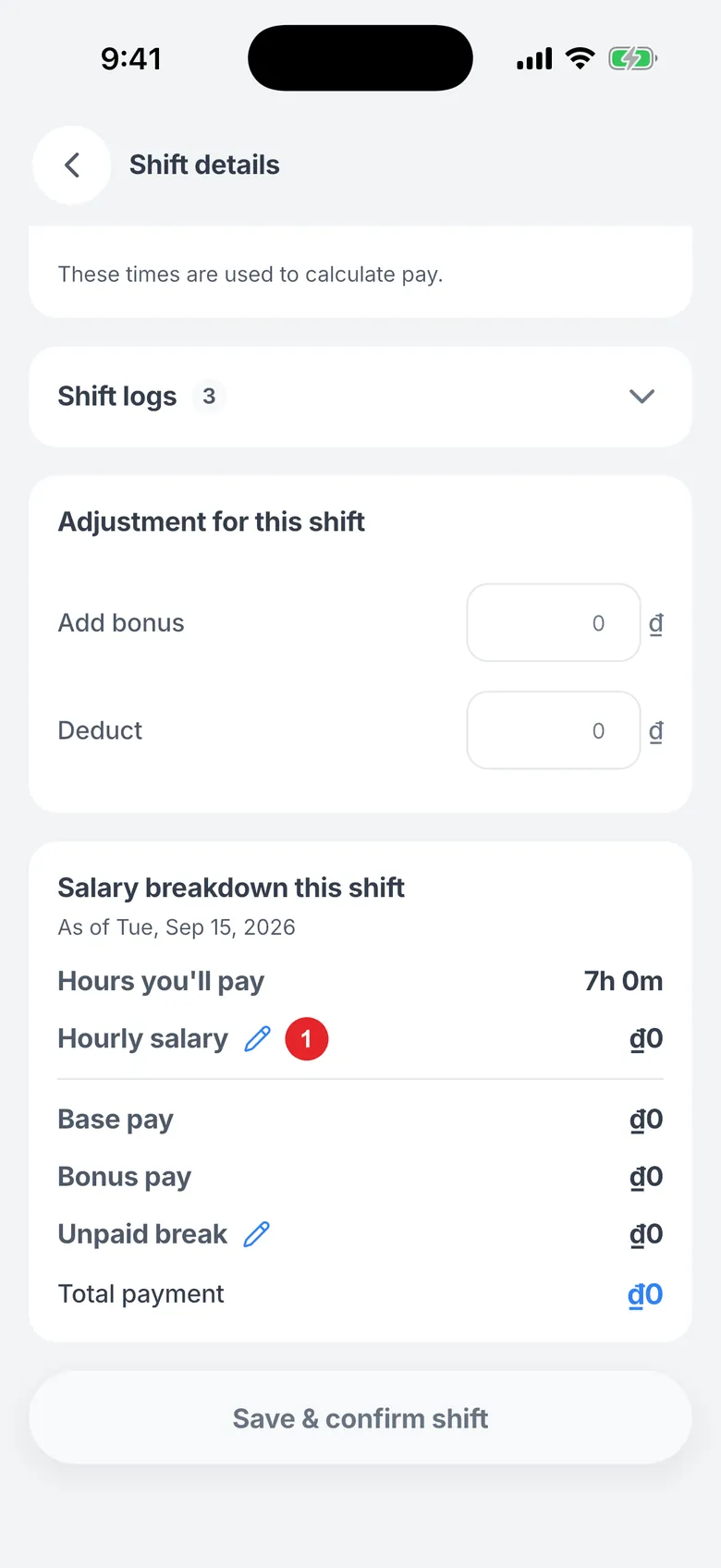
- Scroll down and tap the pencil next to «Hourly salary» in «Salary breakdown this shift».
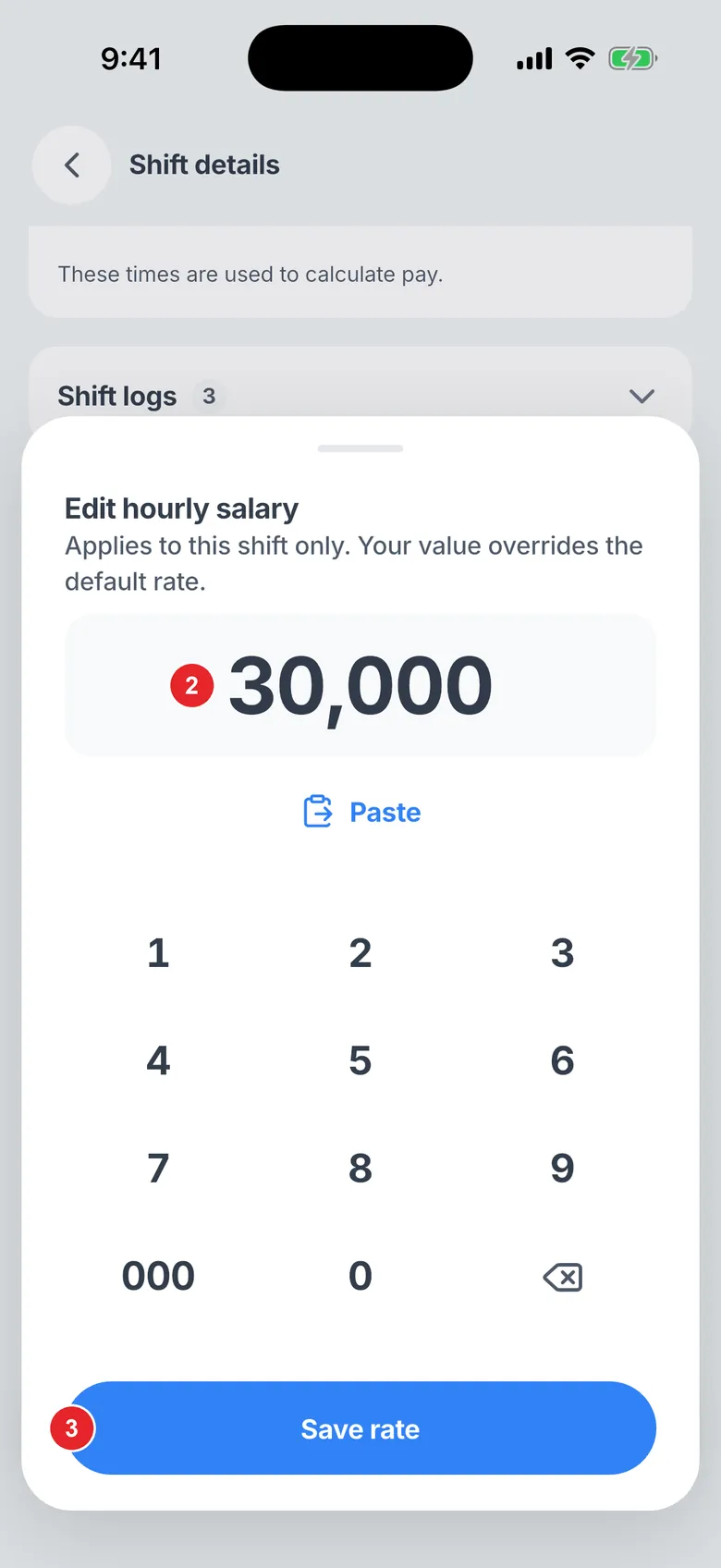
- Enter the right rate. It applies to this shift only.
- Tap «Save rate».
- Tap «Save & confirm shift» at the bottom to save. If you leave without tapping it, the rate does not change. Repeat steps 1–4 for each ₫0 shift.
Why it works this way
A shift's rate is saved at that day's rate when the shift is first confirmed. That is the moment both clock-in and clock-out are recorded, or a manager sets the hours. If the staff member's rate was ₫0 at that moment, the shift is saved at ₫0.
Remember
- Even if you enter or raise the rate later, shifts already saved stay at ₫0.
- The ₫0 on the screen is the amount that is really paid. To fix it, open each shift and enter the rate.
If you get stuck
- Website: if the rate you want to enter is the same as the number already in the box, «Save & confirm shift» does not turn on. The current website screen can't fix this case. Please contact Storebase.