
Show contents
Staff & shifts › Hourly staff
Pay staff who work in two stores
- Who
- Owner · Manager with permission
- When
- Every month
- Where
- App · Web
What you get
- Staff who worked in two stores are paid in one go. The amount is all shifts from both stores added together.
- Even though the money comes from the one store you choose, each shift is booked as a cost of the store where it was worked.
- The other store's share is recorded automatically with an «Inter-store transfer (auto)». You don't enter it yourself.
What it solves
- When one staff member works in two stores, working out and paying each store on its own leads to amounts that overlap or go missing.
- If one store's bank account pays it all, the share worked at the other store also looks like that store's cost.
Why this way
- You pay once, but «Transaction History» gets a separate pay line for each store. You see how much went out for each store.
- Why is the amount in the website pay table smaller? The website pay table shows only the share of the store chosen at the top. See the full amount in the «Salary payment» window.
- What if only one store's share is wrong? Cancel only that store's line, and only that share is canceled and shows as «Remaining estimate» in the app. Pay that share again.
At the bottom of the app, go to «Staff» → «Employee Salary & Payment» → the «Pay Salary» tab and choose the month.
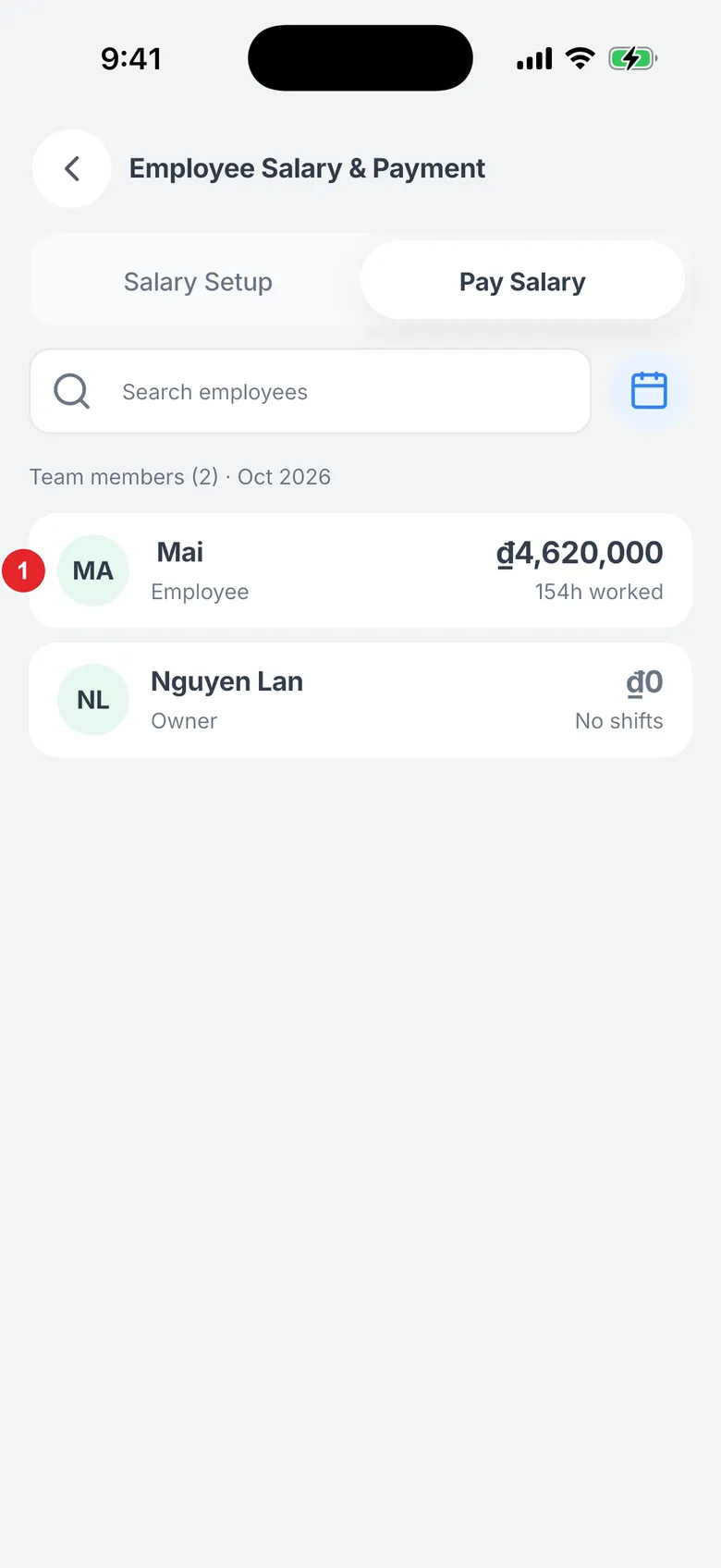
- The amount on the staff member's row is everything worked at both stores added together. Tap the staff member.
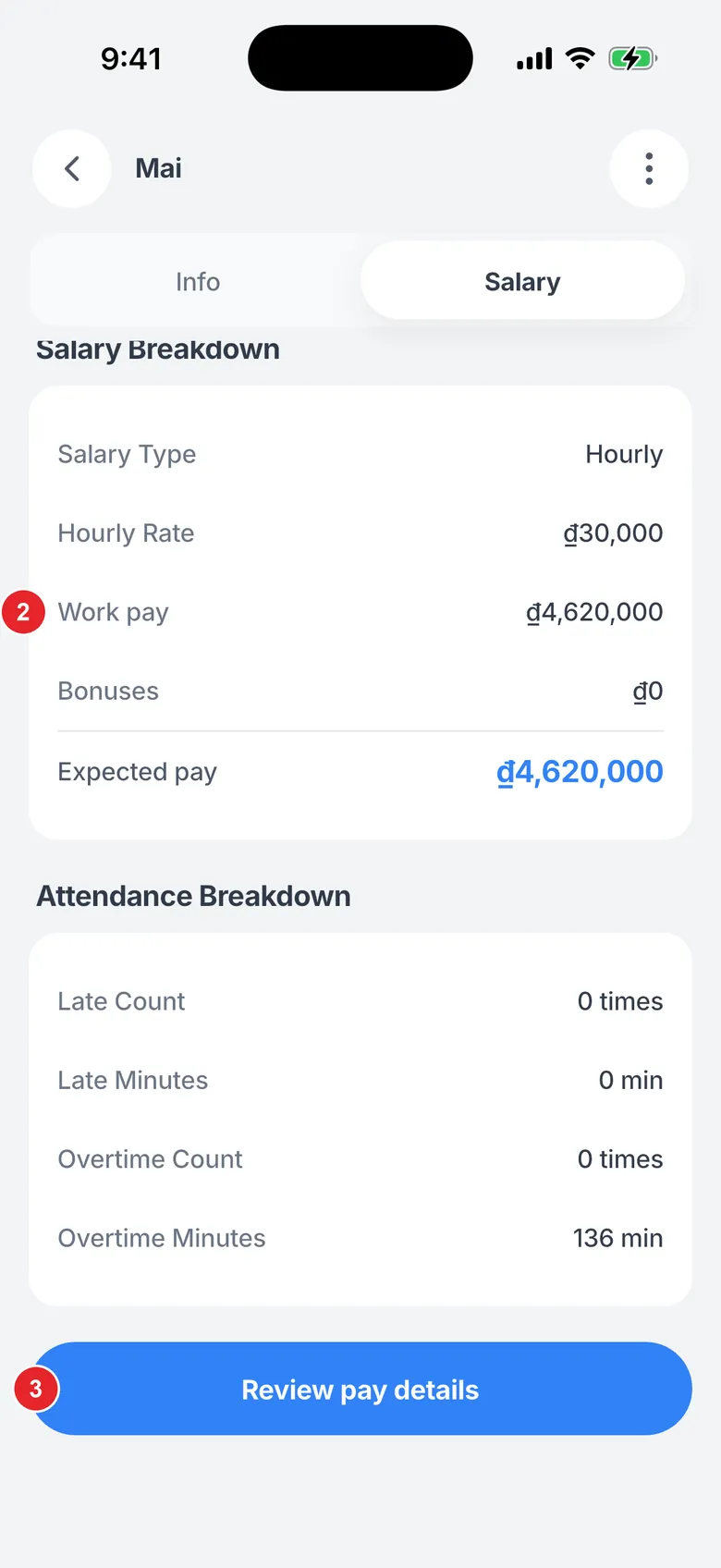
- «Work pay» is also both stores added together.
- Tap «Review pay details», and in the «Confirm pay period» window that opens, tap «Open review» (a picture of this window is in «Pay salaries»).
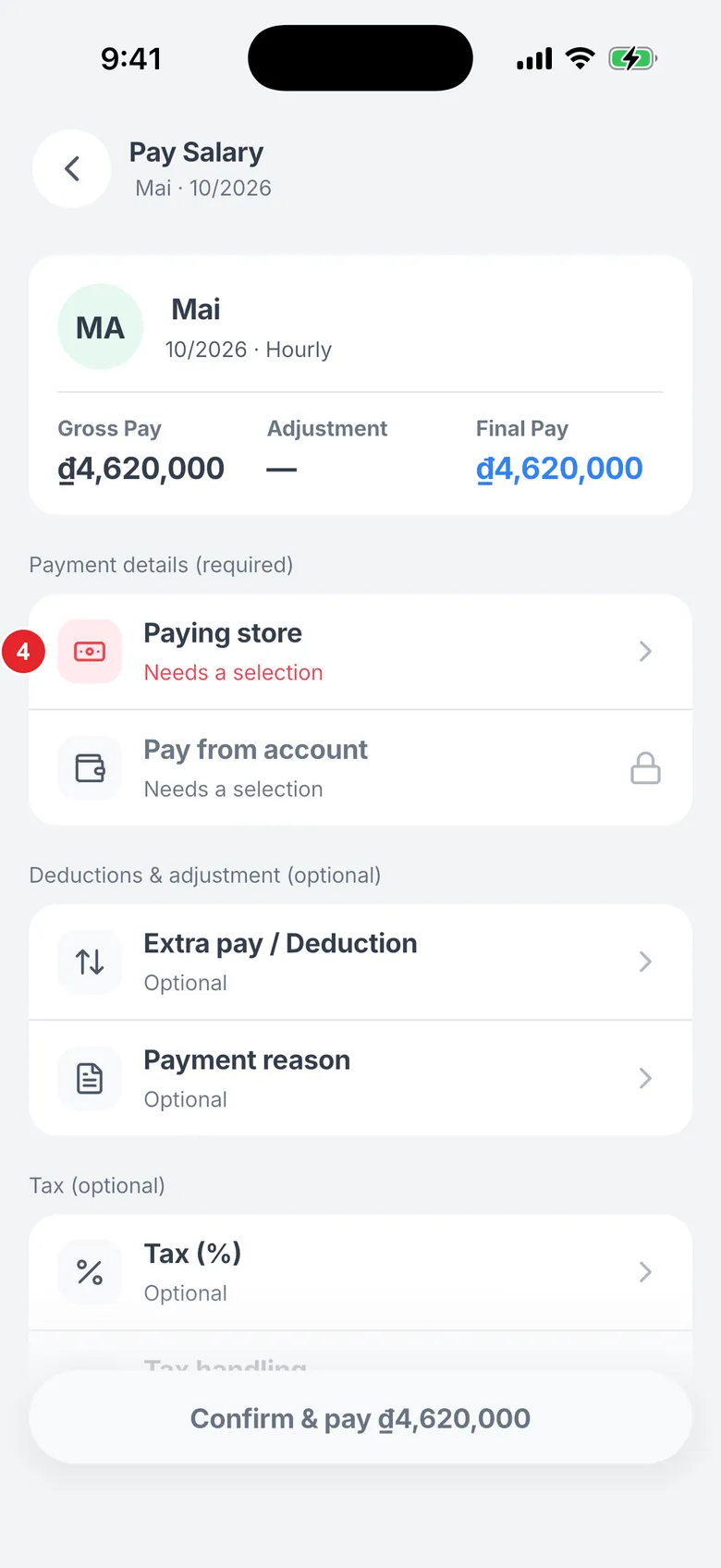
- Tap «Paying store».
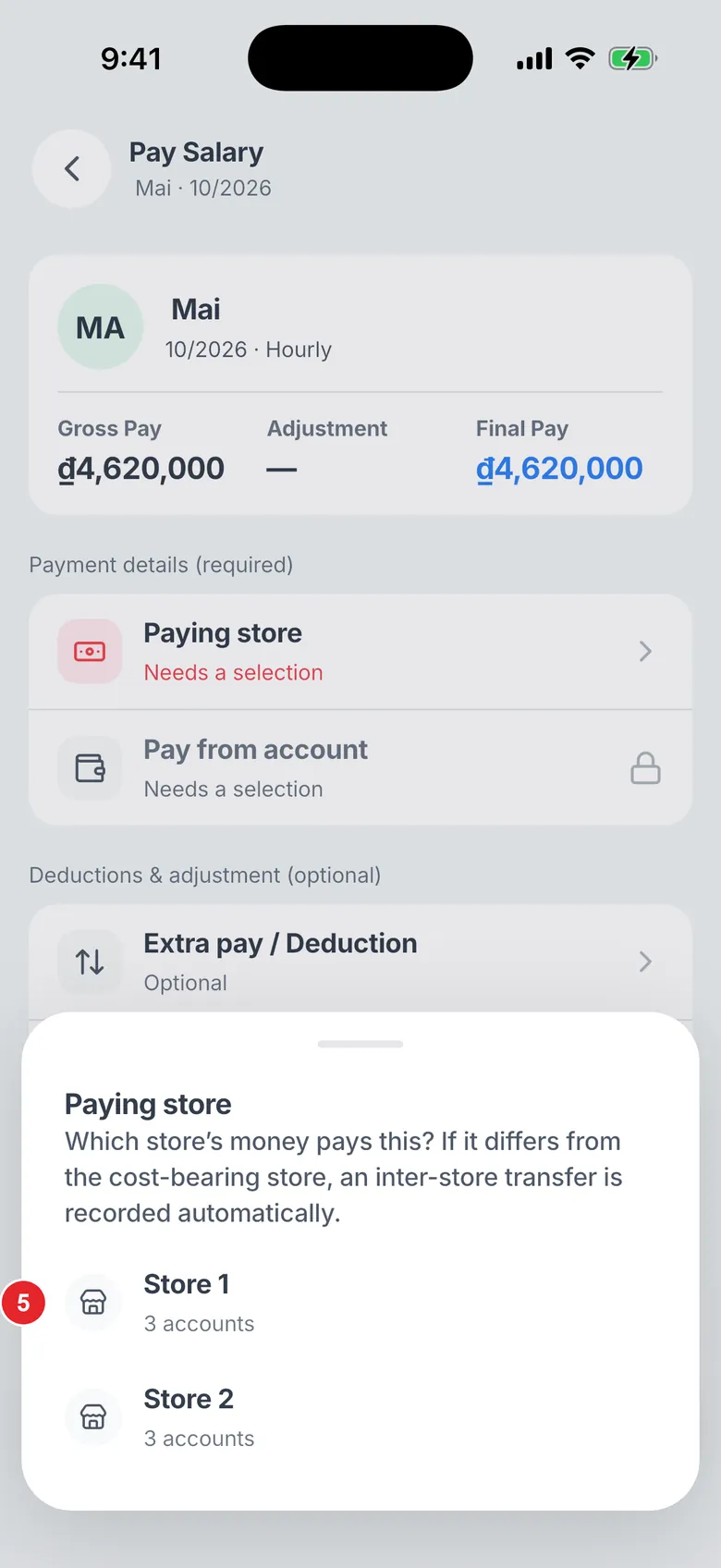
- Choose the store the money goes out from. Then choose that store's account in «Pay from account».
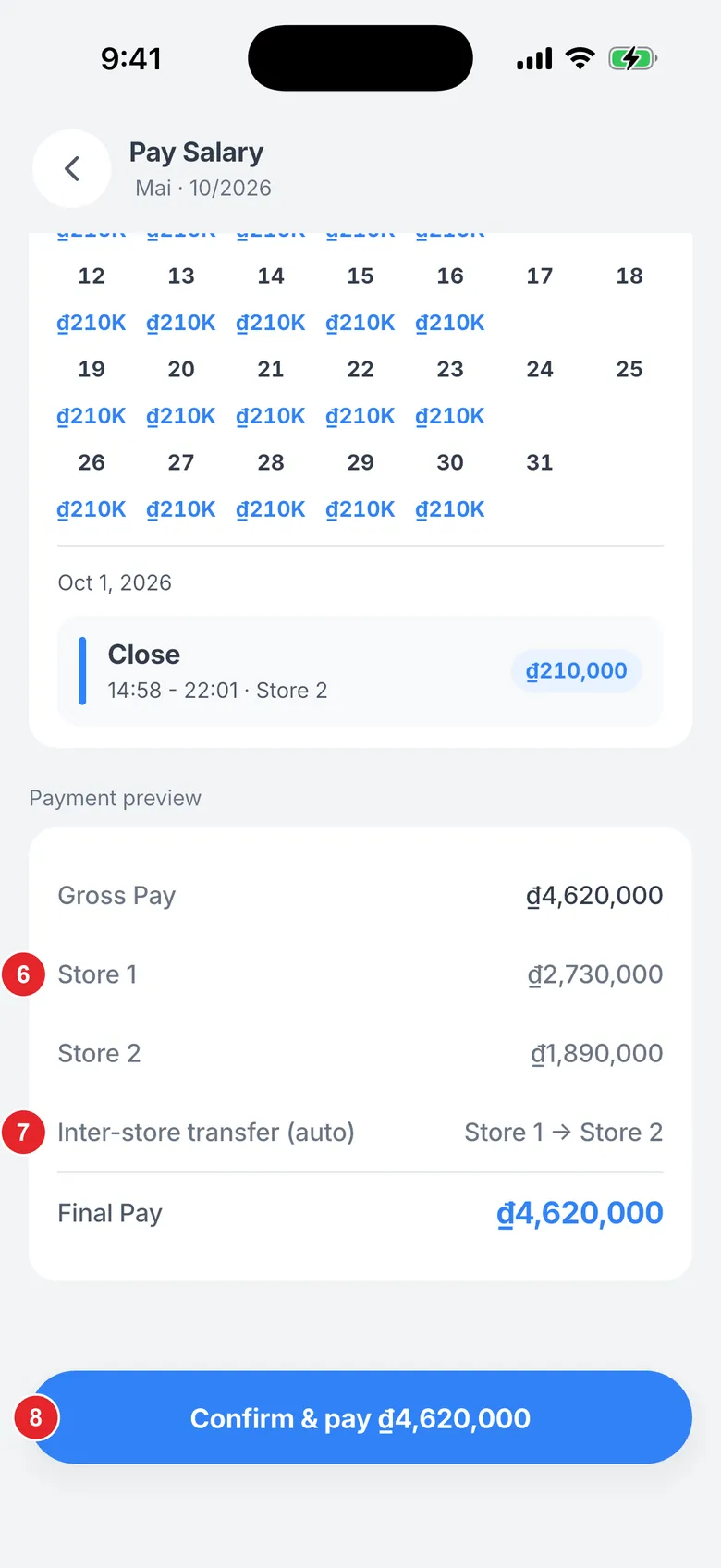
- Scroll down, and «Payment preview» shows the amount for each store.
- «Inter-store transfer (auto)» is the chosen store paying the other store's share for it. You don't enter it yourself.
- Tap «Confirm & pay ₫4,620,000» (the button shows the amount).
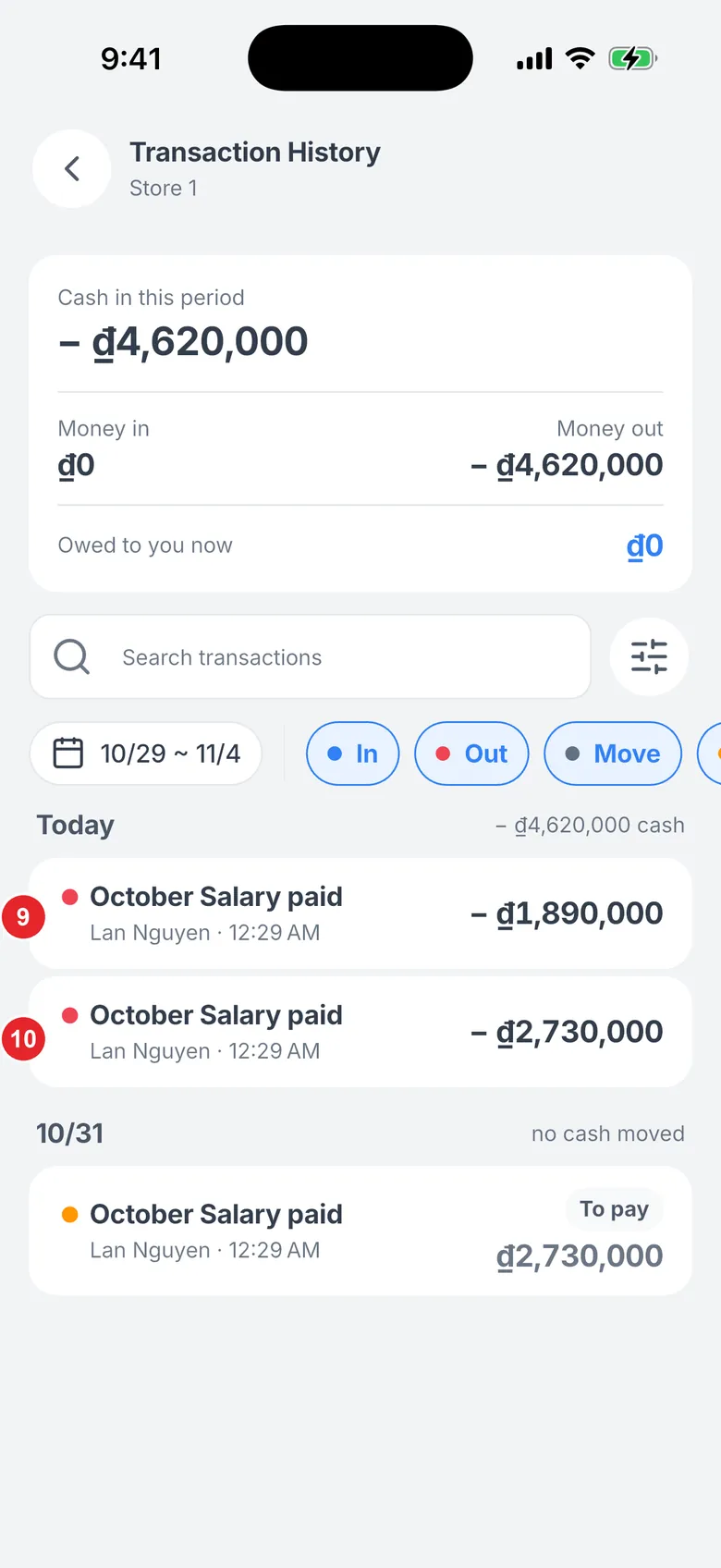
- In «Money» → «Transaction History», Store 2's share shows as one row («October Salary paid»).
- Store 1's share is a separate row too. Both rows are money that went out of the chosen store's account.
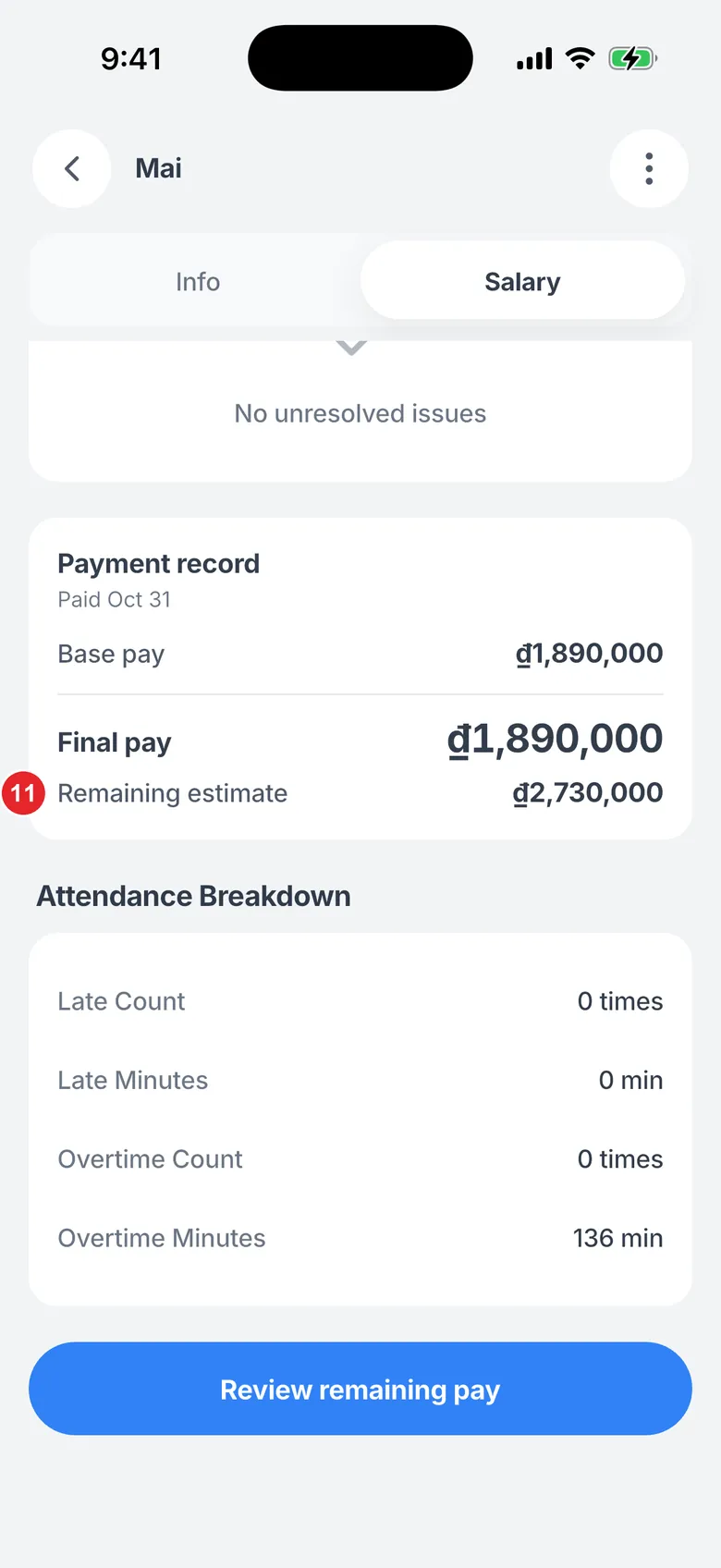
- Cancel only one store's row (how to cancel: «I made a wrong payment»), and that share stays as «Remaining estimate». Pay it again with «Review remaining pay».
When one staff member has joined two stores and works at both, you still pay them once. Each shift is booked as that store's cost, and the money comes from the one store you choose.
Remember
- Amount: all shifts worked at both stores added together. Example: Store 1 ₫2,730,000 + Store 2 ₫1,890,000 = ₫4,620,000.
- Which store's money: when paying, choose one store. The full amount comes out of that store's account, and the other store's share is recorded automatically, at the same time, as an «Inter-store transfer (auto)»: money the paying store paid for the other store.
- The website pay table shows only the share of the store chosen at the top. Choose «Store 1», and only the hours and amount worked at Store 1 show. See the full amount in the «Salary payment» window.
- Canceling: «Transaction History» gets a separate pay line for each store. Cancel only one store's line, and only that store's share is canceled and shows as «Remaining estimate» in the app. Pay that share again. To redo all of it, cancel both lines.