
Show contents
Staff & shifts › Hourly staff
Check and confirm shift records
- Who
- Manager
- When
- Every day or every week
- Where
- App · Web
What you get
- Shifts with no clock-out or with lateness gather in the «Problems» tab. Open only the days with problems and sort them out.
- In one shift you fix the paid hours · bonus · deduction · hourly rate, and confirm. Bonuses and deductions you add go into that shift's pay.
- Inside that shift, read the report a staff member sent with «Report Issue», and write a reply.
What it solves
- A shift with no clock-out has no known end time, so it does not go into pay.
- If you check everything at month end, it is hard to remember when people left that day, and staff with problems left can't be paid.
Why this way
- Staff with problems left are blocked from being paid. The salary never goes out with unsettled shifts missing.
- What if staff clock the wrong time? Staff send the reason with «Report Issue» in that shift, and the manager decides the hours to pay.
- Is lateness cut by itself? Even before you decide, pay is counted with the cut from the store's late rule. To not cut it, choose «Schedule» on the website, or in the app set «Paid from» to the scheduled start time.
- What if I fix it after paying? That month's payment is not worked out again. Cancel the payment, then pay again («I made a wrong payment»).
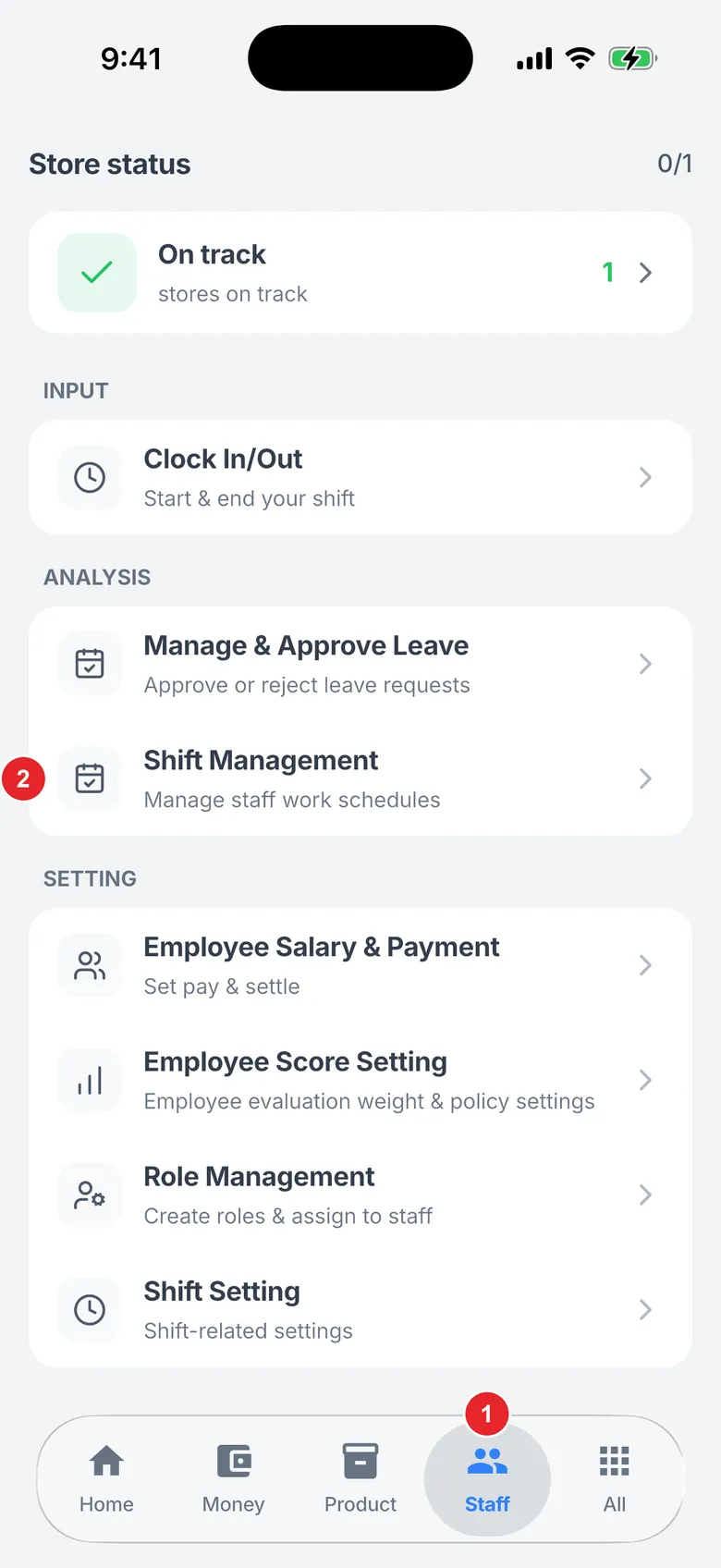
- Tap «Staff» at the bottom of the app.
- Scroll down and tap «Shift Management».
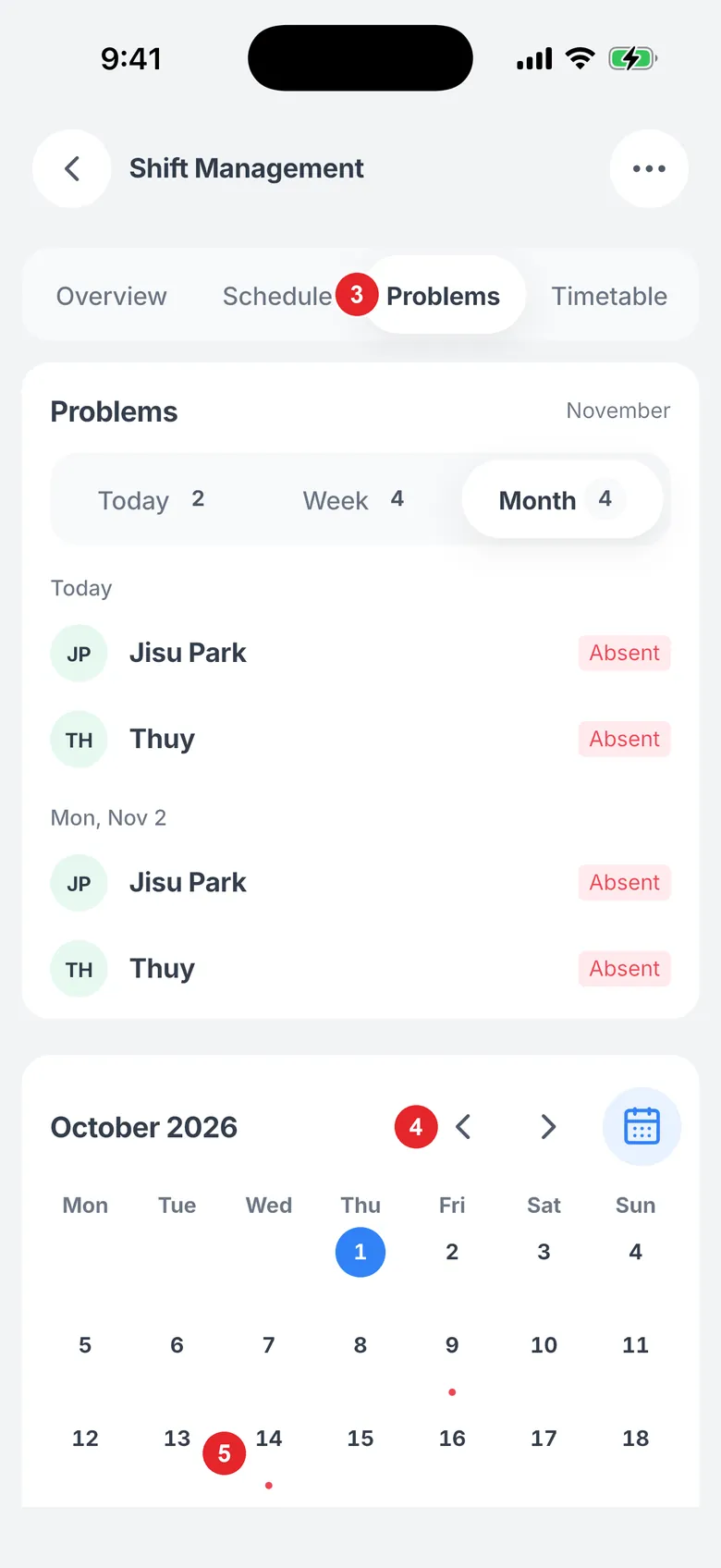
- Open the «Problems» tab. The number of problems today · this week · this month shows at the top.
- Open a whole month with the calendar button on the right, and move between months with the arrows.
- Tap a date with a dot. A dot means that day has a problem.
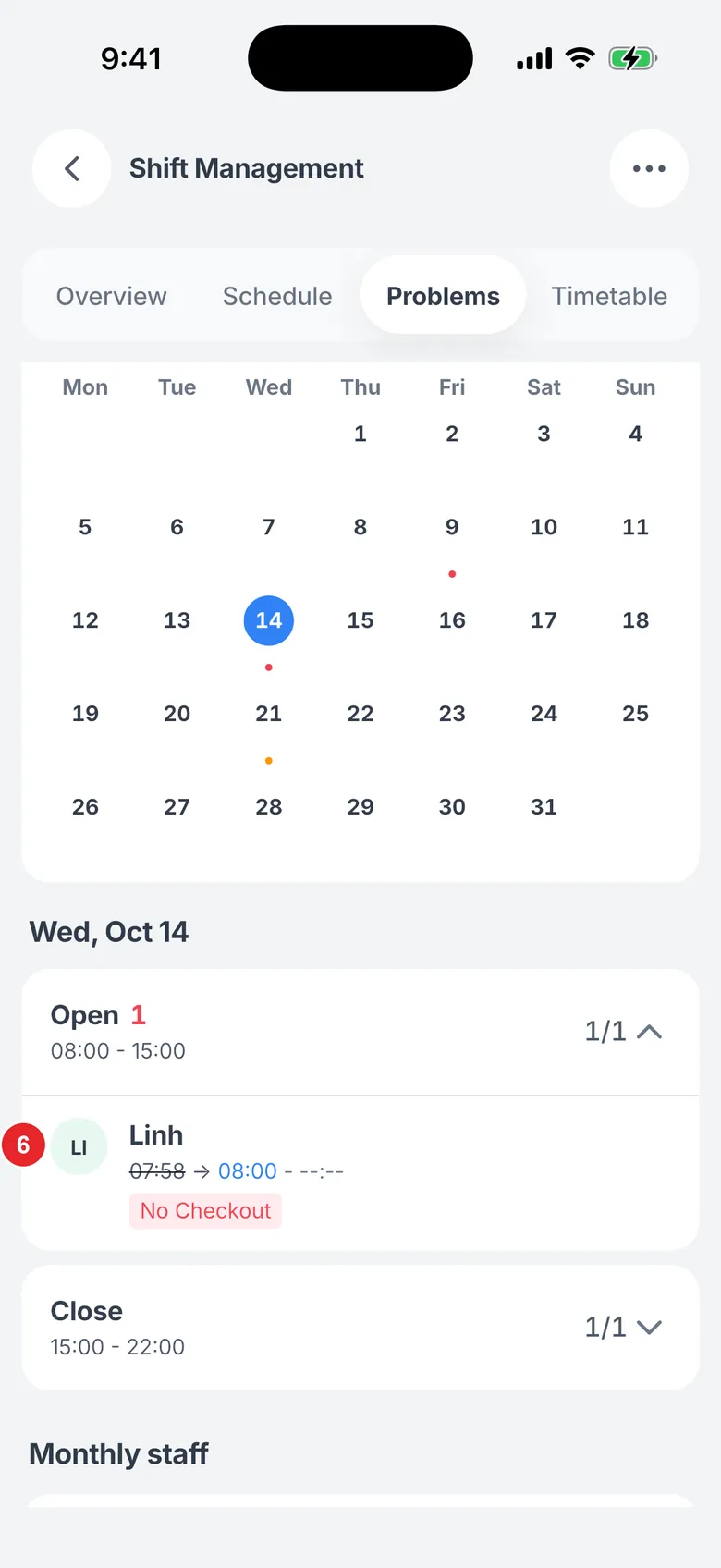
- Scroll down, open the shift with a number on it and tap the staff member.
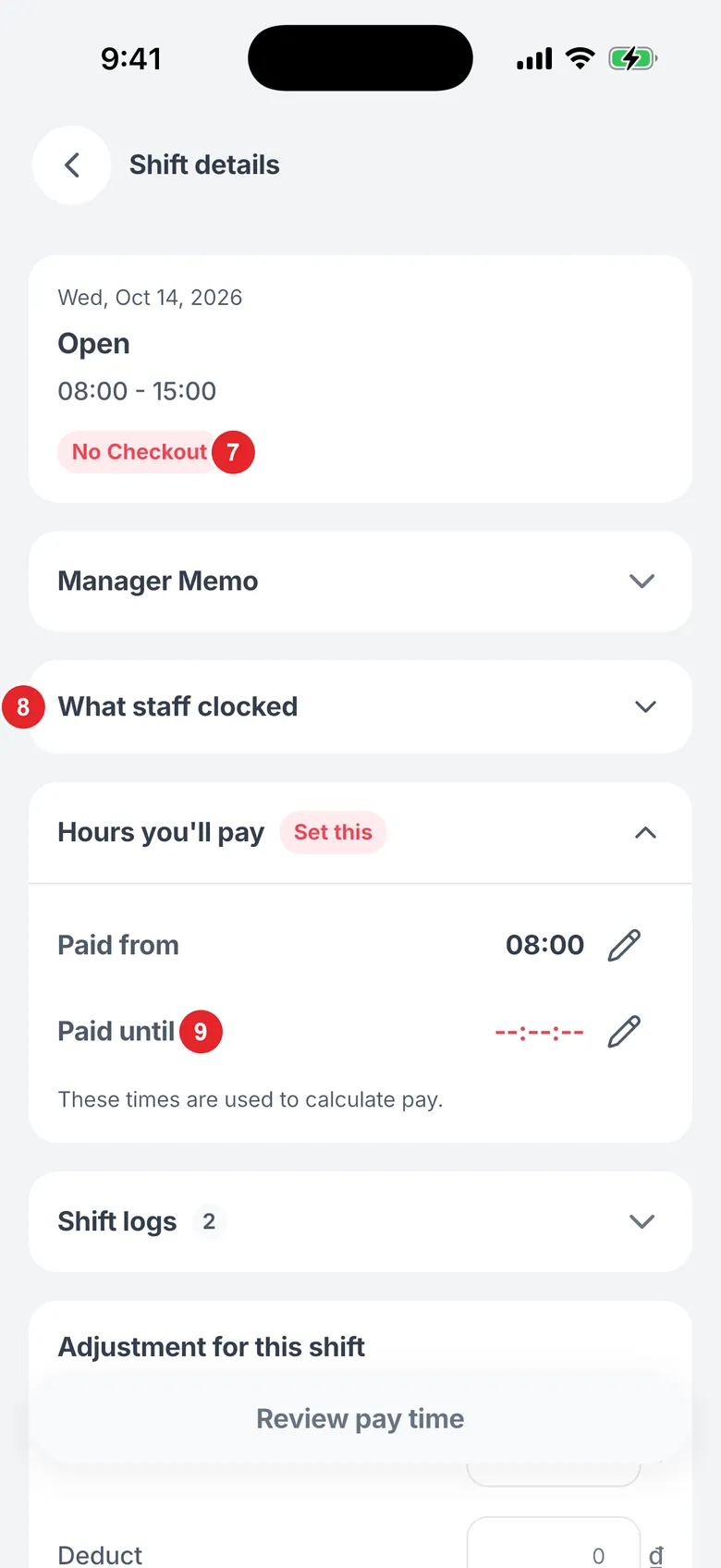
- See at the very top what the problem is. In this picture it is «No Checkout».
- Tap «What staff clocked» to see the times they really clocked.
- Enter a missing time by tapping the pencil on its «Paid from» or «Paid until» row.
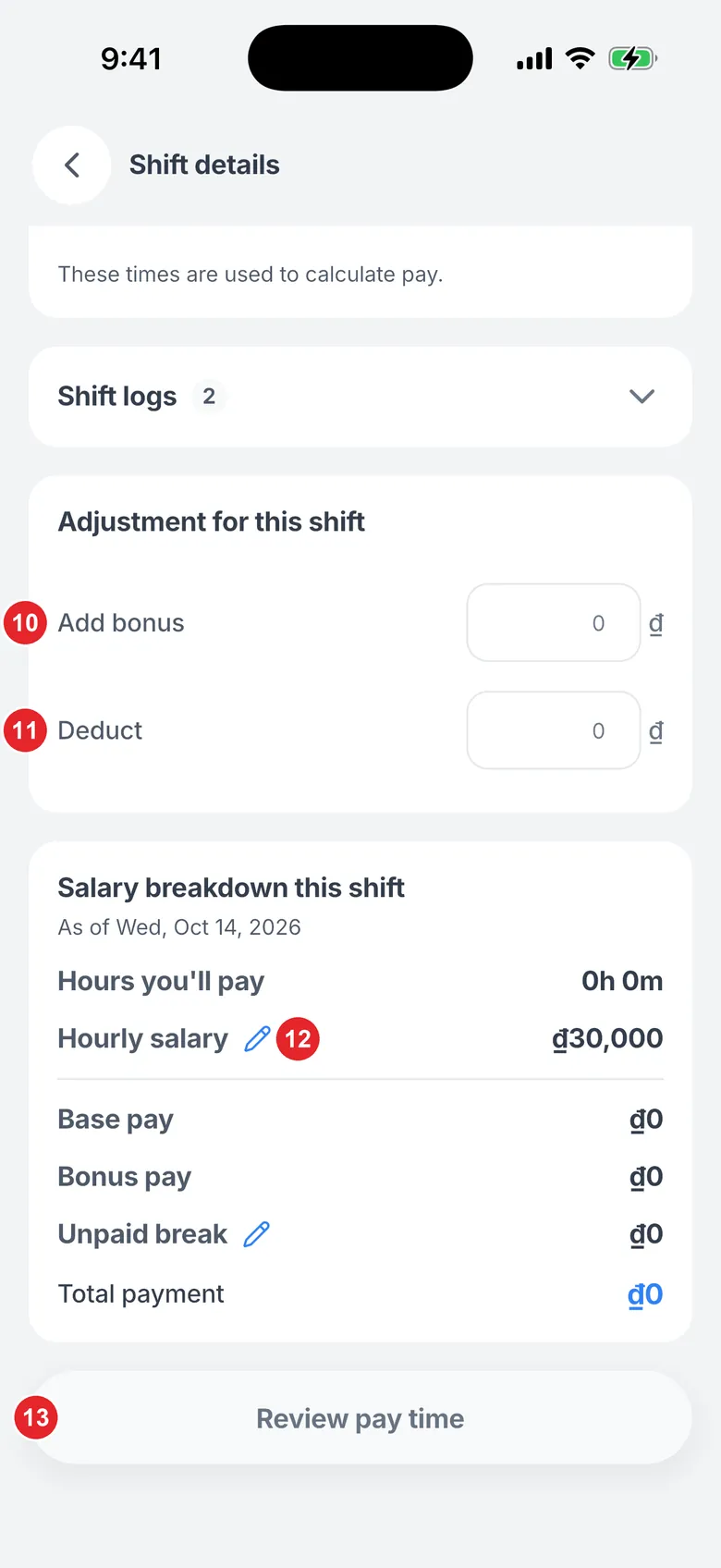
- If there is extra money to give, enter it in «Add bonus».
- If there is money to take off, enter it in «Deduct».
- If this shift's rate needs fixing, tap the pencil next to «Hourly salary».
- When everything is fixed, tap the button at the very bottom. In the picture it is still faded and reads «Review pay time»; once you change a time it reads «Save pay time».
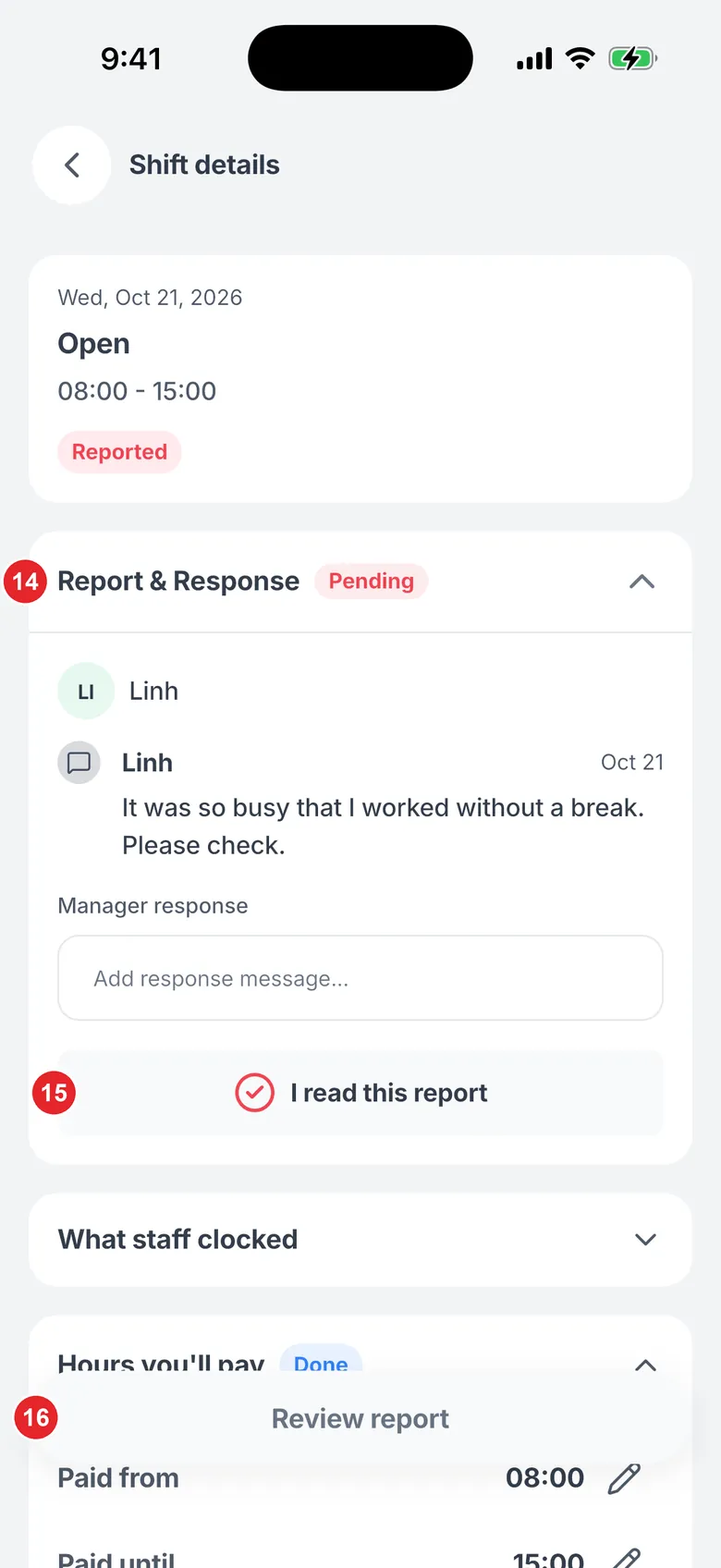
- If the staff member sent a report, read it in «Report & Response». If needed, write a reply in «Manager response».
- Tap «I read this report».
- Tap the button at the very bottom. In the picture it is still faded and reads «Review report»; after you tap «I read this report» it reads «Complete report».
Remember
- Don't let problems pile up until month end. While problems are left, you can't pay the salary.