
Show contents
Staff & shifts › Hourly staff
Someone forgot to clock in
- Who
- Manager
- When
- When something goes wrong
- Where
- App · Web
What you get
- Even if they couldn't clock in, the hours they really worked go into pay.
- If they worked the set hours, on the website choose «Schedule» and it is done in one step.
What it solves
- «They didn't clock in.» A shift with no clock-in and no clock-out has no work record, so it has no pay.
- If they scan for the first time when leaving, that time goes in as the clock-in, and the hours worked are recorded wrong.
Why this way
- The manager enters the hours worked. Staff only report it with «Report Issue» and can't change the time themselves.
- Is the time the manager entered kept? Yes. «Shift logs» in the app's «Shift details» shows who entered the time and when.
- What if they really didn't come? Don't enter a time; handle it as in «A staff member didn't come in».
At the bottom of the app, tap «Staff» → scroll down and open «Shift Management».
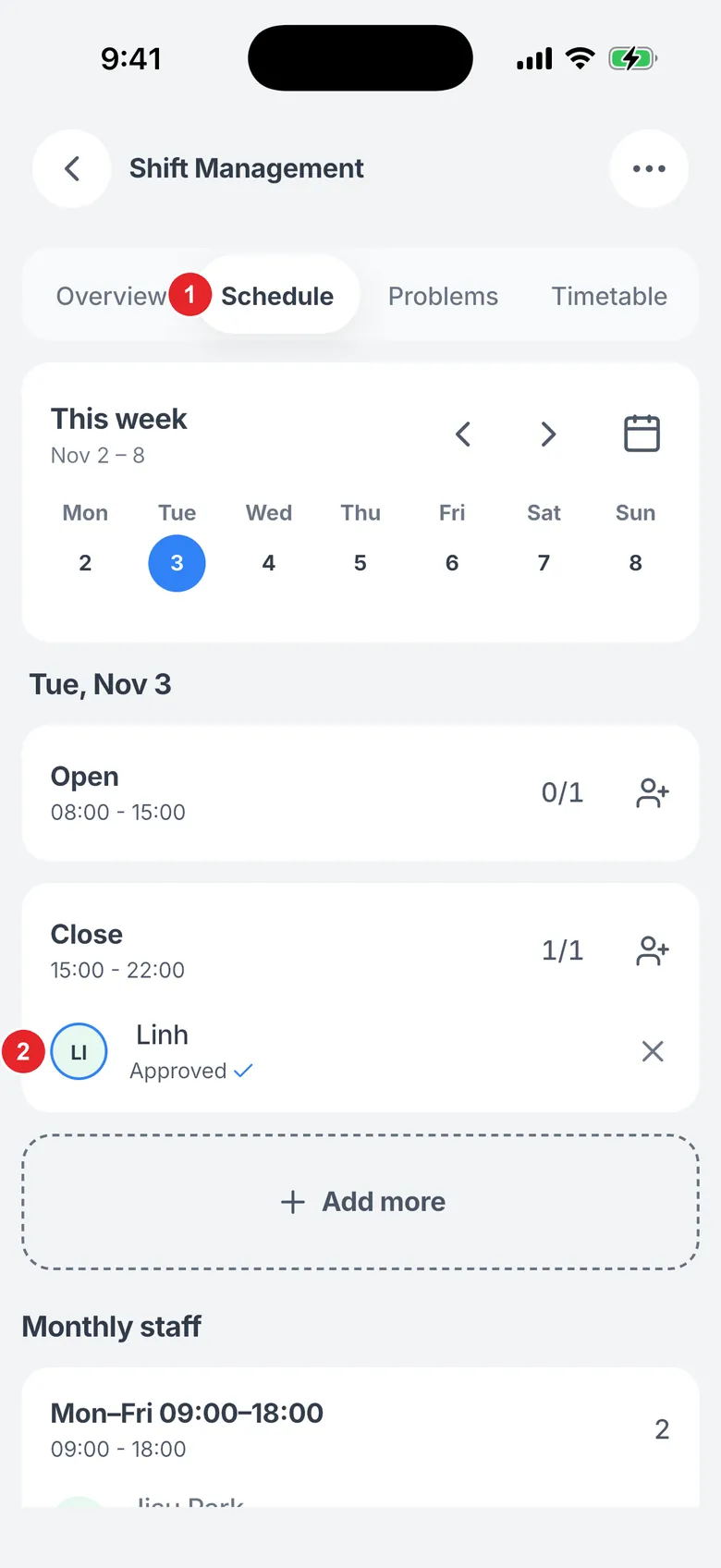
- Open the «Schedule» tab.
- Choose the date and tap the staff member on that shift.
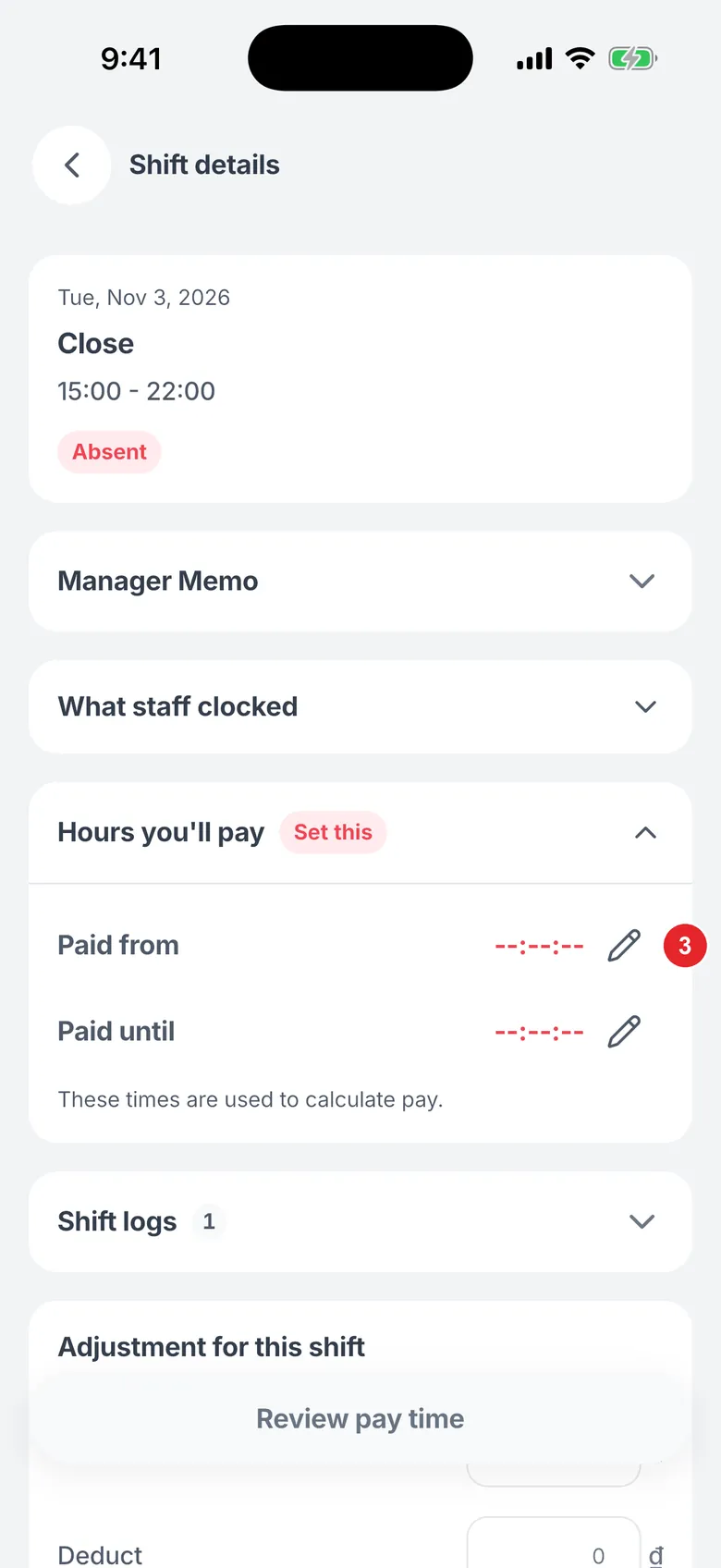
- Tap the pencil next to the empty «Paid from» time.
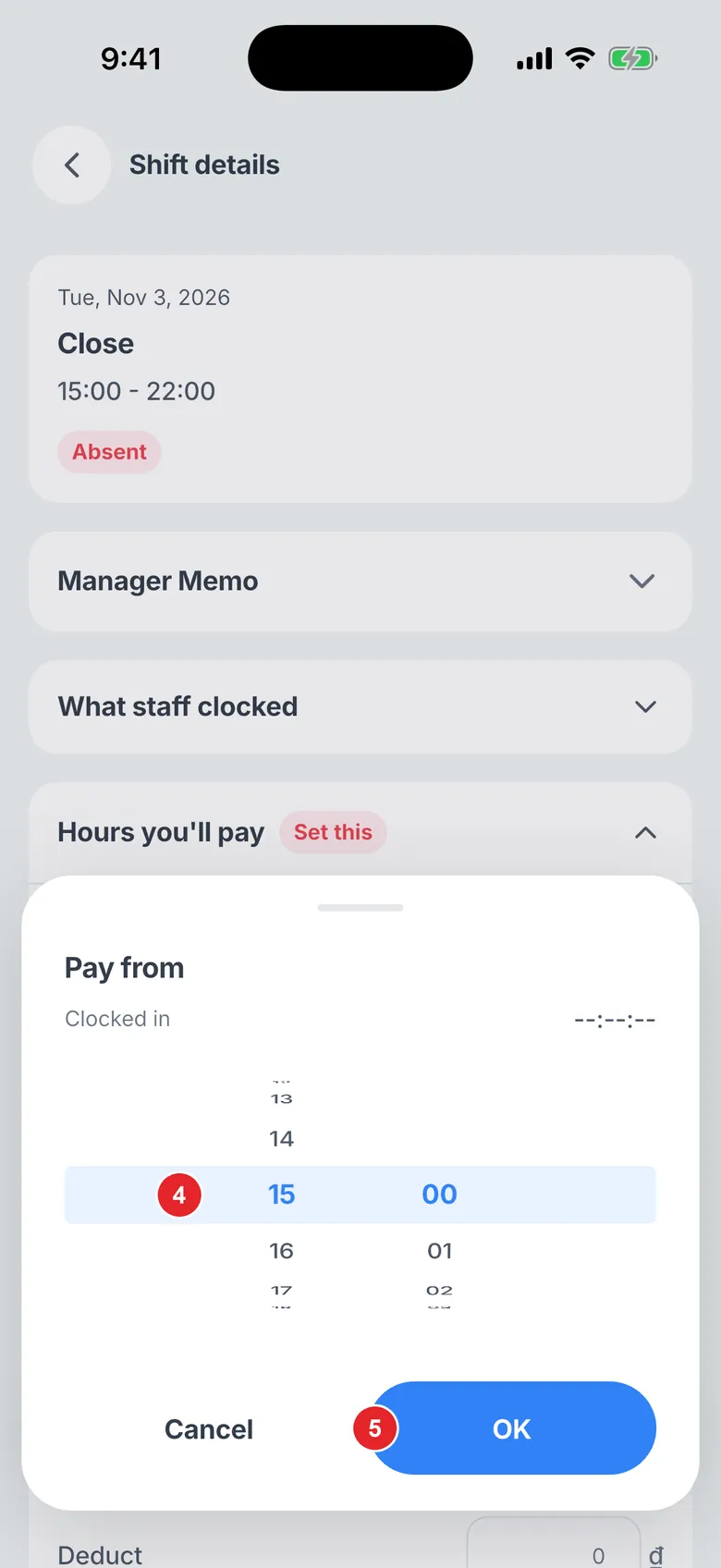
- Choose the time they really started work. If «Clocked in» is empty, there is no clocked record.
- Tap «OK».
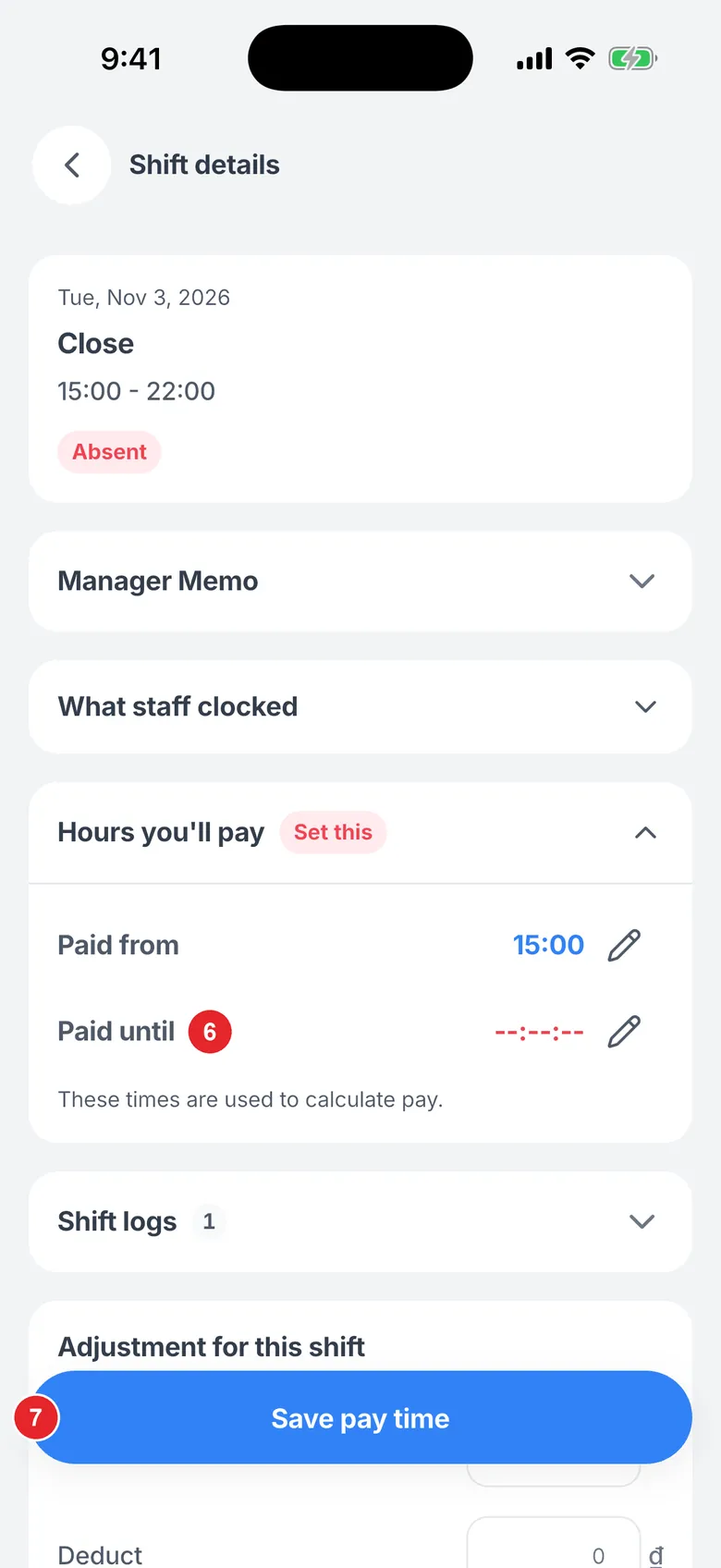
- Enter «Paid until» the same way.
- Tap «Save pay time».
Why it works this way
A shift with no clock-in and no clock-out has no work record, so it has no pay. On the website's «Shift Management» it shows as «Absent». If they really worked, the manager enters the hours worked.
Remember
- On a shift with no clock-in record, the first QR scan is always recorded as «Check-in». If they scan for the first time when leaving, that time becomes the clock-in. In this case too, the manager fixes the time.
- If they didn't come, see «A staff member didn't come in».