
Show contents
Staff & shifts › Hourly staff
The QR won't scan
- Who
- Staff → Manager
- When
- When something goes wrong
- Where
- App · Web
What you get
- Check right away, in the app or on the website, whether the QR staff scan belongs to this store and whether «Store location» is right.
- Even a shift they never managed to scan goes into pay once the manager enters the times.
What it solves
- «The QR won't scan.» If no clock-in is saved, that shift has no work record, so it has no pay.
- Scanning the QR of a store the staff member has not joined shows «Wrong store QR.», and no clock-in is saved.
Why this way
- Distance does not block clock-in; it is only marked. Even when they scan far from the store, staff are clocked in and pay stays the same.
- Can I tell when staff clock in outside the store? Yes. It is marked as a clock-in outside the store, and the distance stays under «Where» in the shift window.
- What if they are inside the store but it shows outside? Check whether «Store location» is different from the real spot. The distance is measured from this location.
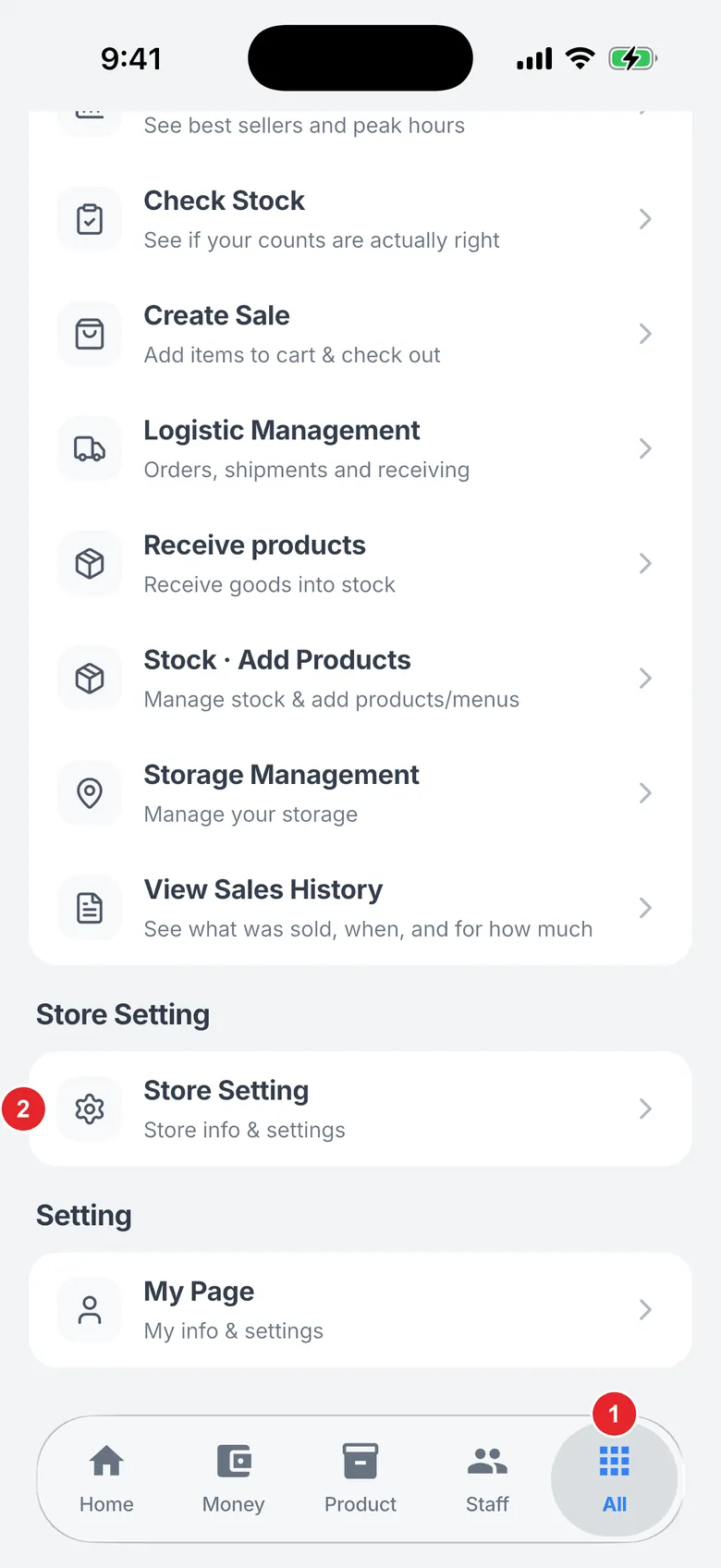
- Tap «All» at the bottom of the app.
- Scroll down and tap «Store Setting».
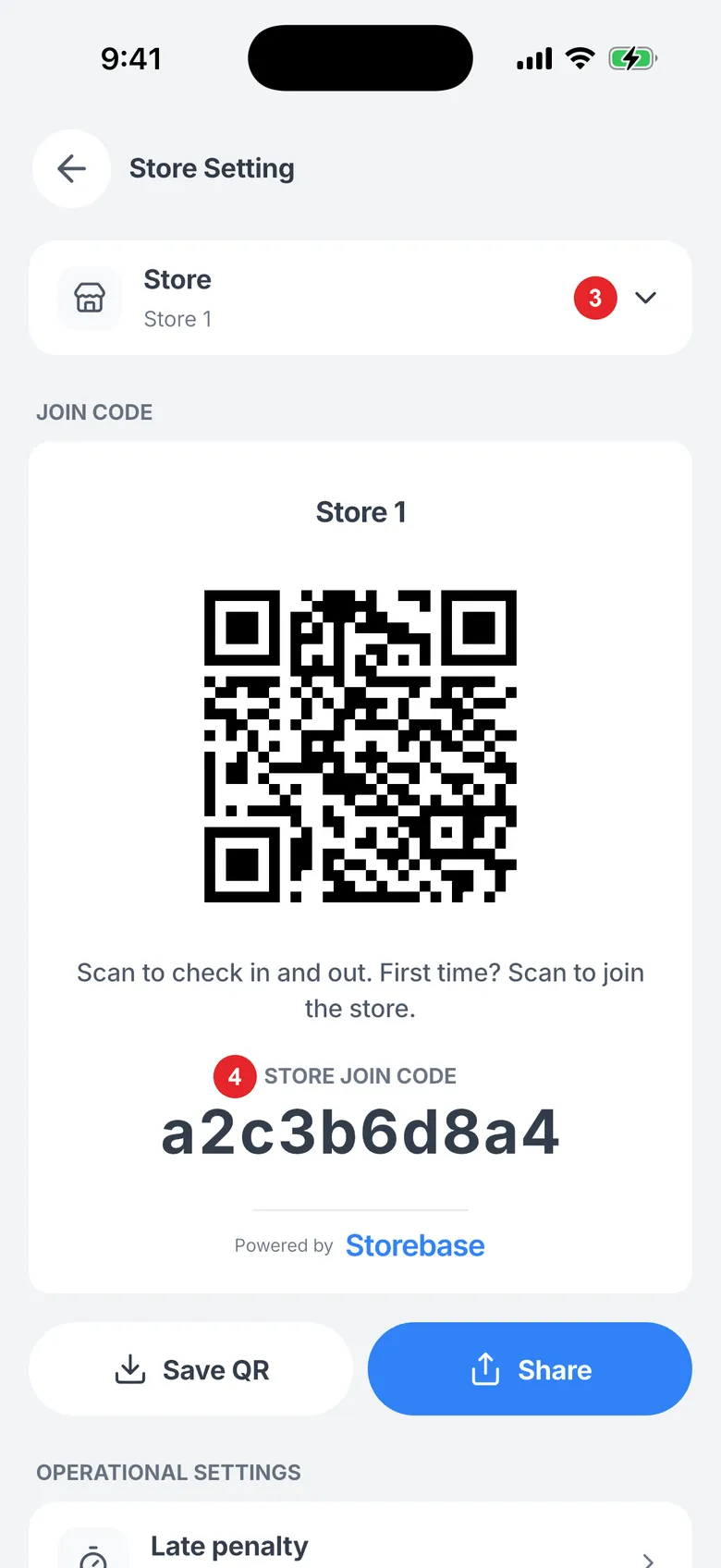
- Check that «Store» at the top is the store where the staff member works. If you have several stores, choose it here.
- Look at the «STORE JOIN CODE» under the QR. Check that the QR staff scan belongs to this store.
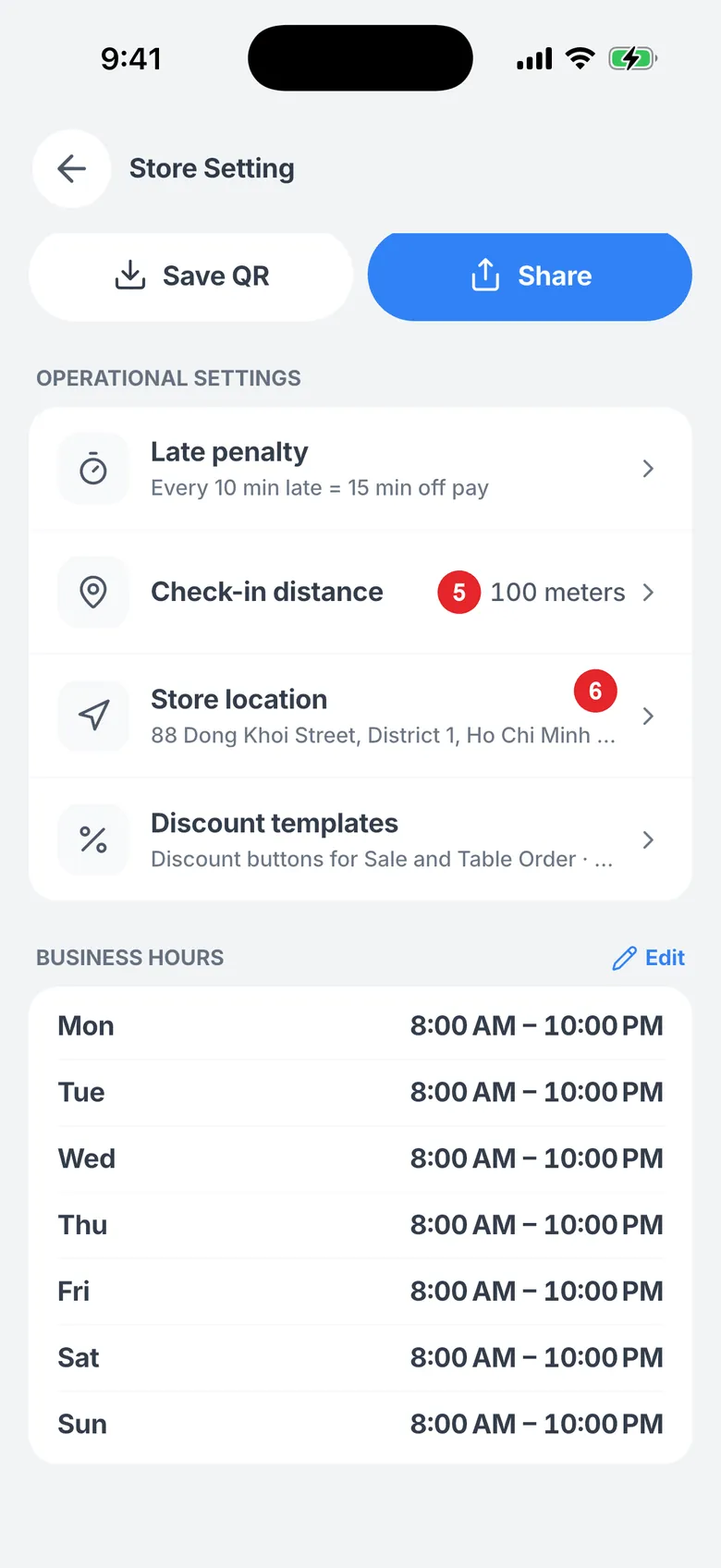
- «Check-in distance» sets how far from the store still counts as inside the store.
- Check that «Store location» is the store's real address.
Why it works this way
Staff scan the QR with the app. On the website, you check the store's QR and location, and the manager enters the times for shifts that could not be scanned.
Remember
- Clock-in is not blocked, even when they scan far from the store. If it is farther than the store's «Check-in distance», it is only marked as a clock-in outside the store, with the distance. Pay stays the same.
- The distance stays under «Where» in the shift window.
- For shifts that could not be scanned, enter the times as in «Someone forgot to clock in» and «Someone forgot to clock out».