
Show contents
Staff & shifts › Hourly staff
I raised the rate, but past shifts did not change
- Who
- Owner
- When
- When you change the rate
- Where
- App · Web
What you get
- Raising the rate leaves shifts already confirmed as they are, so past pay does not change by itself.
- If you want to give the new rate for past shifts too, choose just those shifts and change them.
What it solves
- I raised the hourly rate, but past shifts show the old rate. «Hourly Rate» and «Work pay» on the Payroll tab don't match, so it looks wrong.
Why this way
- Each shift saves that day's rate, so changing the rate does not move the amounts of past shifts already set.
- When does the raised rate start? From shifts that end after you raise it. Even if a finished shift is confirmed late, it gets that day's rate.
- How do I pay past shifts at the new rate too? Open each shift and fix it (web «Hourly rate · this shift», app the pencil next to «Hourly salary»).
At the bottom of the app, go to «Staff» → «Employee Salary & Payment» → the «Pay Salary» tab, choose the month and tap the staff member.
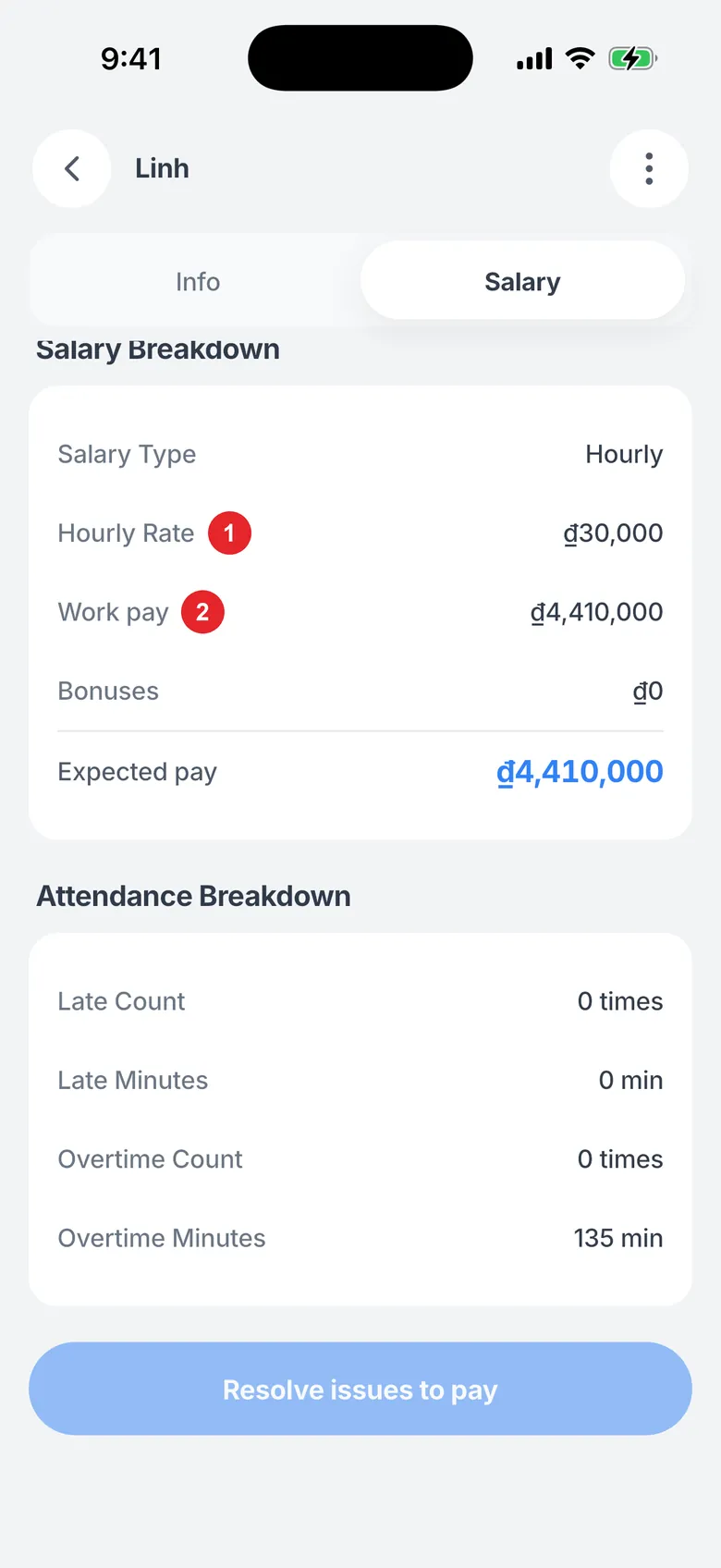
- «Hourly Rate» is the current rate.
- «Work pay» is added up from the rate saved on each shift, so it may not match «Hourly Rate».
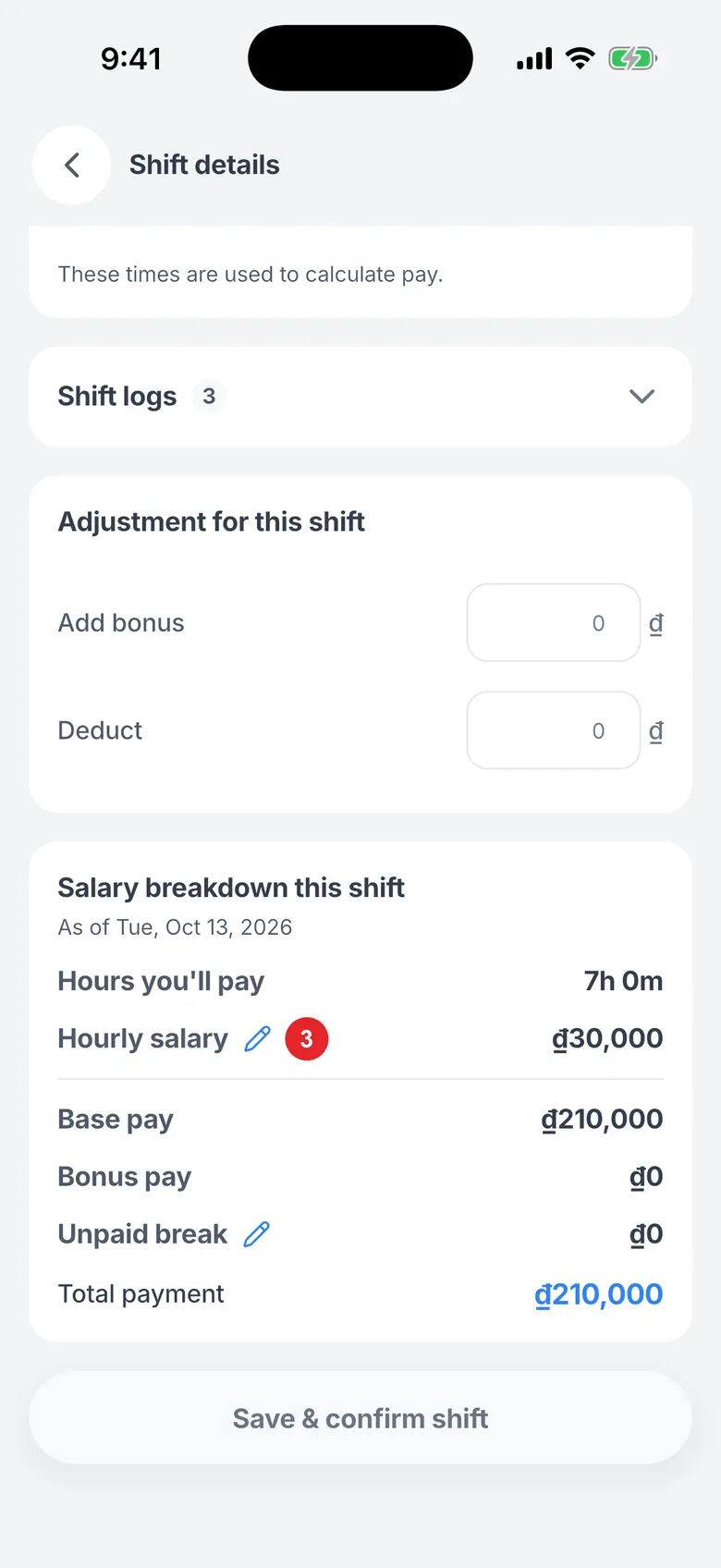
- To give the new rate for past shifts too, open that shift in «Staff» → «Shift Management» → the «Schedule» tab: choose the date and tap the staff member on that shift. Tap the pencil next to «Hourly salary».
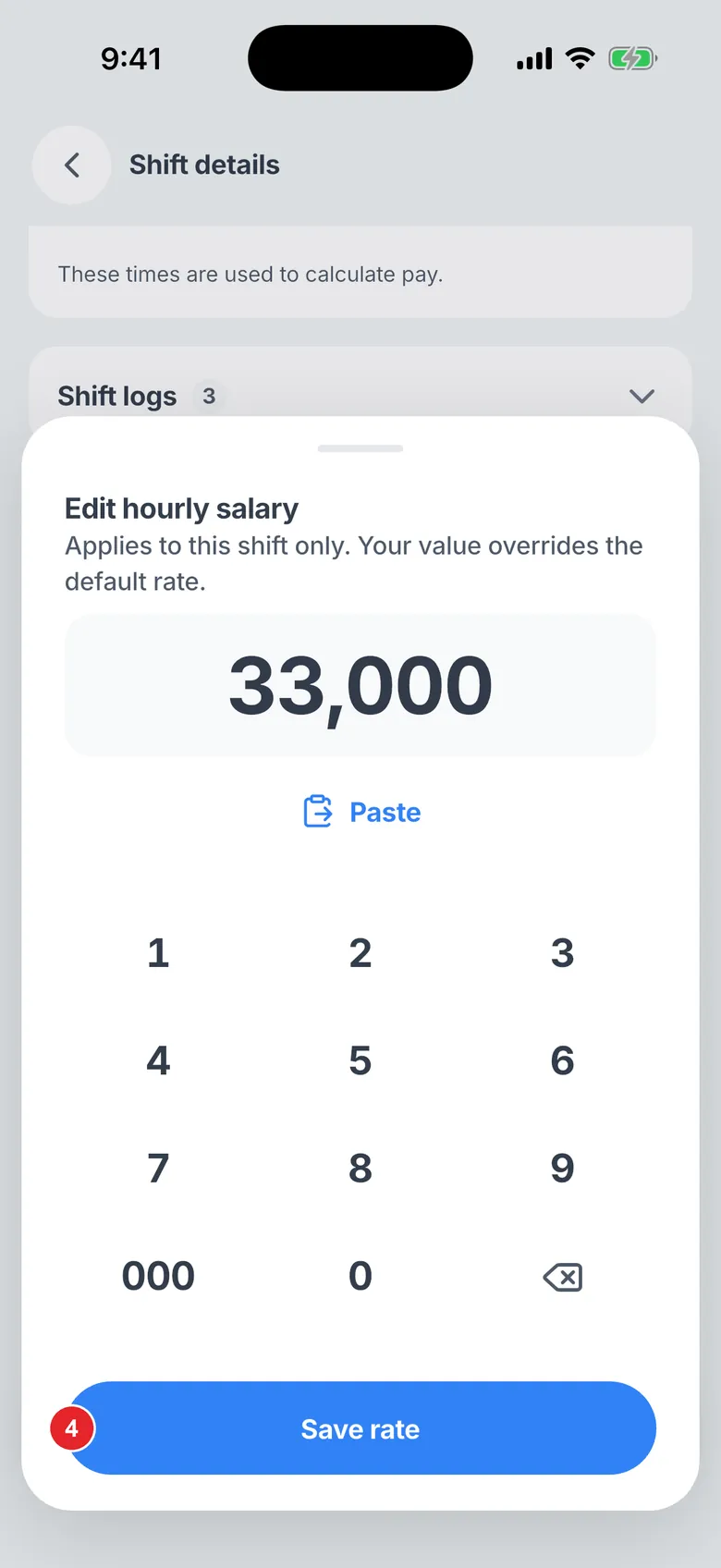
- Enter the new rate and tap «Save rate». Here it goes from ₫30,000 to 33,000.
- Tap «Save & confirm shift» at the bottom to save. If you leave without tapping it, the rate does not change. Repeat steps 3–5 for each shift.
Why it works this way
A shift's rate is saved at that day's rate when the shift is first confirmed. Raise the rate, and shifts that end after that get the new rate. Shifts already confirmed don't change. Even if a finished shift is confirmed late, it gets that day's rate.
Remember
- To give the new rate for past shifts too, open each one and change «Hourly rate · this shift». It works the same way as «The hourly pay shows ₫0».
- The «Hourly Rate» column on the Payroll tab is the current rate. «Work pay» is worked out from the rate saved on each shift, so it can differ from the hours multiplied by the «Hourly Rate».