
Show contents
Staff & shifts › Hourly staff
I entered the wrong hourly rate
- Who
- Owner
- When
- When something goes wrong
- Where
- App · Web
What you get
- Fix the rate in the profile, and shifts that end after the fix get the right rate.
- Shifts already confirmed at the wrong rate can also be opened one by one and fixed to the right rate.
What it solves
- I entered the wrong hourly rate. If you only fix the profile, shifts already confirmed keep the wrong rate and are paid that way.
Why this way
- Each shift saves its own rate, so you fix only the wrong shifts and the right ones stay as they are.
- Can I see the changed amount before saving? On the website, compare «Total pay» with the «was …» amount under it, then click «Save & confirm shift».
- What if I already paid that month? First cancel the payment («I made a wrong payment»). If you fix it after paying, that month's payment is not worked out again.
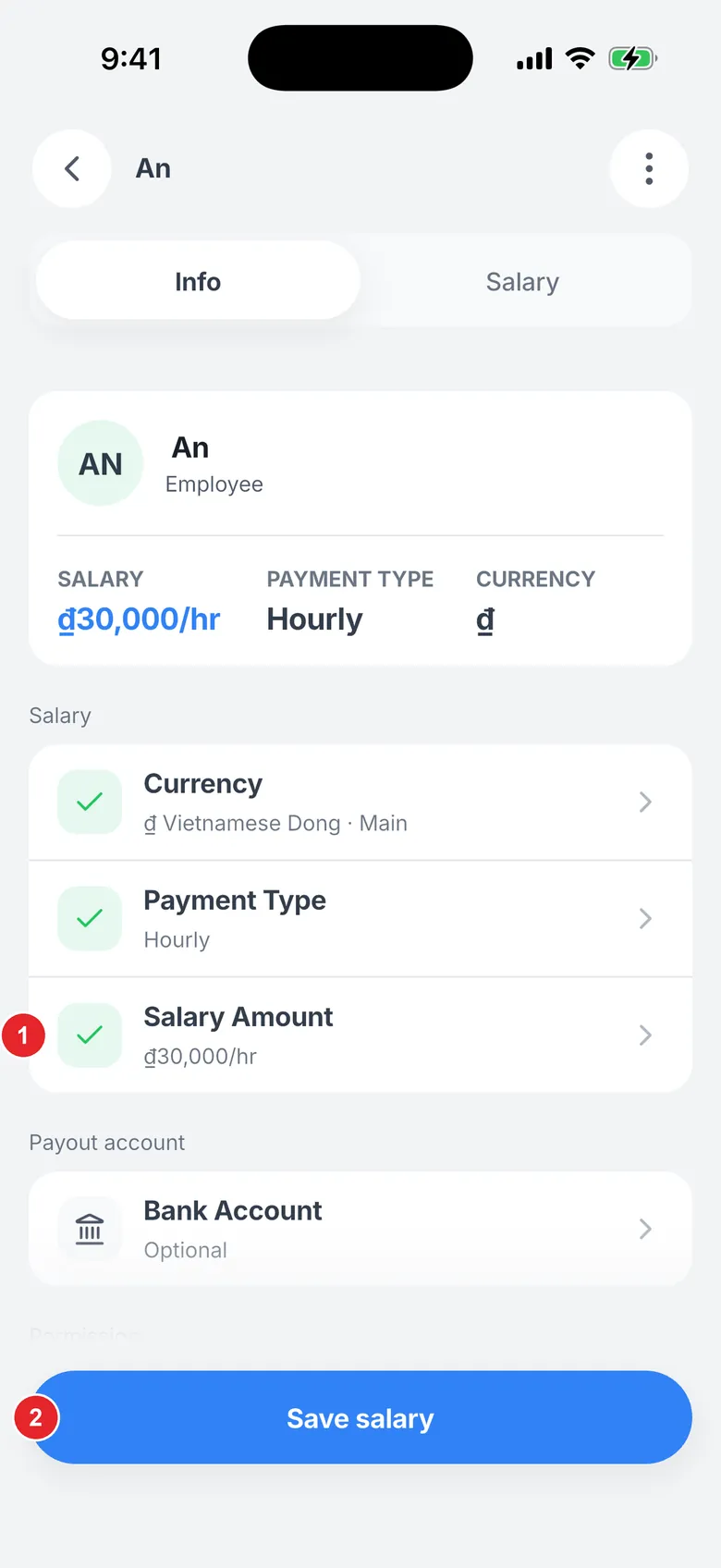
- At the bottom of the app, go to «Staff» → «Employee Salary & Payment» → the «Salary Setup» tab, tap the staff member, tap «Salary Amount» and enter the right hourly rate.
- Tap «Save salary». From now on, shifts that end get the right rate.
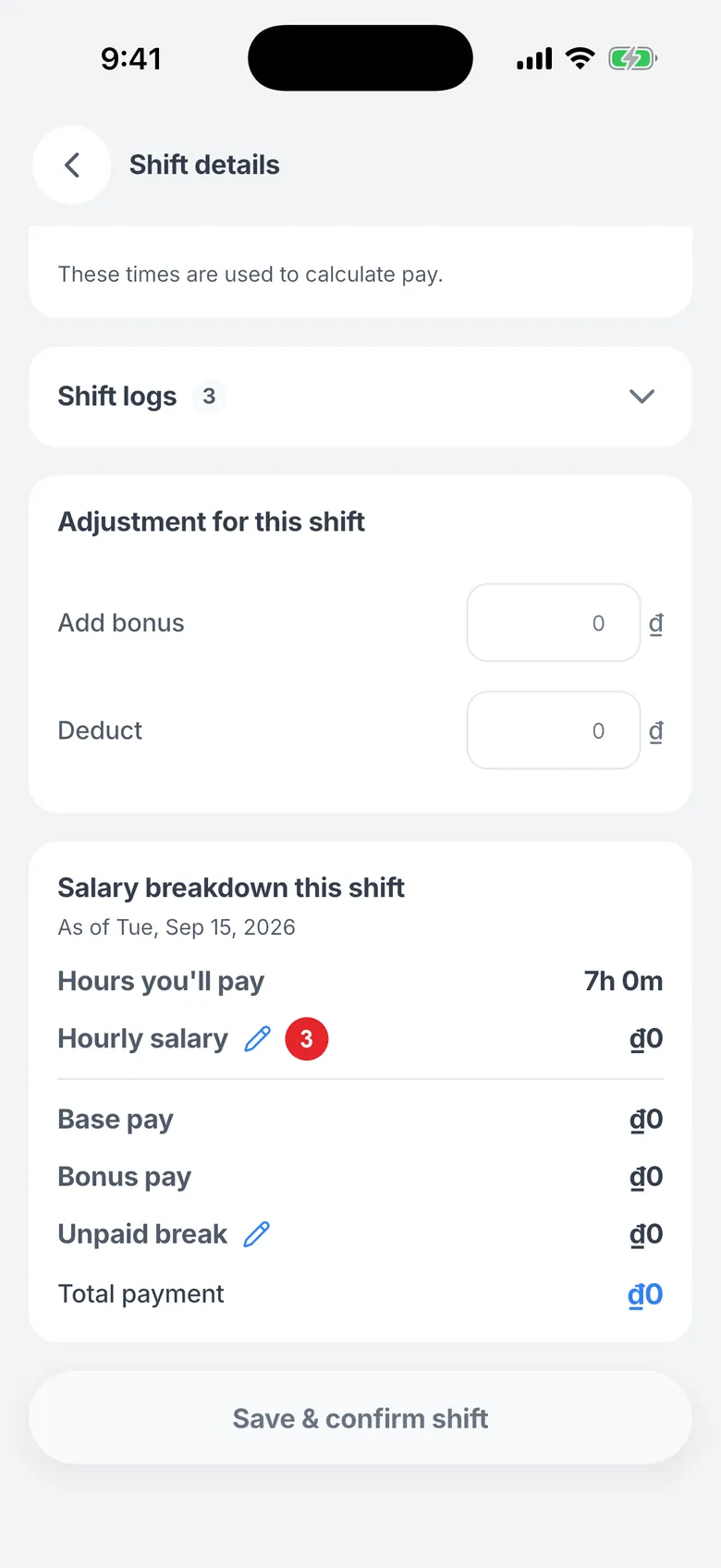
- For shifts already confirmed at the wrong rate, open each one in «Staff» → «Shift Management» → the «Schedule» tab: choose the date and tap the staff member on that shift. Tap the pencil next to «Hourly salary».
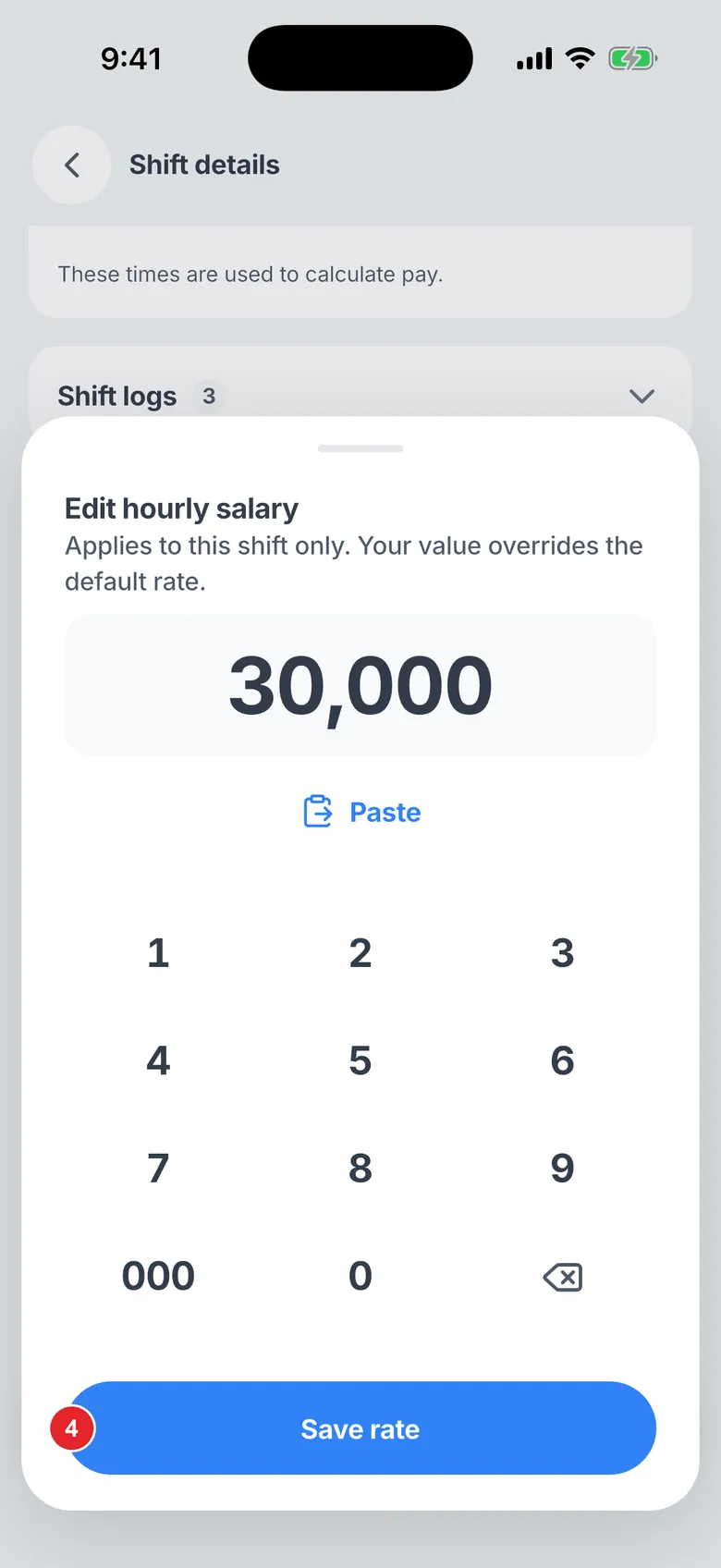
- Enter the right rate and tap «Save rate».
- Tap «Save & confirm shift» at the bottom to save. If you leave without tapping it, the rate does not change. Repeat steps 3–5 for each shift.
Why it works this way
Fix the rate in the profile, and shifts that end after the fix get the right rate. Shifts already confirmed at the wrong rate keep that rate.
Remember
- Open each shift already confirmed and change «Hourly rate · this shift».
- If you already paid that month, first cancel the payment («I made a wrong payment»). Even if you fix shifts after paying, that month's payment is not worked out again.