
Show contents
Staff & shifts › Hourly staff
Check for gaps hour by hour
- Who
- Owner · Manager
- When
- When building the schedule · Every day
- Where
- App · Web
What you get
- One screen shows, hour by hour and for each department, how many people are working. Hours that are short of people are red cells.
- Red cells («Understaffed») and blue dashed cells («Needs approval») are shown apart, so you know at once whether you only need to approve or need to find more people.
- In the window that opens when you tap a cell, you «Approve» requests right there.
What it solves
- Even when the schedule looks full of names, you miss gaps inside an hour, like 12:00 being empty because someone comes in at 12:30.
- When monthly staff take leave, you have to work out on your own which hours of that day are left short.
Why this way
- Each hour is counted by its moment with the fewest people. So a gap in the middle of an hour also shows as short.
- Monthly staff who request leave count as missing even before the leave is approved. You see whether that spot goes empty before you approve the leave.
- Can I set a different headcount for each day of the week? No. Once you save, the same hour changes on every day of the week.
- What if I tap «Approve» by mistake? It is approved right away, with no confirm window. If it was a mistake, cancel that shift's approval («Approve shift requests»).
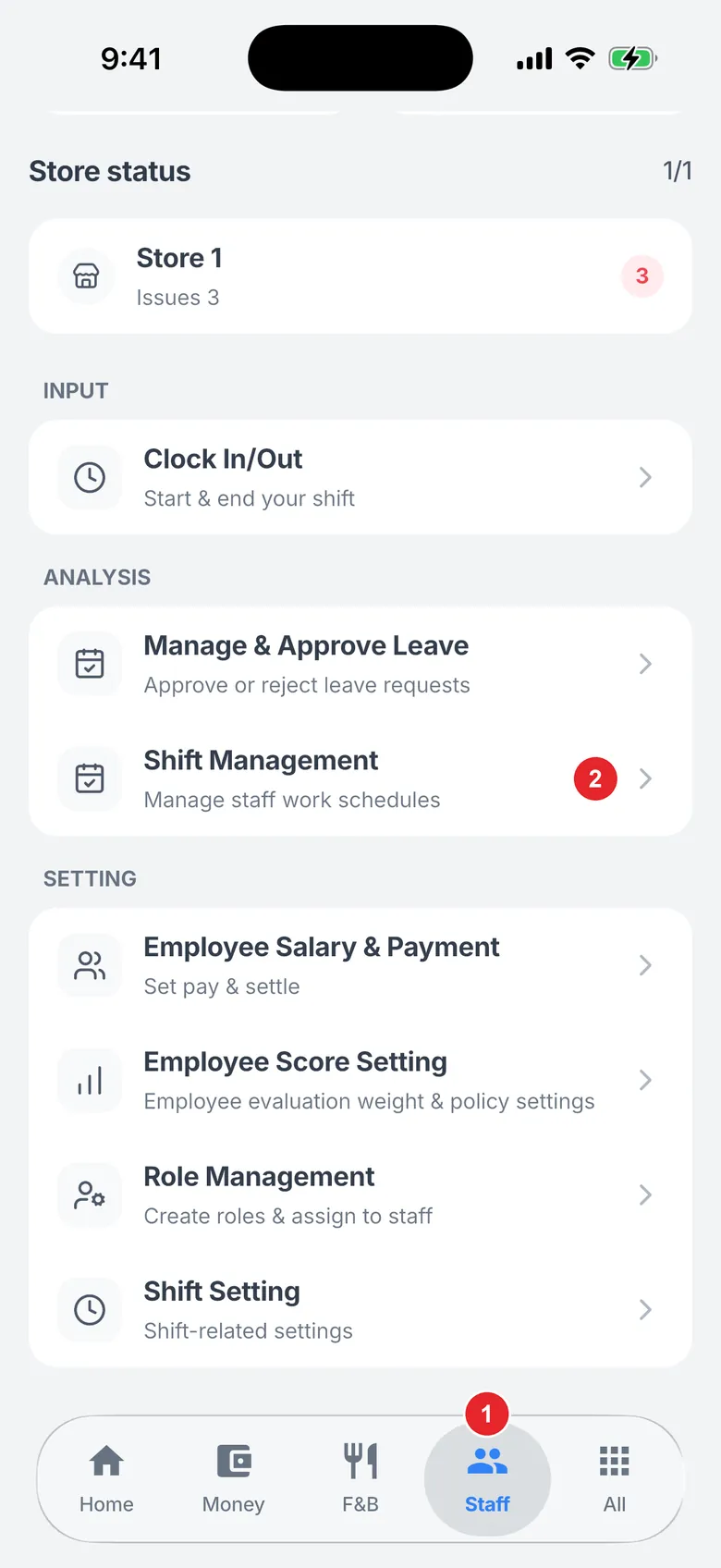
- Tap «Staff» at the bottom of the app.
- Scroll down and tap «Shift Management».
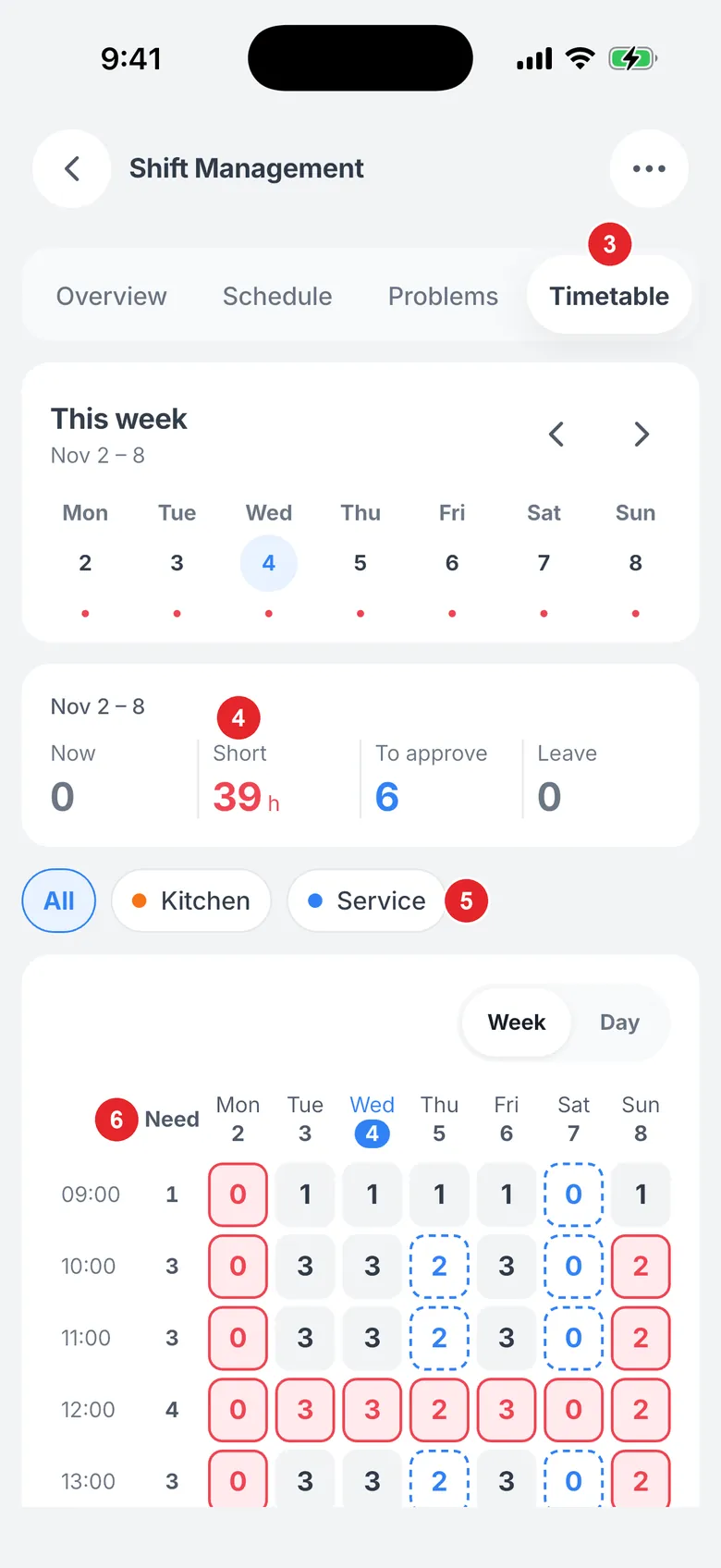
- Open the «Timetable» tab at the top. At first a whole week («Week») shows.
- «Short» is the hours still short of people even if every request is approved; «To approve» is the number of shift requests waiting. «Now» is the people working now, and «Leave» is monthly staff leave waiting for an answer.
- Tap a department to see only that department. «All» is the departments added together.
- «Need» is the people needed at that hour, and the number in a cell is the people working at that hour.
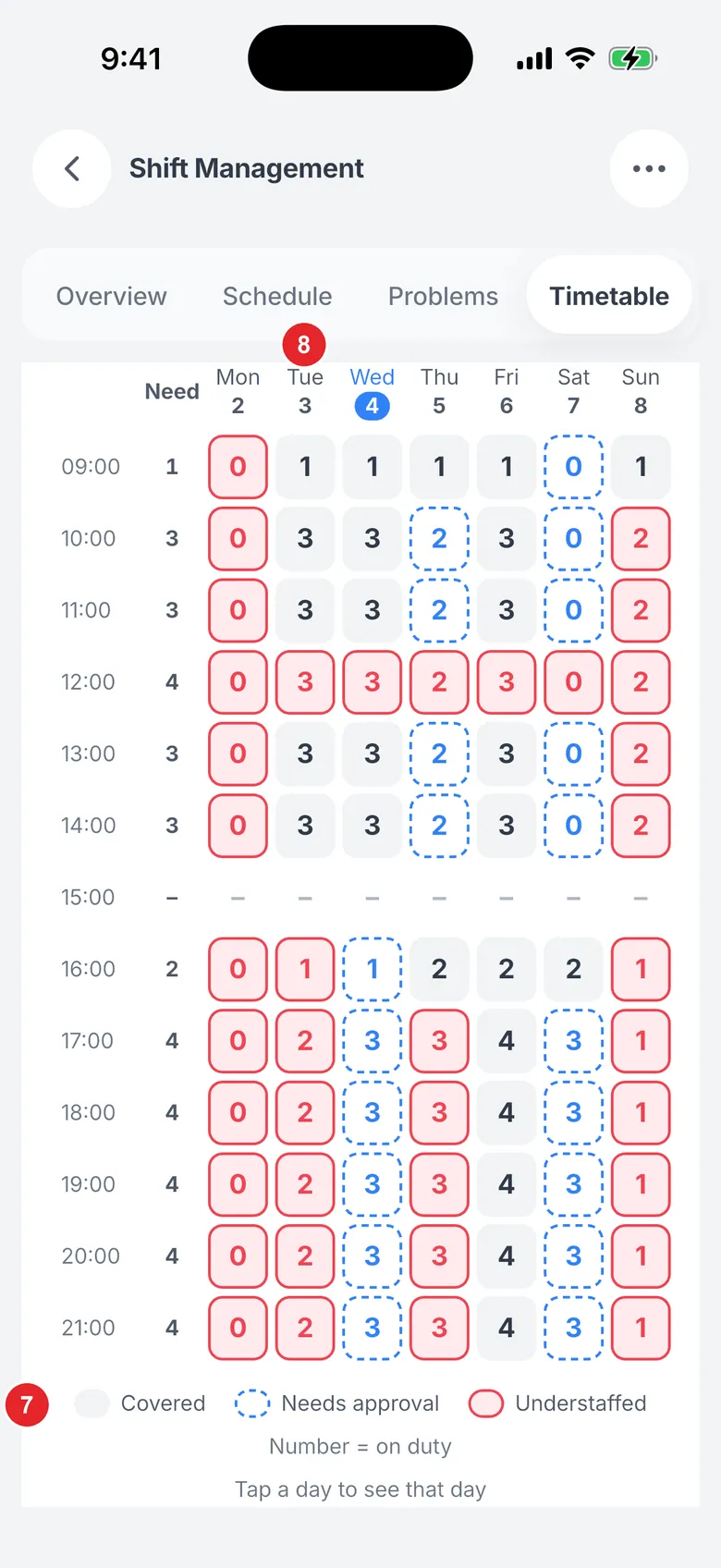
- Read the cell colors with the legend. Gray is «Covered», blue dashed is «Needs approval», red is «Understaffed».
- Tap a day to see that one day. You can also tap «Day» at the top right of the table (previous picture).
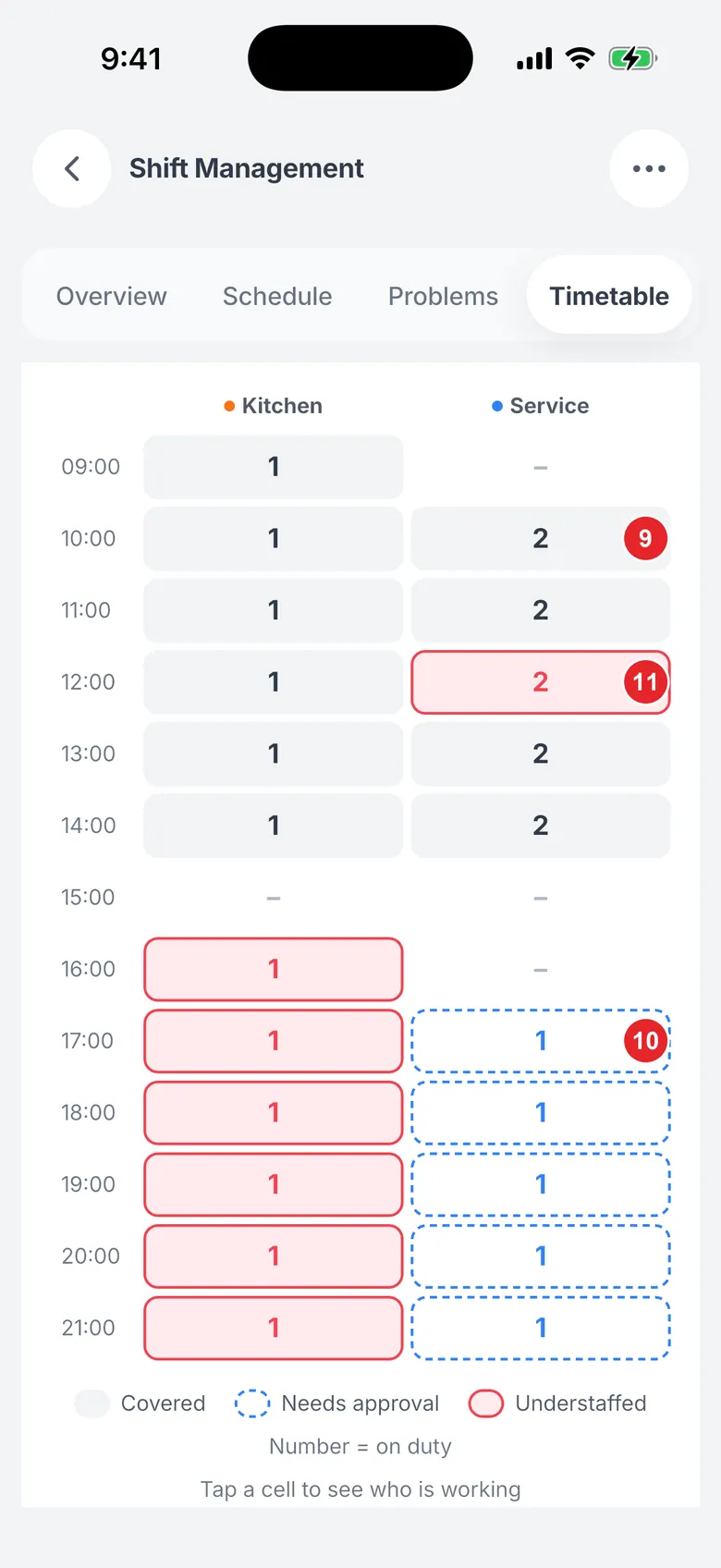
- A gray cell is an hour with as many people working as needed. At 10:00, Service needs 2 and 2 are working.
- A blue dashed cell is an hour that fills when you approve a request. At 17:00, Service has 1 working and 1 who requested.
- A red cell is an hour still short even if every request is approved. Tap Service at 12:00.
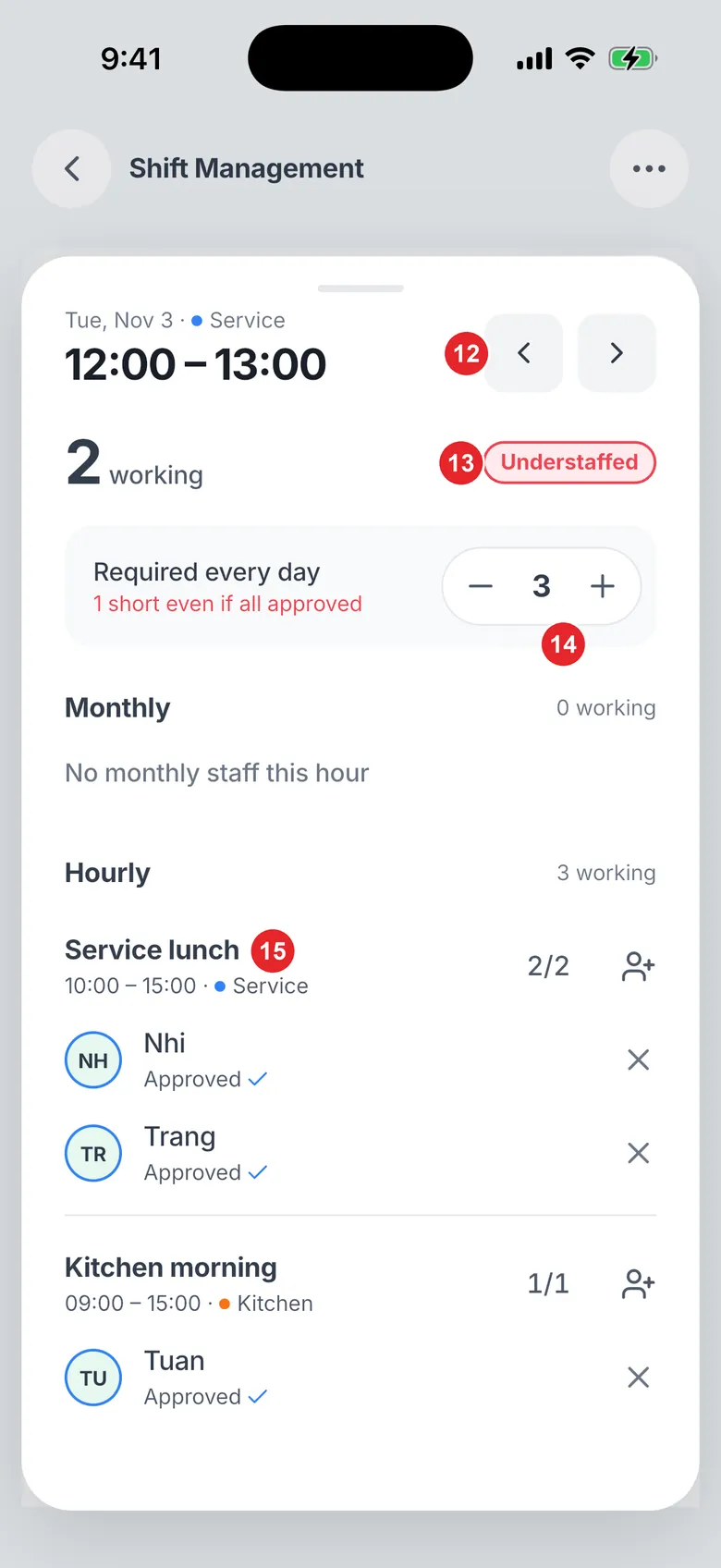
- Use ‹ › to move one hour at a time without closing the window.
- The number of people working at that hour and the cell state show.
- In «Required every day», use − + to set how many people this department needs at this hour. The line below tells you how many are short.
- The shifts covering that hour and the people working show. Other departments' shifts show too.
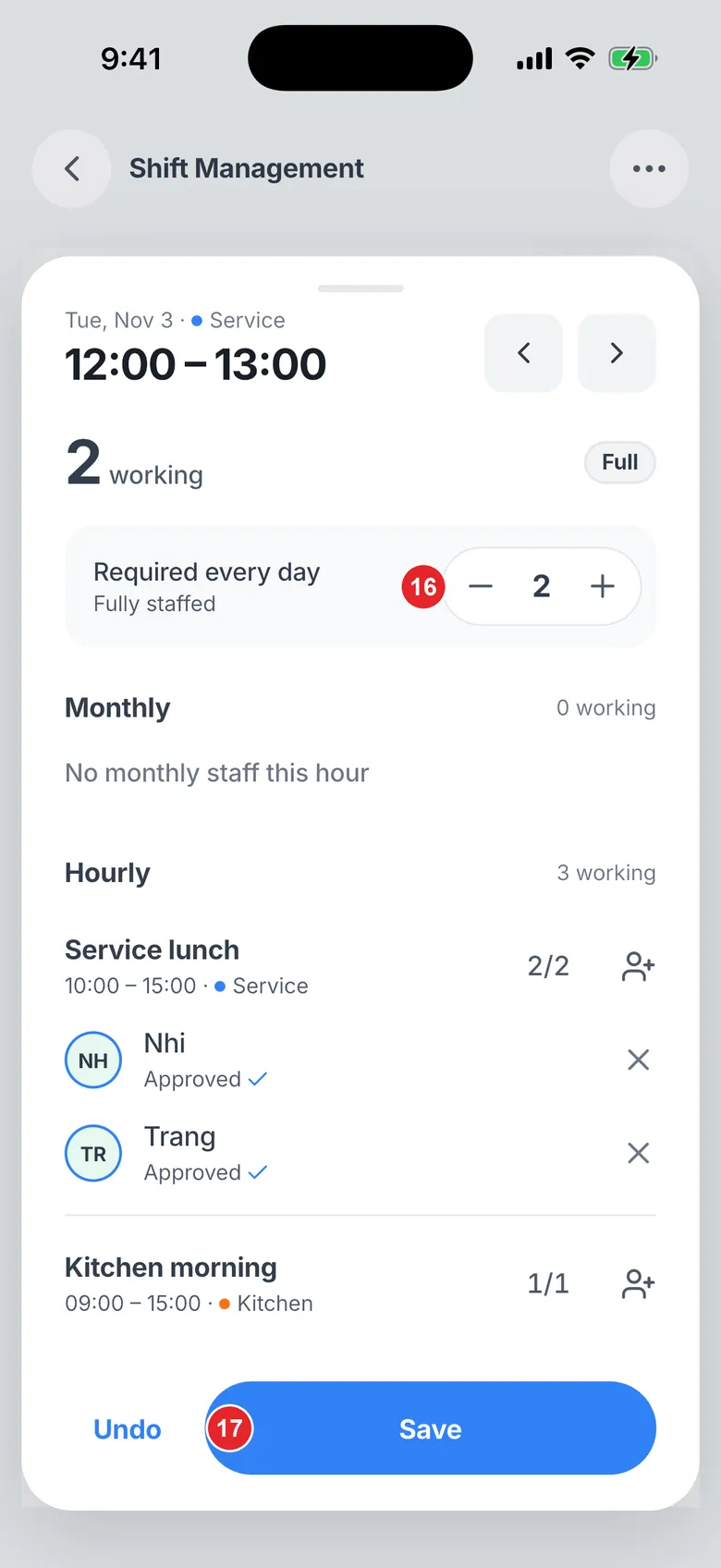
- When you tap − +, the state is worked out again right away. Lowering 3 people to 2 changes it to «Full». It is not saved yet.
- Tap «Save», and this department's people needed at this hour change on every day of the week. To throw it away, tap «Undo». If you changed several hours with ‹ ›, save them at once with «Save N hours».
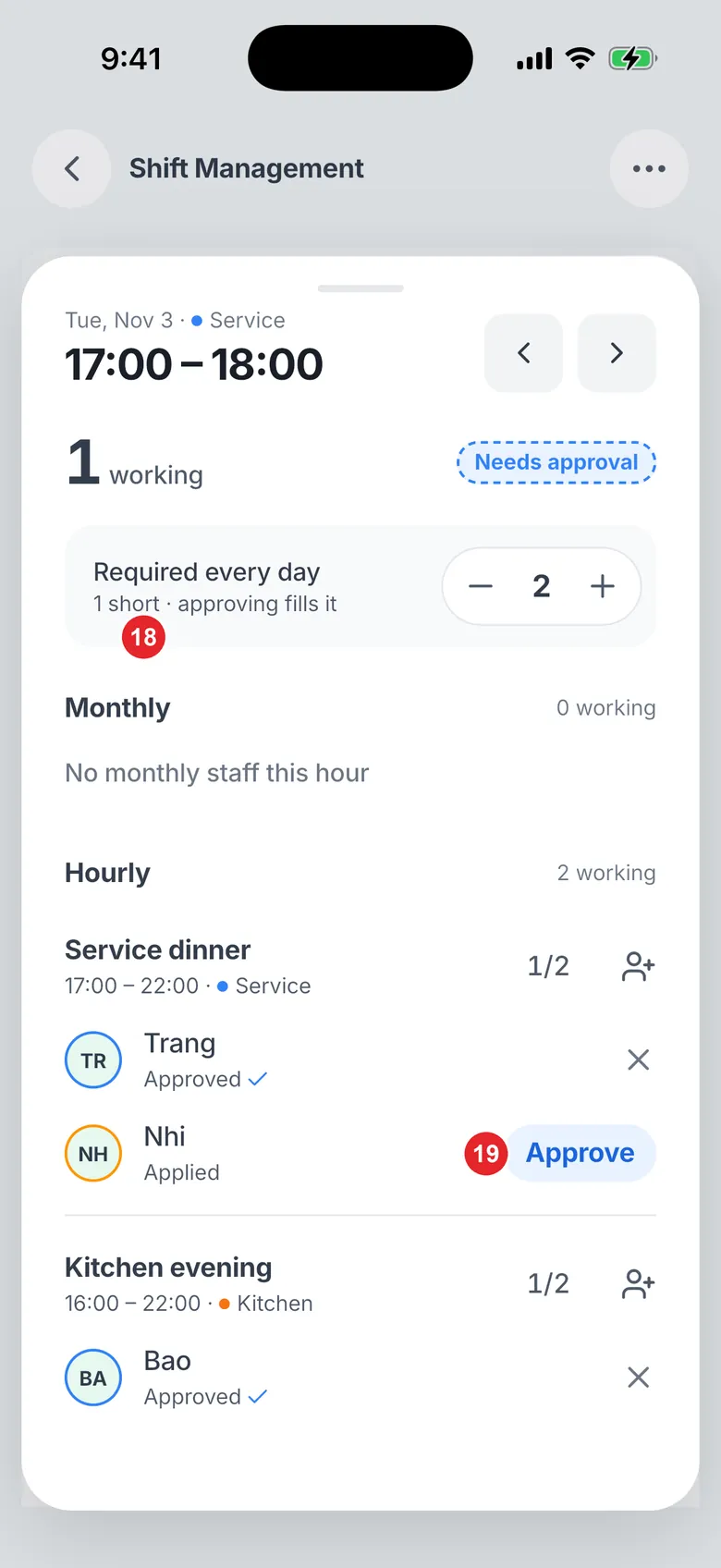
- Tap a blue dashed cell, and «1 short · approving fills it» shows.
- Tap «Approve» next to the staff member who requested. It is approved right away, with no confirm window.
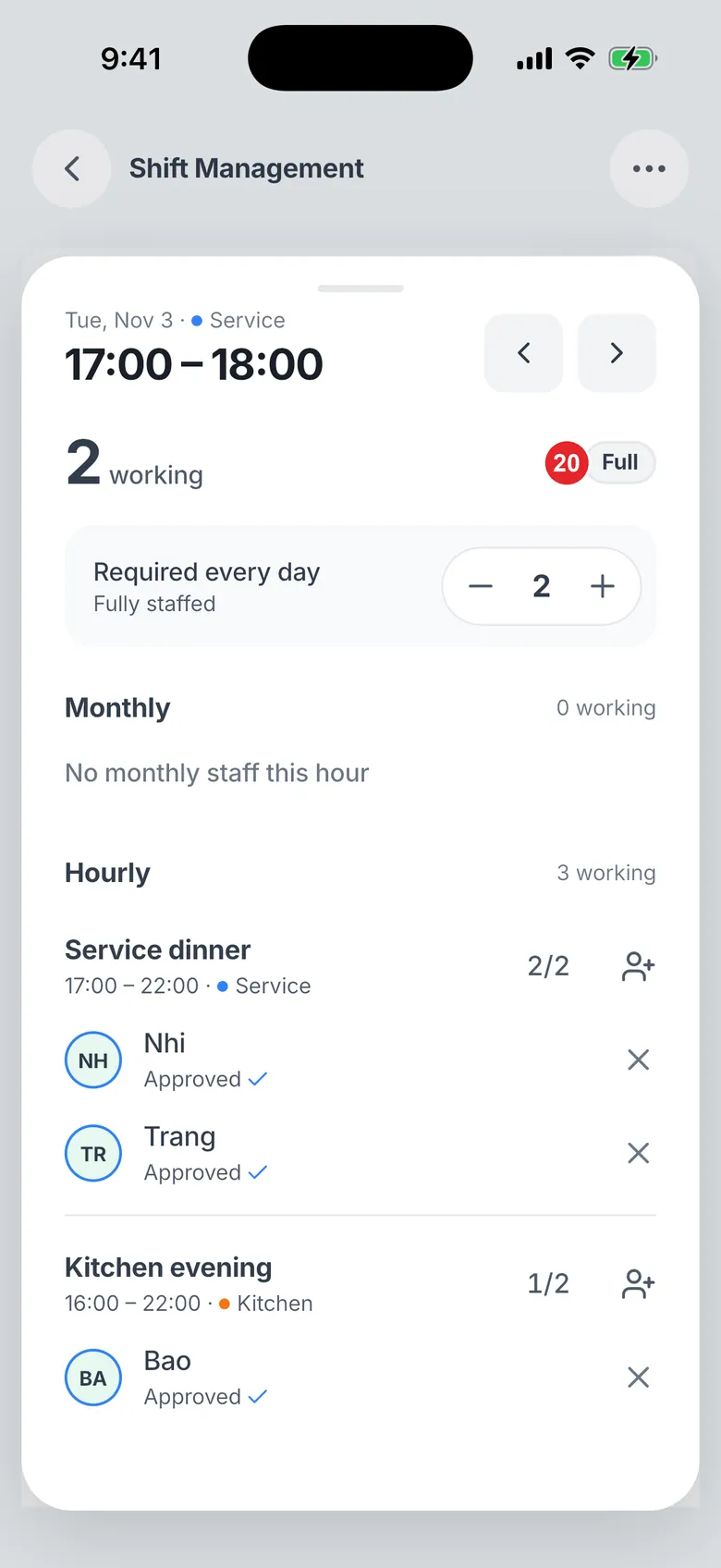
- The staff member changes to «Approved» and the cell becomes «Full».
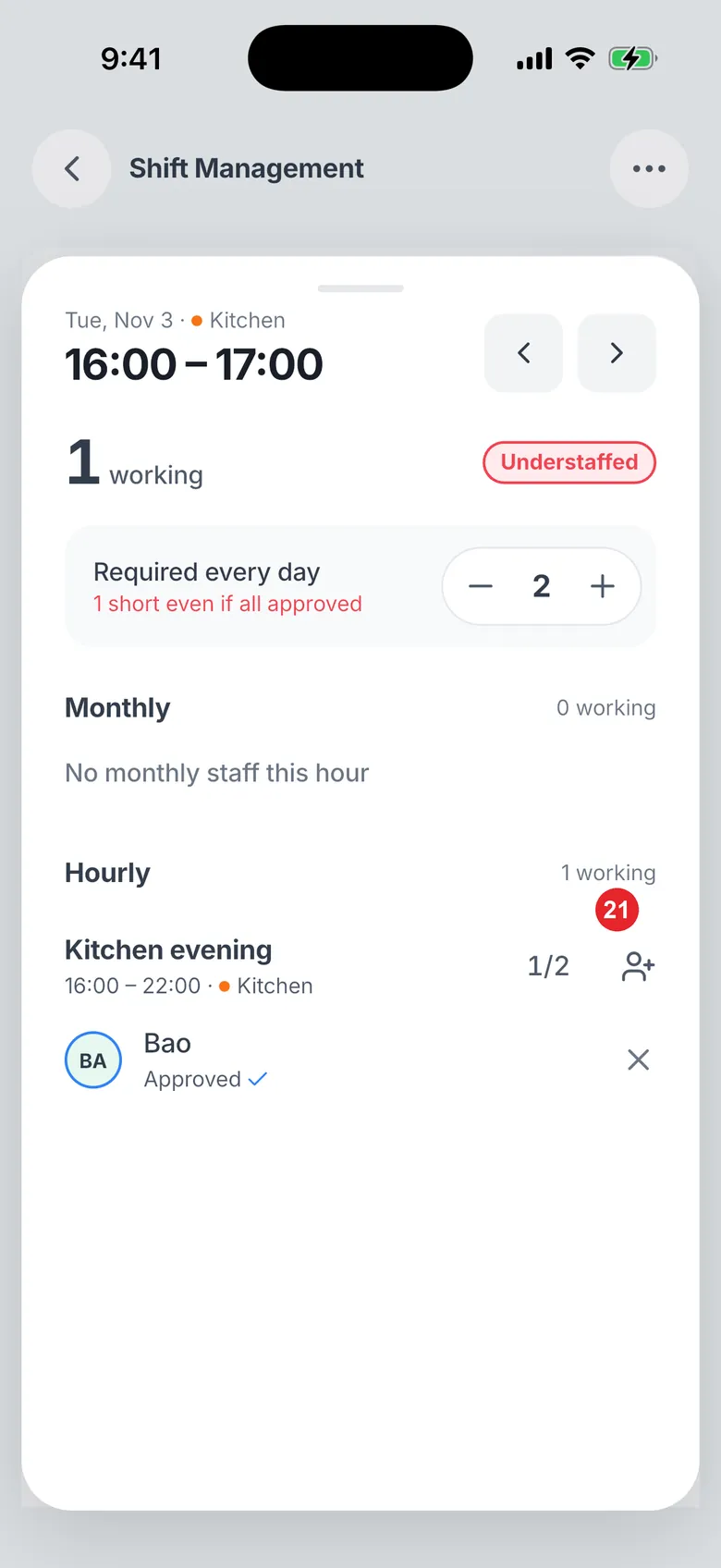
- A red cell is short even with everyone who requested. The picture is another red cell, Kitchen at 16:00. Tap the person button (Add employee to shift) on the right of the shift to fill (here «Kitchen evening»).
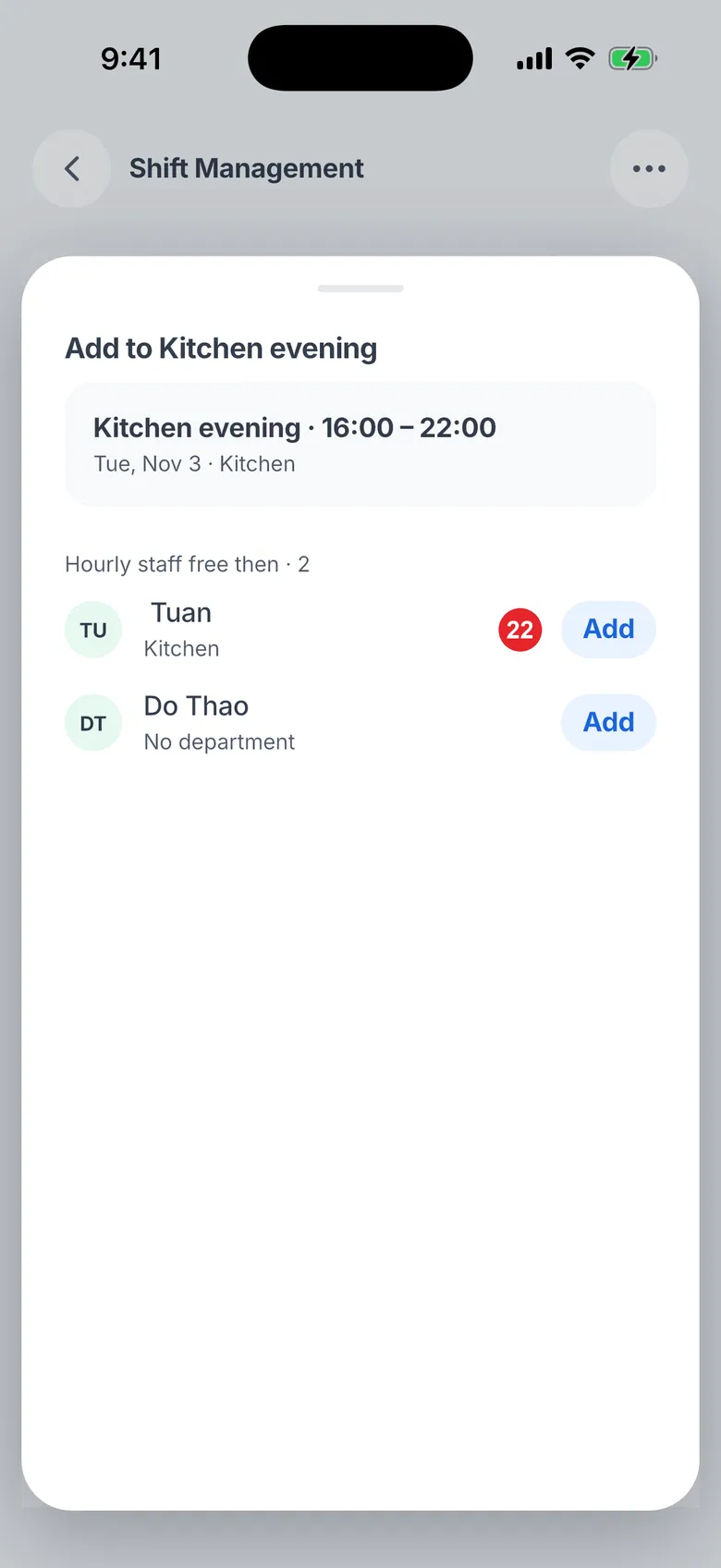
- «Hourly staff free then · 2» lists only hourly staff with no other approved shift at that time (the number is how many). Staff of the same department come first. Tap «Add» next to the staff member you want. They go in as an approved shift right away, with no confirm window, and «Employee added to shift» shows.
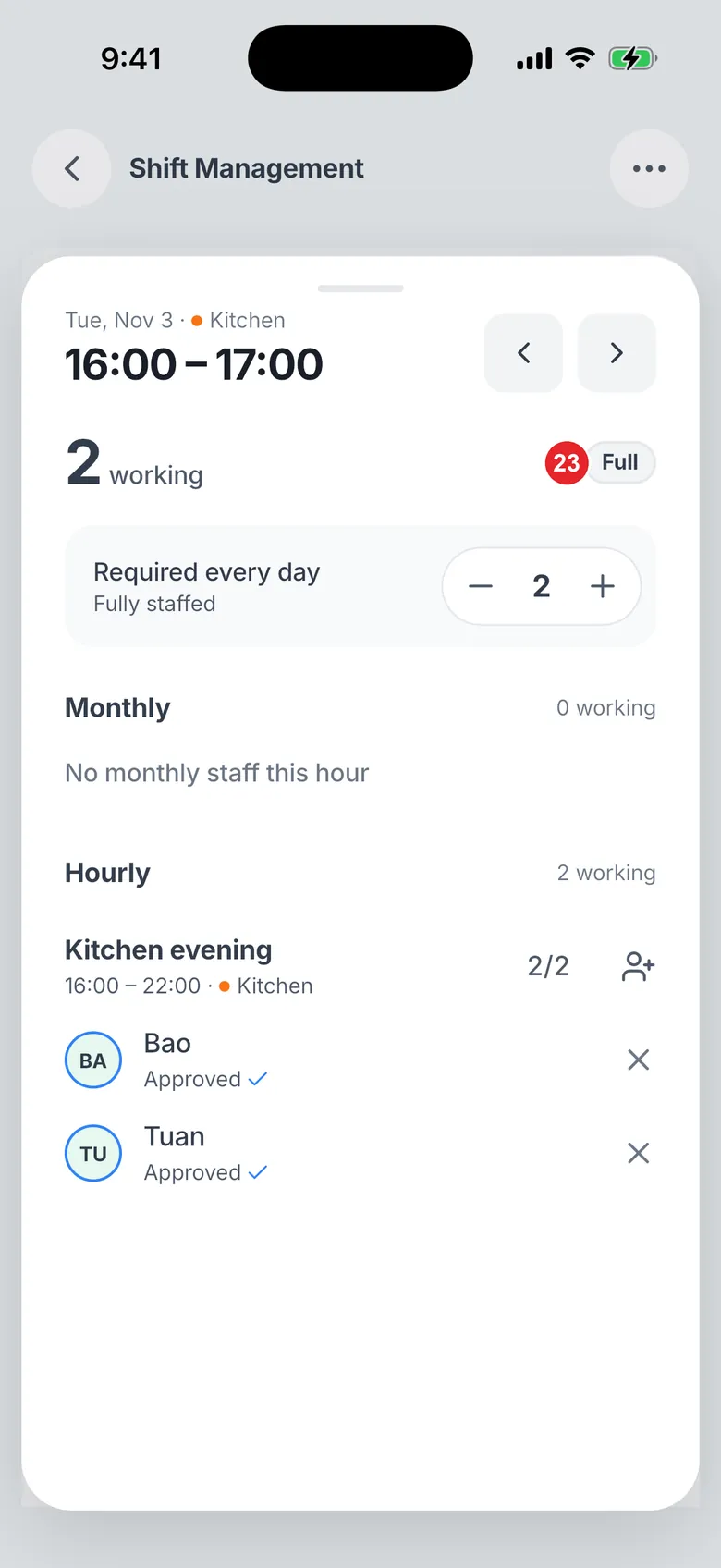
- Tap «OK», and the staff member is in the shift as «Approved» and the cell becomes «Full».
The timetable shows, hour by hour, how many people work in each department. Set how many people you need each hour, and empty hours show right away by cell color.
Cell colors
| Cell | App | Web | Meaning | How to fill it |
|---|---|---|---|---|
| Gray | Covered (in the window «Full») | Full | As many people as needed are working. | Nothing to do |
| Blue dashed | Needs approval | Needs approval | It fills when you approve the waiting requests. | Tap the cell, then «Approve» |
| Red | Understaffed | Understaffed | Still short even if you approve every request. | Hourly staff: app «Add» · web «Add»; monthly staff: «Find cover» |
| No color | Number only | Not set | The people needed are not set. | Set the people needed |
Remember
- In the app, the number in a cell is the people working in that hour. It counts approved hourly staff and monthly staff working that day. People who only requested are not counted. The website shows approved and requested people together (table below).
- Each hour is counted by its moment with the fewest people. Someone who comes in at 12:30 is not counted in the 12:00 cell.
- The people needed are set for each department and each hour. Once you save, the same hour changes on every day of the week. You can't set it differently for each day.
- The people needed in the timetable are separate from the shift's «Required employees». Hours with no number set are not judged. In the app, tap − once more at 1 to get «–»; on the website, empty the «Need» box to get «Not set».
- «All» (website «All departments») is the departments added together. If even one department is short, that hour is a red cell.
- Monthly staff who request leave count as missing even before approval. If you reject the leave, they count as working again.
- Requests for past days are not counted in «To approve».
- A spot left by monthly staff on leave, absent or off is filled by tapping the cell and using that person's «Find cover». You «Assign» from monthly staff who are off that day or working another shift.
Where the app and the website differ
| App | Web | |
|---|---|---|
| What you see first | One week («Week») | Today («Day») |
| Number in a cell | People working | Approved / requested («1/2»); with monthly staff, «1 + 2/5» |
| Hours with no number set | No color. Blue dashed if requests are waiting | Colored by the «Required employees» of the shifts in that hour |
| Change the people needed | Cell → − + → «Save» | Number in the «Need» box → Enter, or cell → − + → «Save» |
| Add hourly staff | The person button on the shift → «Add». Only people free at that time appear | Shift → «ADD SOMEONE» → «Add». People with other shifts also appear |
If you get stuck
- If «Shift Management» is not in the menu, that person's role has the «Shift Management» permission turned off. See «Create roles and set permissions».
- If the timetable is empty (app «No shifts yet» · web «No shifts this week»), first create shifts with «Set up hourly shifts».
- If it is not split by department, set a «Department» on the shifts. See «Set up departments (Service · Kitchen)».
- If the staff member you want to add is not in the app list, they already have another approved shift at that time.