
Show contents
Staff & shifts › Hourly staff
Someone clocked the wrong time
- Who
- Staff → Manager
- When
- When something goes wrong
- Where
- App · Web
What you get
- The staff member writes what was wrong with «Report Issue» in that shift, so the manager knows right away which shift it is about.
- The manager's reply goes to the staff member when the last button is pressed.
- On the website, you choose the hours to pay from «Recorded» · «Schedule» · «Custom».
What it solves
- «I clocked the wrong time.» If it is only said in person or by messenger, there is no record of which shift it was, and it is easy to miss when paying.
Why this way
- Does the time change by itself when staff report? No. Staff only send the reason; the manager reads it and decides the hours to pay.
- Do staff see the fixed time too? Yes. The staff app's «Shift details» also has «Shift logs», showing who changed it to what time.
- What if I see the report after paying? Times fixed after paying are not paid that month. See «Shifts changed or were added after paying».
Staff
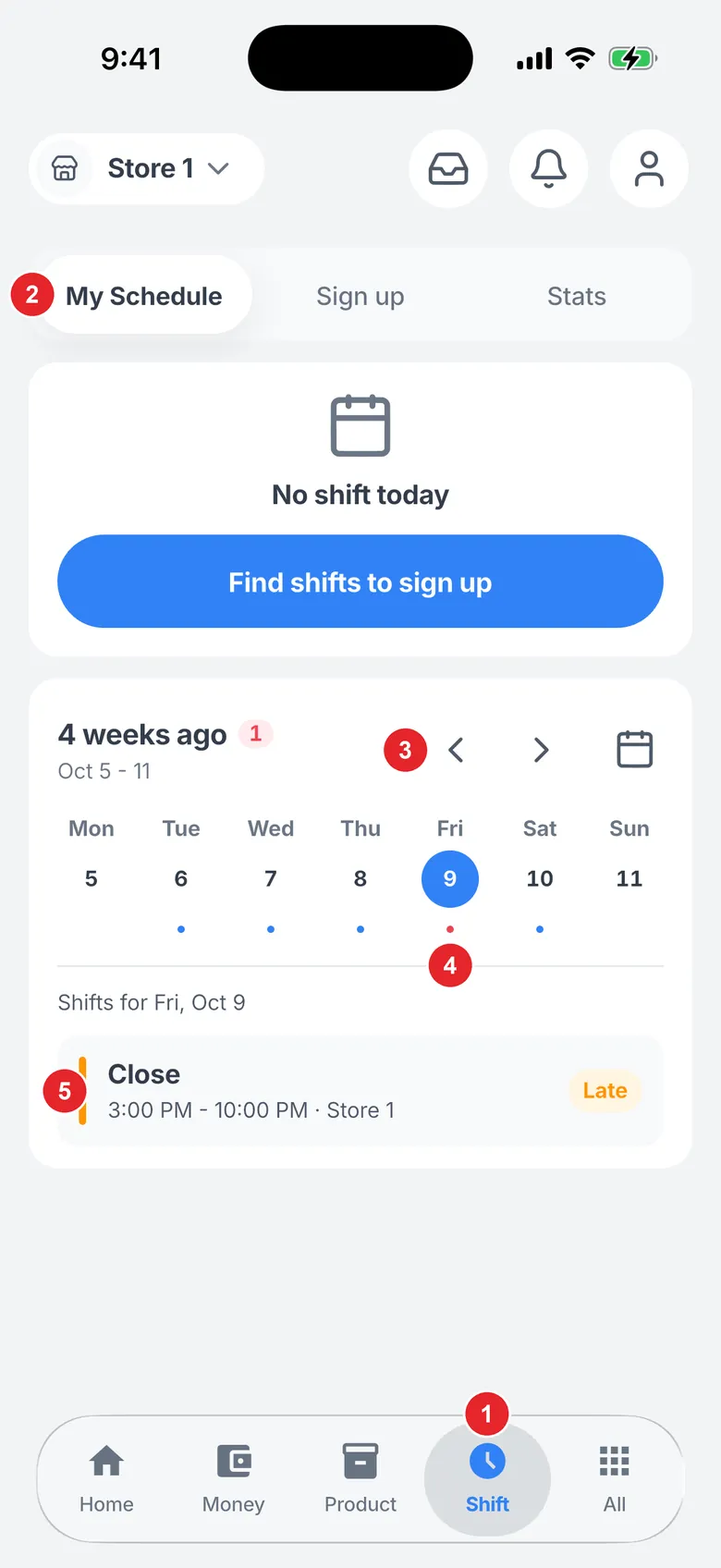
- Tap «Shift» at the bottom of the app.
- Open the «My Schedule» tab.
- Use ‹ to go to the week with that day.
- Tap the date.
- Tap the shift shown below.
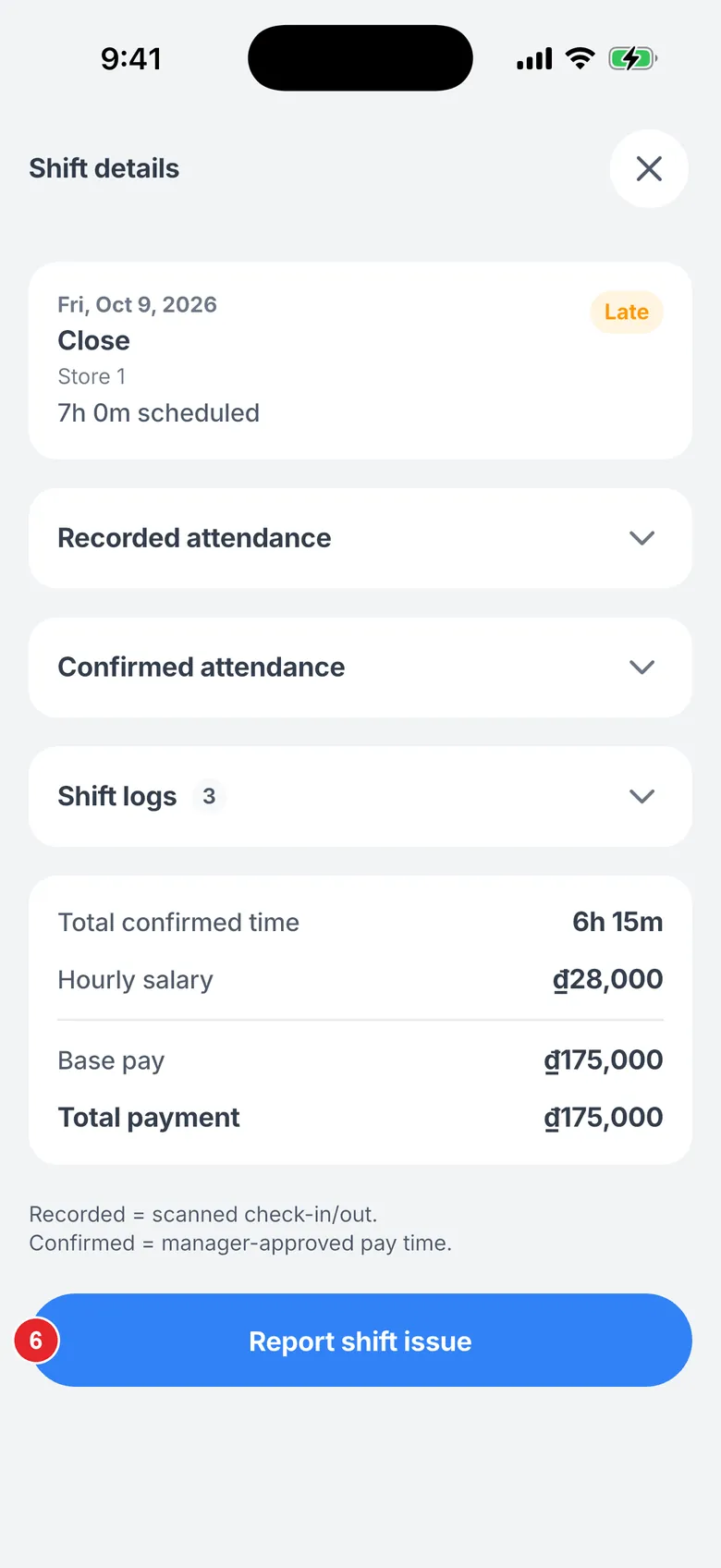
- Tap «Report shift issue».
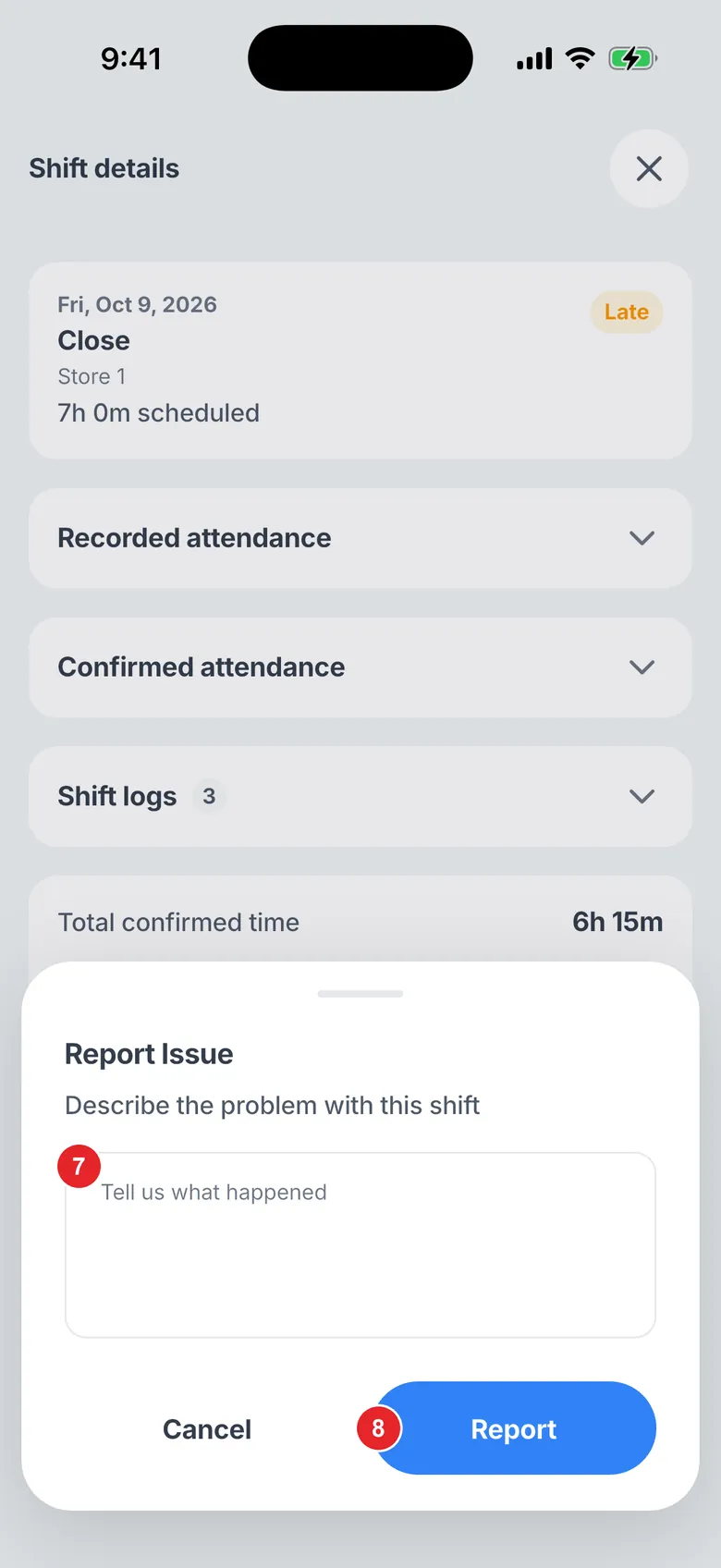
- In «Tell us what happened», write what was wrong. Example: what time you really finished.
- Tap «Report».
Manager
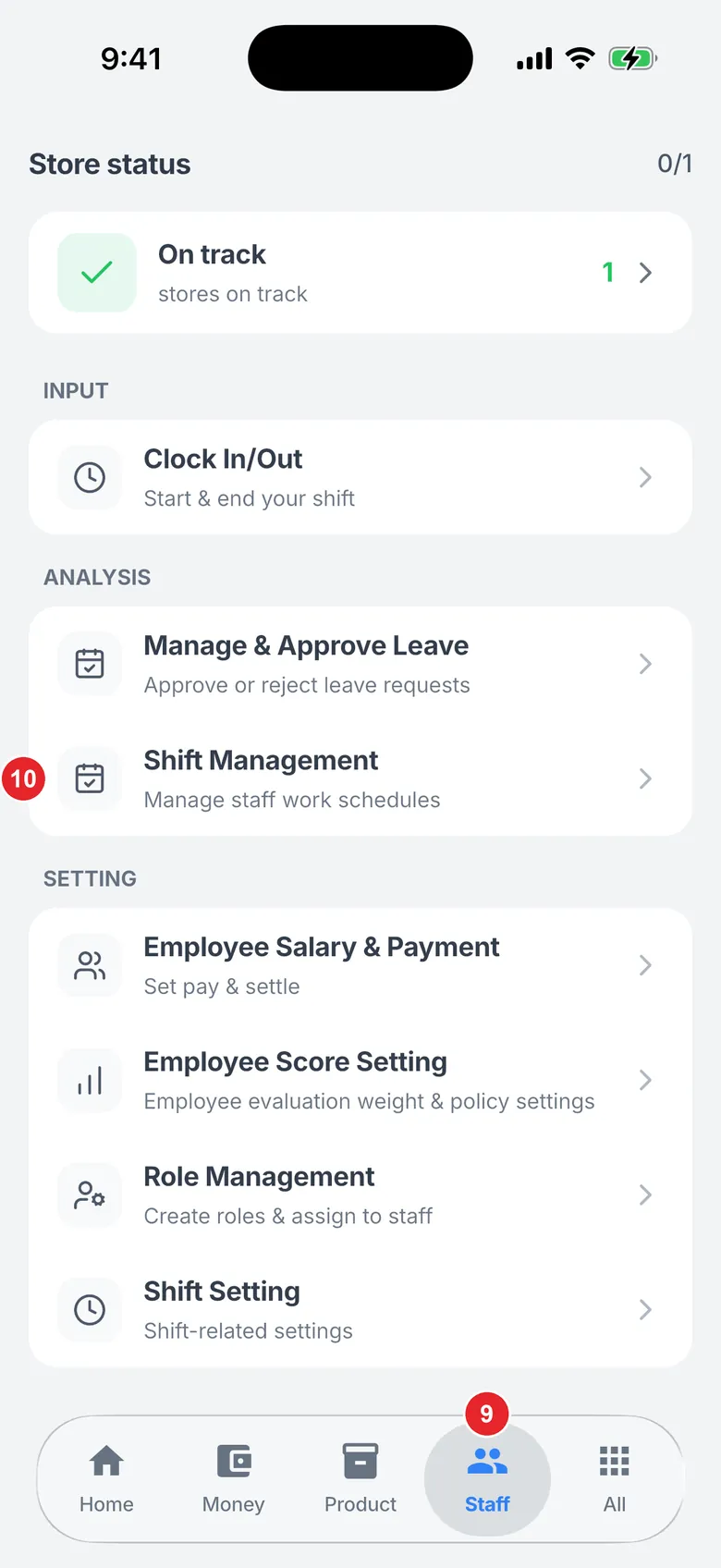
- Tap «Staff» at the bottom of the app.
- Scroll down and tap «Shift Management».
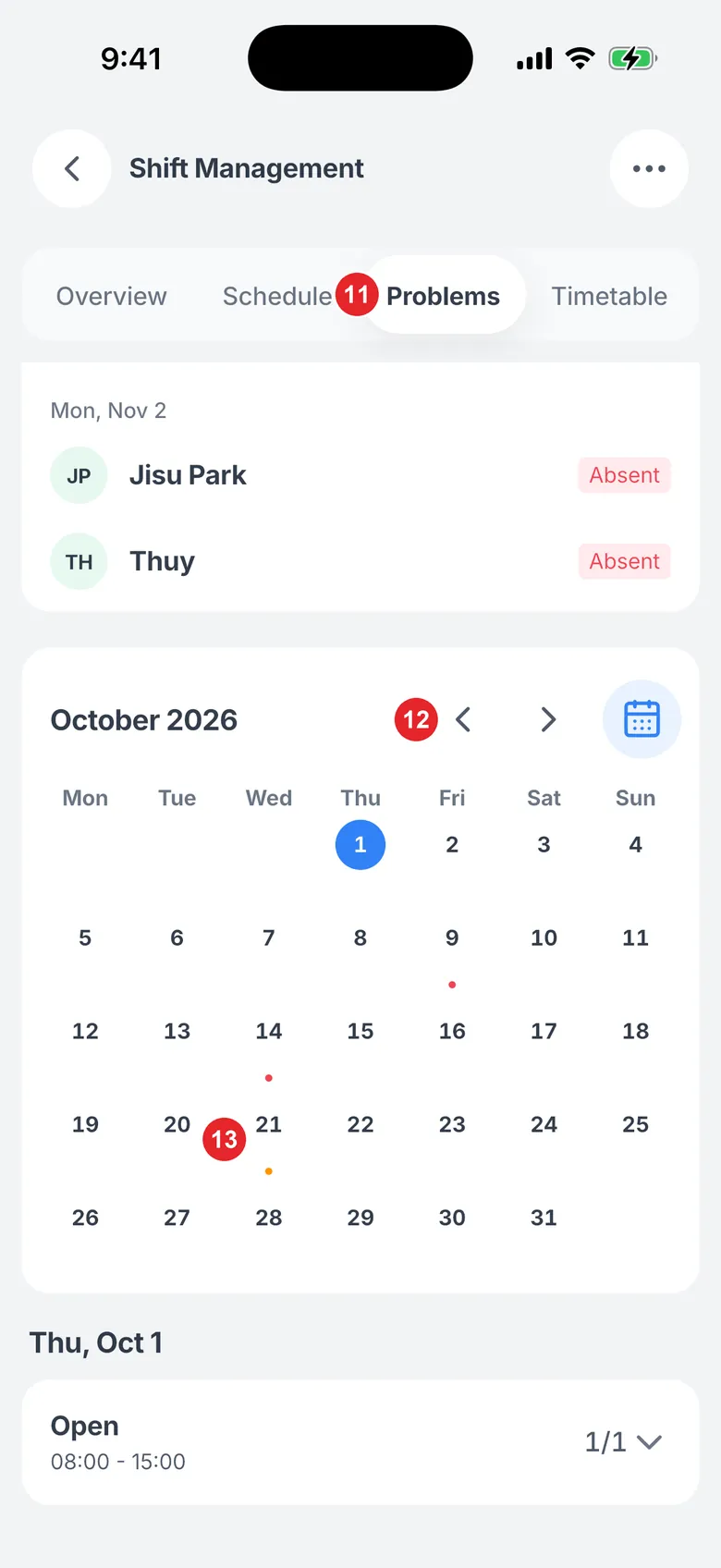
- Open the «Problems» tab.
- Open a whole month with the calendar button on the right, and go to that month with ‹.
- Tap that date.
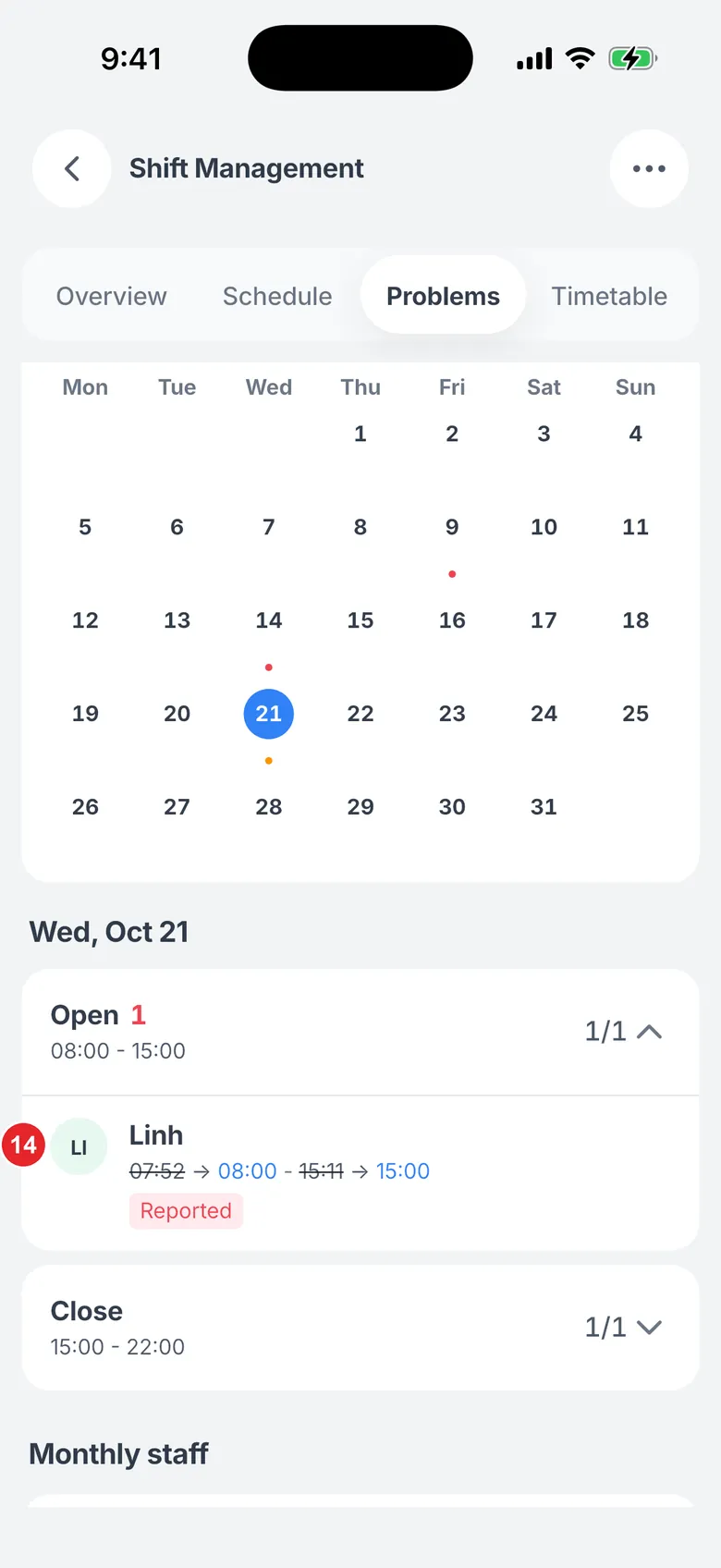
- Scroll down, open the shift with a problem and tap the staff member marked «Reported».
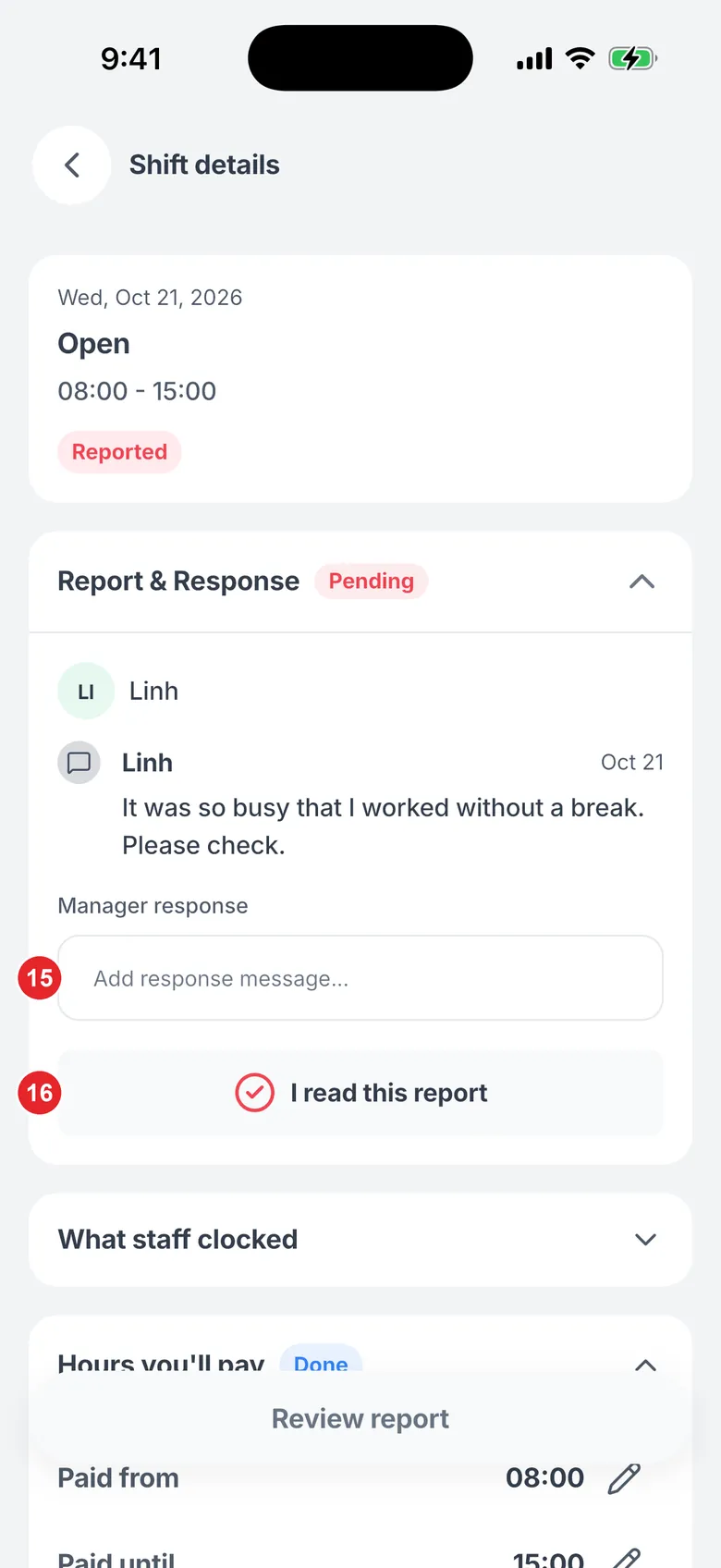
- Read the staff member's report and, if needed, write a reply in «Add response message...».
- Tap «I read this report».
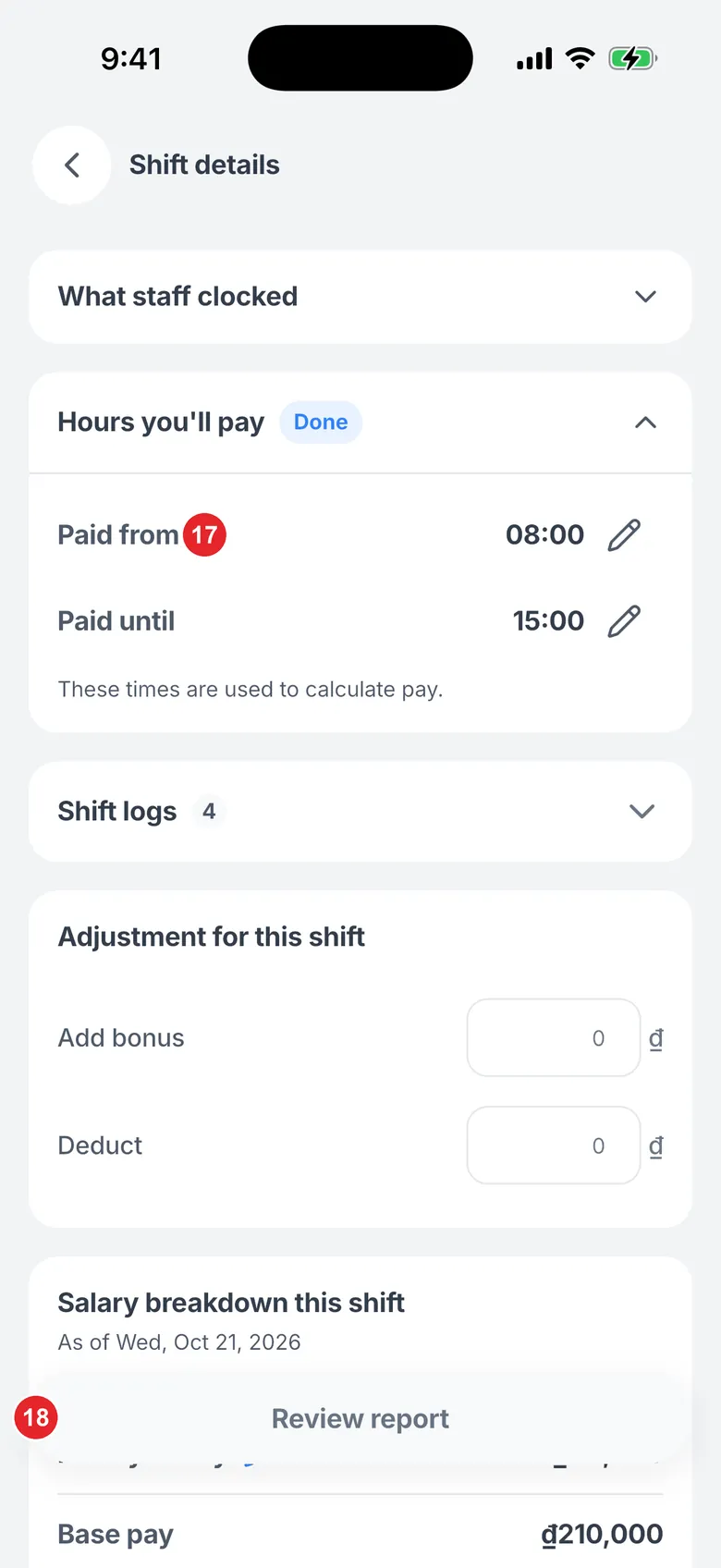
- If the hours to pay are different, fix them by tapping the pencil on the «Paid from» · «Paid until» row.
- Tap the button below. Before you tap «I read this report», it looks faded as «Review report»; after, it changes to «Complete report». If you also fixed the times, it shows «Save & confirm shift».
Why it works this way
The staff member writes the reason with «Report Issue» in that shift. It is finished only when the manager reads the report and sets the hours to pay.
Remember
- Right now the website shows «Pay» even for staff who only have a report left. Sort out reports in the «Problems» tab before you pay.
- The reply is sent to the staff member when the last button is pressed: «Save & confirm shift» on the website, «Complete report» in the app.