
Show contents
Staff & shifts › Hourly staff
Approve shift requests
- Who
- Staff → Manager
- When
- Every week
- Where
- App · Web
What you get
- Staff request the shifts they want in the app, and the manager just checks them and taps «Approve».
- Approve a whole week's requests at once: «AI auto-assign» in the app, «Auto Approve» on the website.
- Approved shifts show in the staff app's «My Schedule».
What it solves
- If you decide who works when only by talking, the shifts worked and the money owed don't match at month end.
- If someone comes and works on a day that was not agreed, it is unclear whether you must pay them.
Why this way
- Only approved shifts turn into money. Pay is added only to shifts a manager approved.
- What if they come on a day without approval and scan the QR? «No approved shift today.» appears. Clock-ins only go to a shift approved for that day.
- What if I approved by mistake? Cancel the approval, and the shift goes back to being a request. You choose whether it was the staff member's reason or the store's, and that stays on record.
- Do I have to reject requests? There is no reject button. Requests you don't approve stay as requests and don't go into pay.
Staff
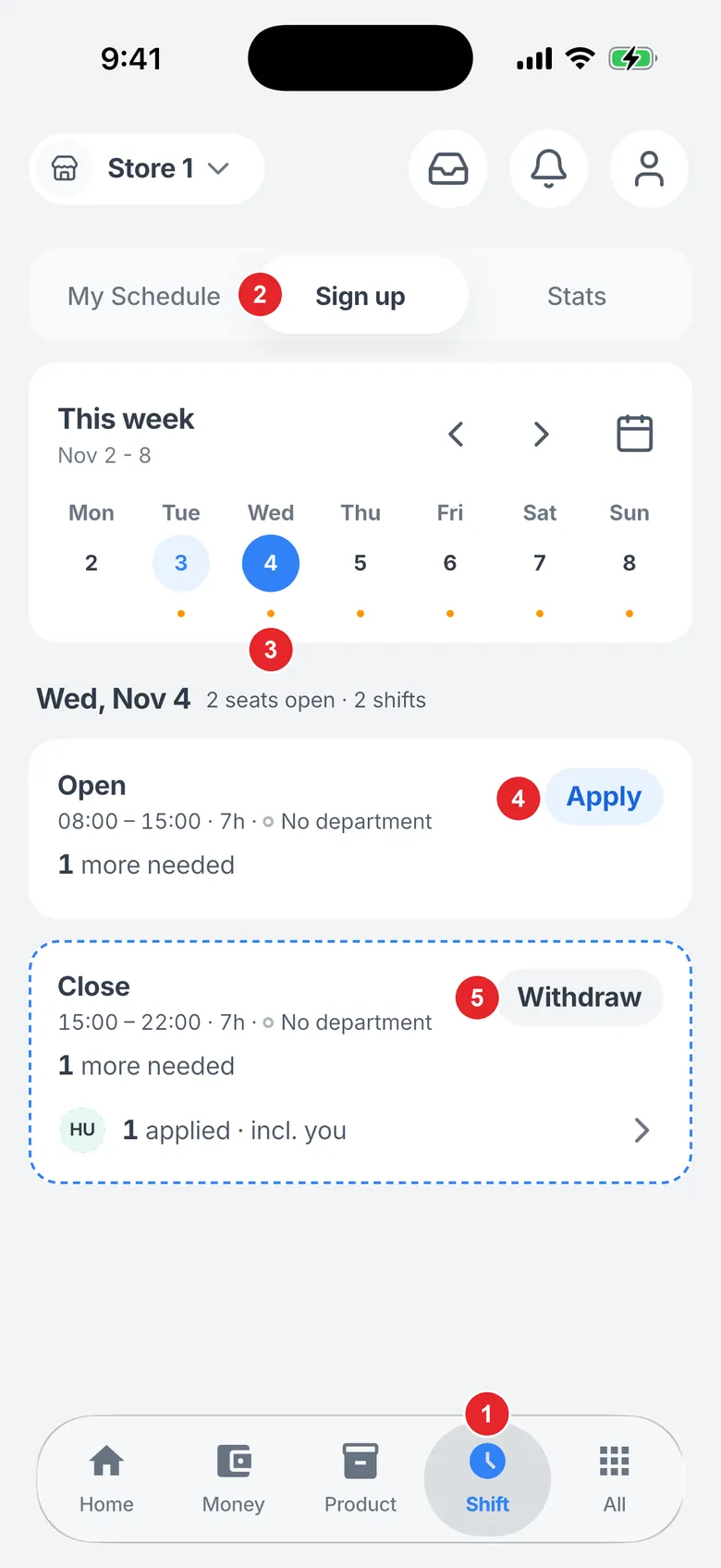
- Tap «Shift» at the bottom of the app.
- Open the «Sign up» tab at the top.
- Tap the date you want to work.
- Tap «Apply» on that shift. It is requested right away, with no confirm window.
- The requested shift turns into a blue dashed box and shows «1 applied · incl. you». If you change your mind, tap «Withdraw». It does not show in «My Schedule» until a manager approves it.
Manager
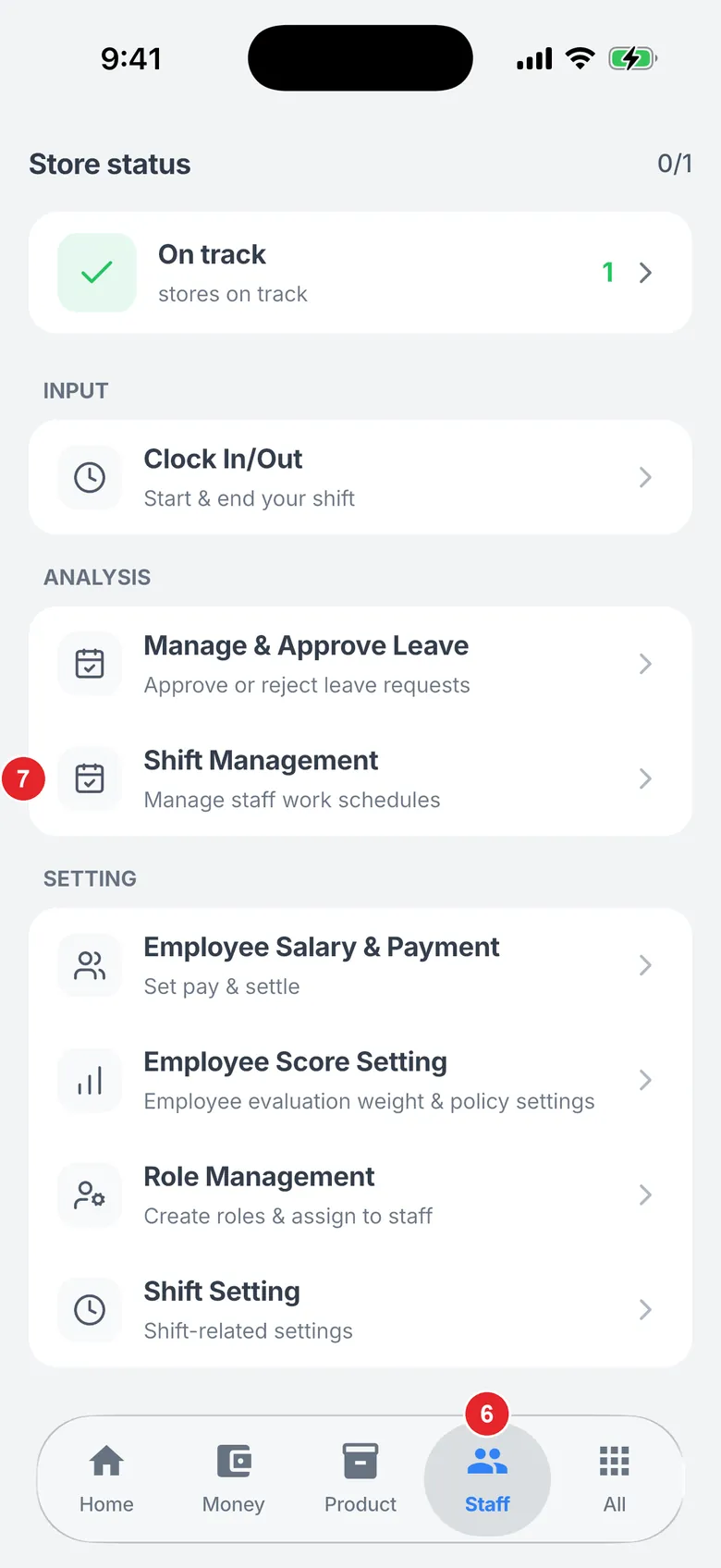
- Tap «Staff» at the bottom of the app.
- Scroll down and tap «Shift Management».
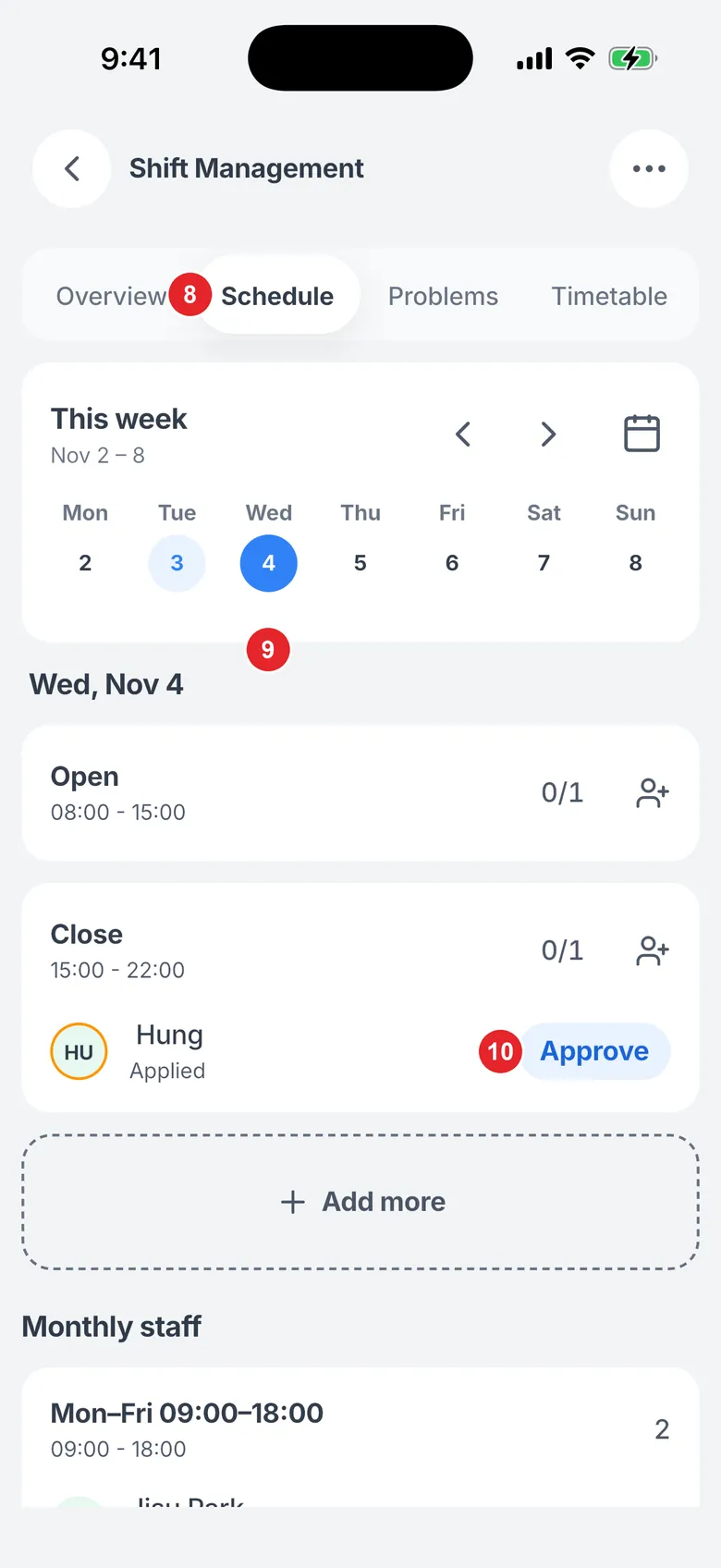
- Open the «Schedule» tab.
- Tap the date. Go to another week with ‹ ›.
- Tap «Approve» next to the staff member with «Applied» under their name. It is approved right away, with no confirm window.
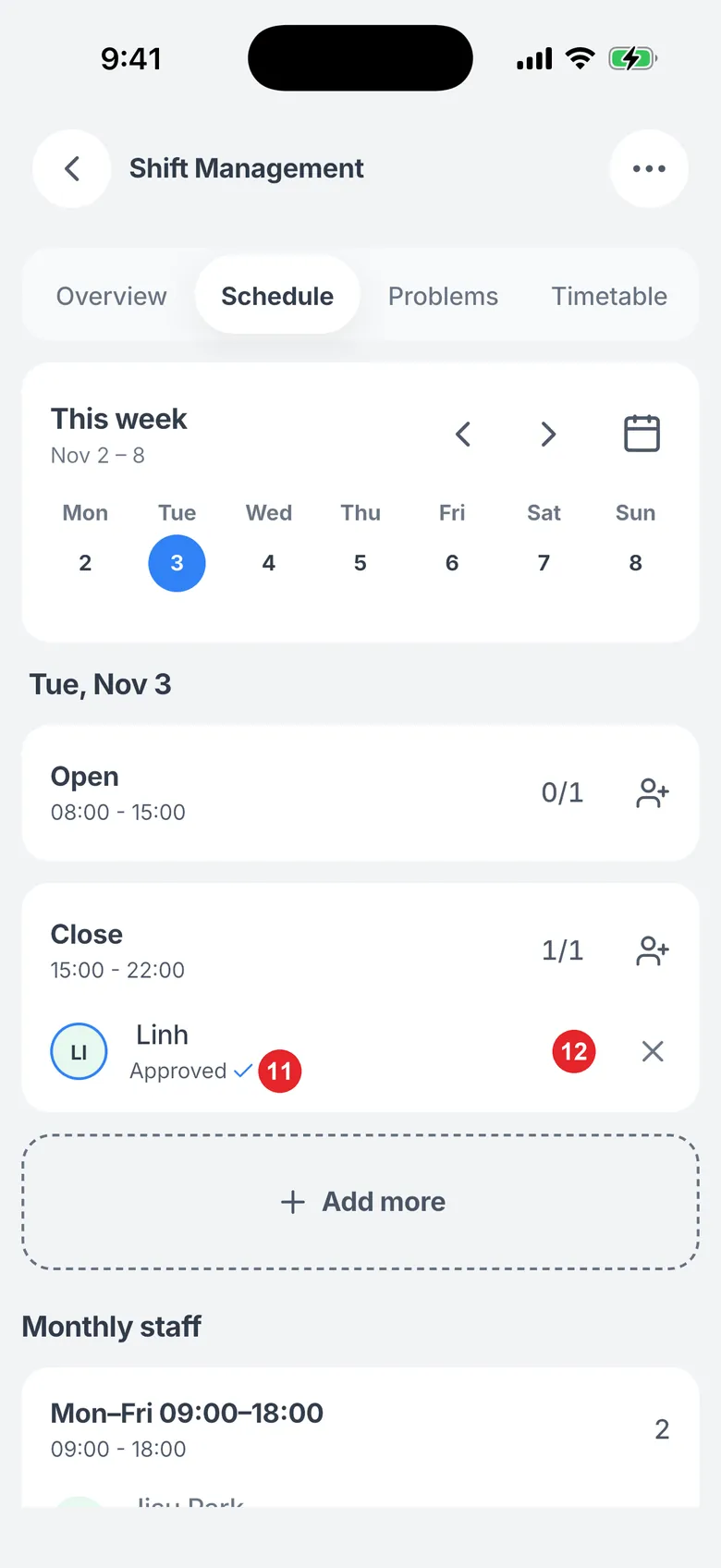
- An approved staff member changes to «Approved» under their name.
- To cancel the approval, tap × on that row.
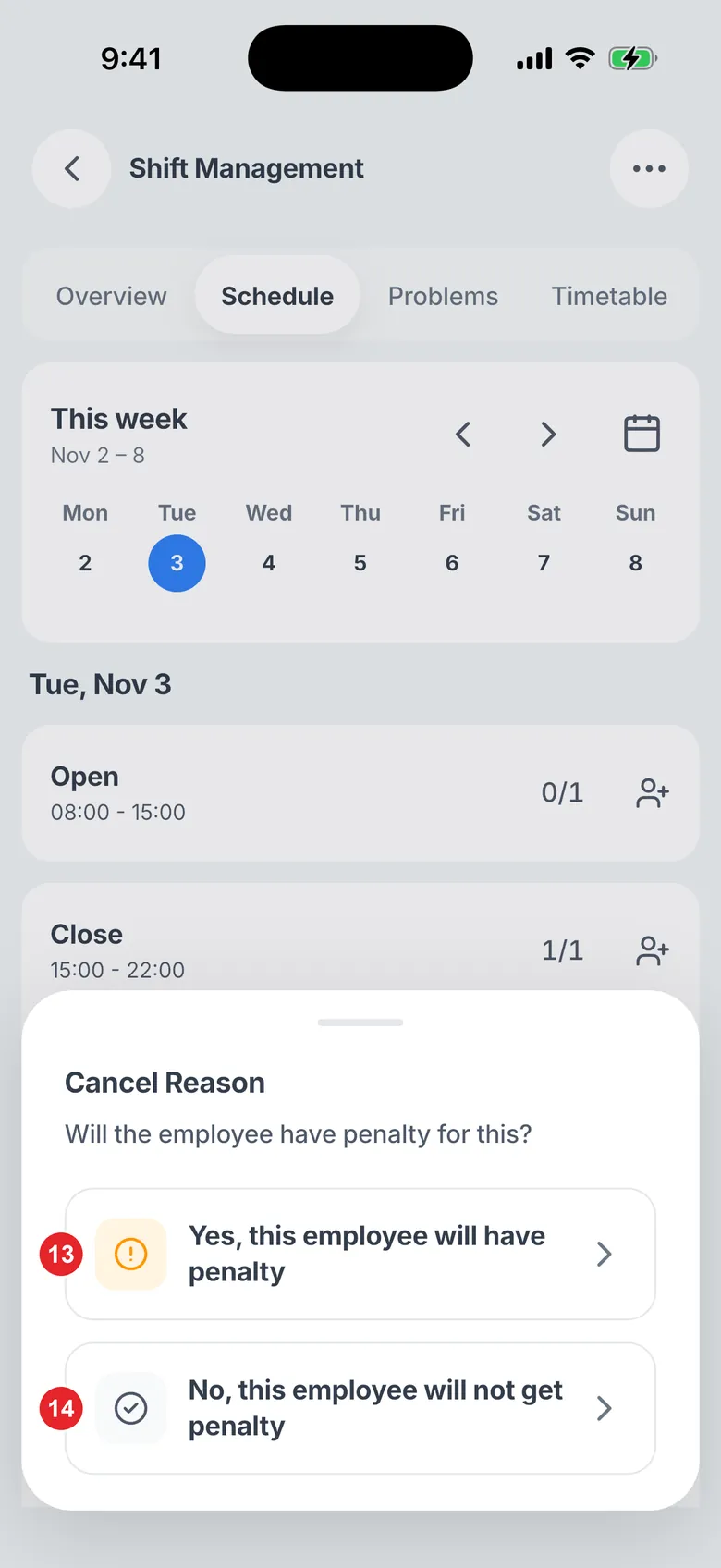
- If they drop out for their own reasons, tap «Yes, this employee will have penalty».
- If you take them off for the store's reasons, tap «No, this employee will not get penalty». The approval is canceled the moment you tap, and the staff member goes back to having only requested the shift.
Approve a whole week at once
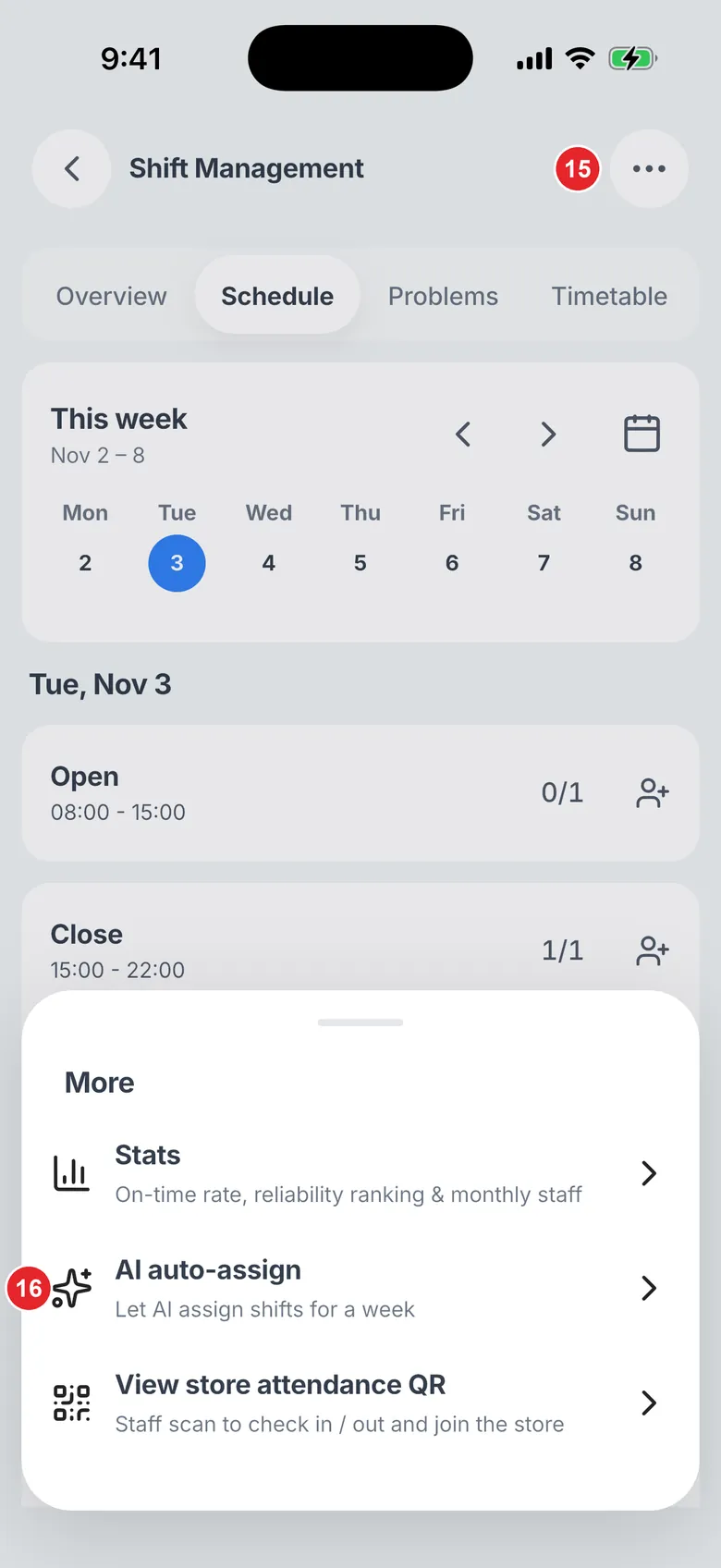
- Tap «⋯» at the top right of «Shift Management».
- Tap «AI auto-assign».
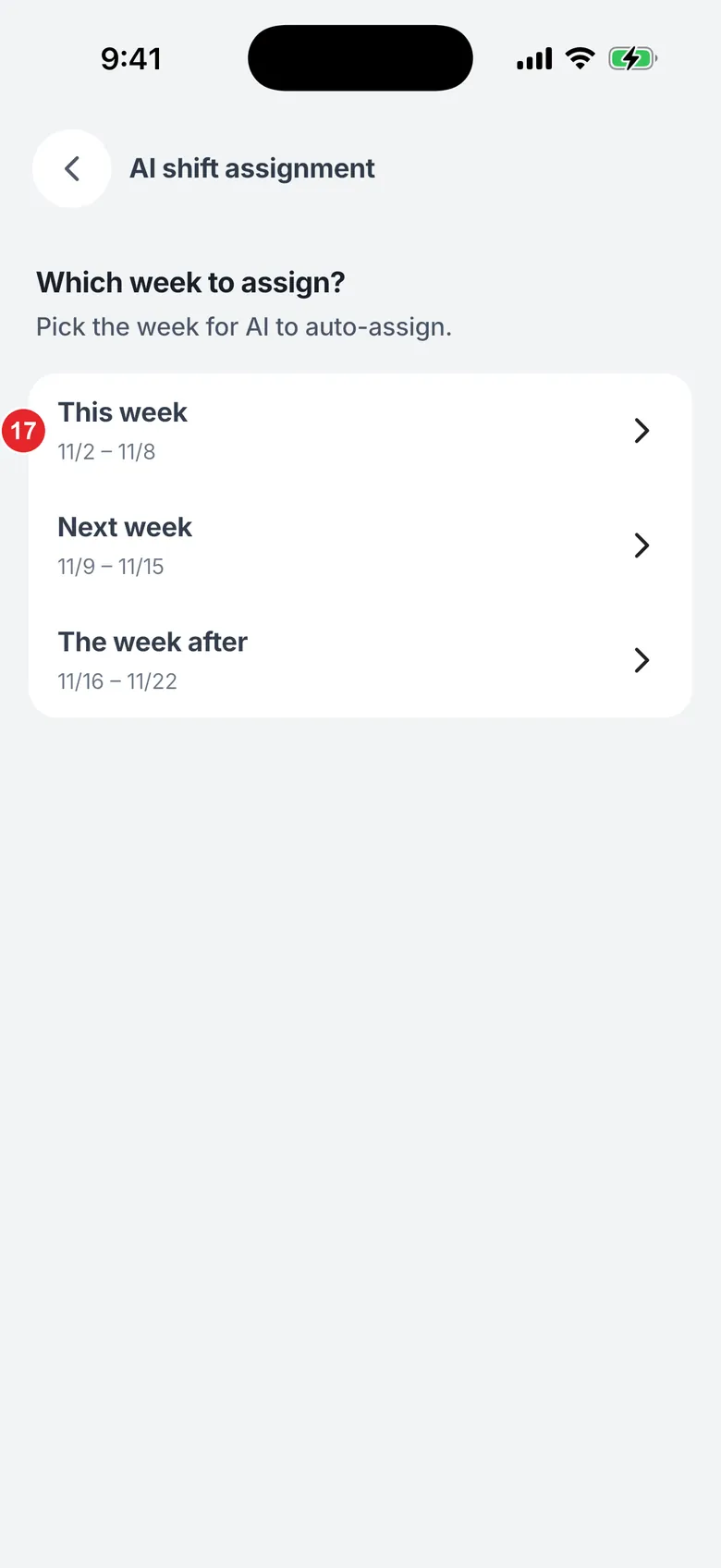
- Choose the week to approve.
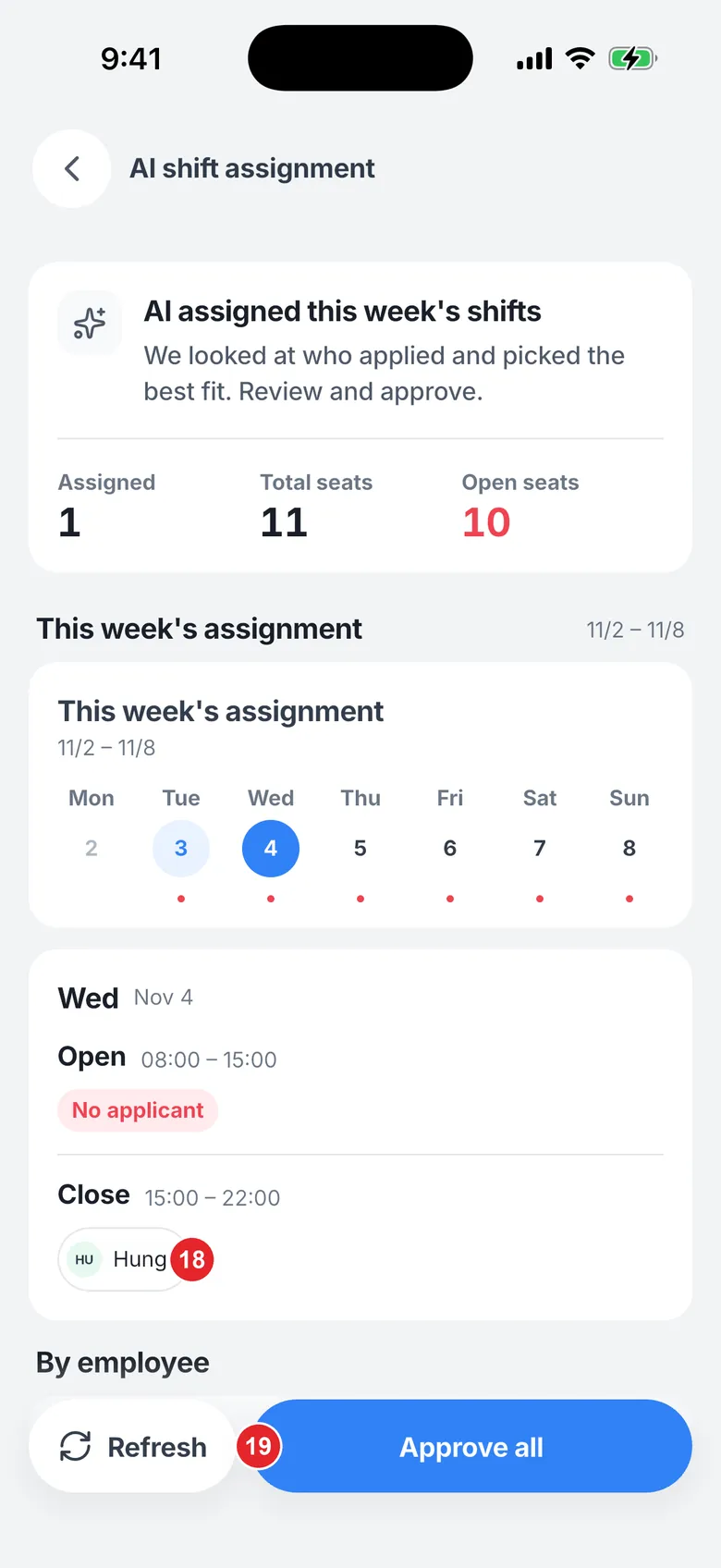
- See who the AI picked for each shift from the staff who requested. A shift nobody requested shows «No applicant».
- Tap «Approve all».
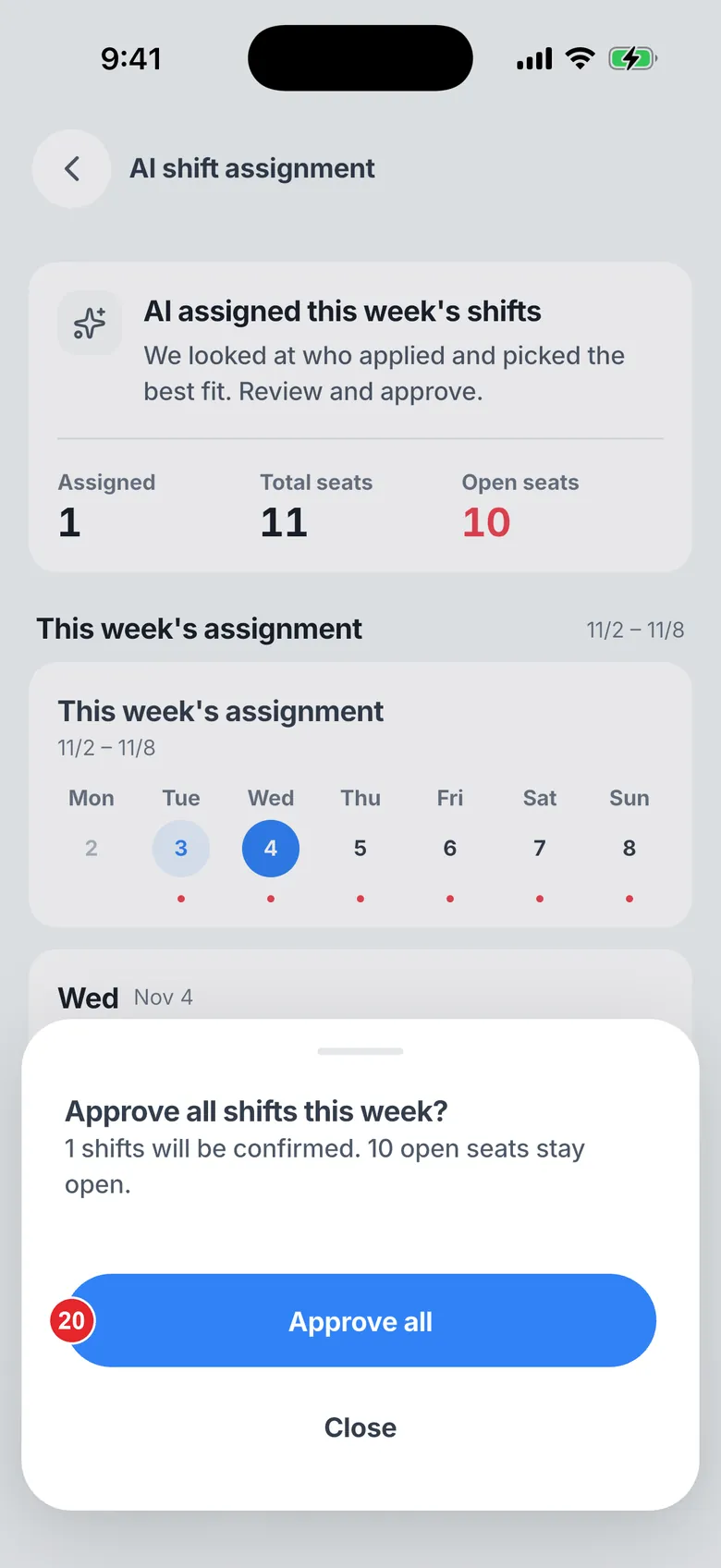
- Check the number of shifts to be confirmed and the open seats left, then tap «Approve all» once more. When it is done, the number of confirmed shifts shows and staff get a notice.
How shifts look
| Staff app | Manager app | Web | |
|---|---|---|---|
| Requested (before approval) | Blue dashed cell in «Sign up» | «Applied» under the name, «Approve» next to it | Dashed cell «Pending approval» |
| Approved | Shows in «My Schedule» | «Approved» under the name | Blue cell |
Remember
- Only approved shifts turn into money. Even if they worked, a shift without approval does not go into their pay.
- An approved shift with no clock-in record stays «Absent». See «A staff member didn't come in».
- There is no button to reject a request, in the app or on the website. Requests you don't approve stay as requests and don't go into pay.
- Canceling an approval turns the shift back into a request. For the staff member's reason, choose «Yes, this employee will have penalty» in the app or «Employee Request» on the website; for the store's reason, choose «No, this employee will not get penalty» in the app or «Manager Decision» on the website.
- To approve a whole week at once, use «AI auto-assign» in the app or «Auto Approve» on the website. If several people request the same shift, only one is picked.
- Monthly staff have no requests or approvals.
If you get stuck
- If «Shift Management» is not in the menu, that person's role has the «Shift Management» permission turned off. See «Create roles and set permissions».